Page 71
Using Timers
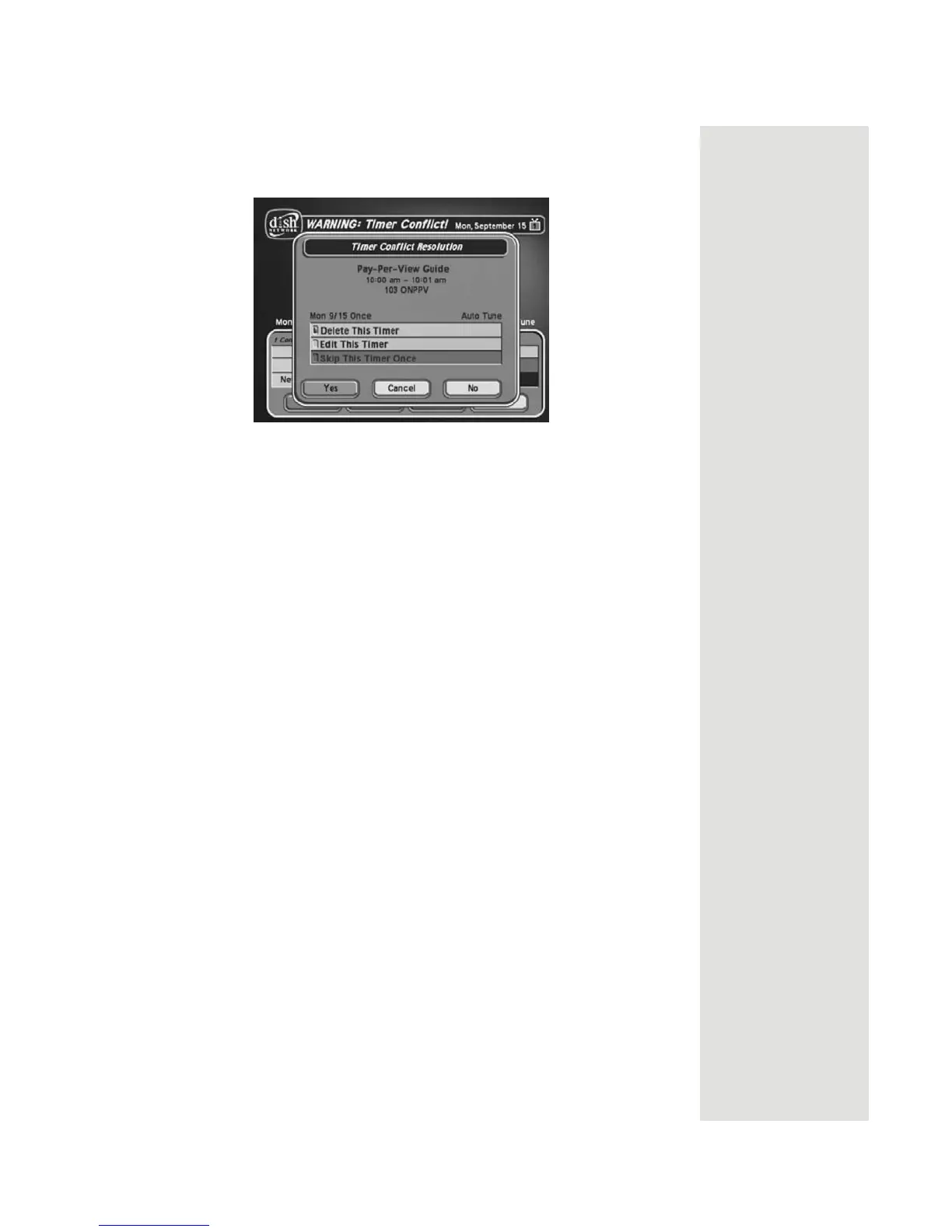
When the Timer Conflict screen displays, resolve the conflict by doing the
following:
1. Select one of the timers. The
Timer Conflict Resolution screen displays.
2. When the Timer Conflict Resolution displays, select one of the following
choices:
• Delete This Timer—Removes the timer completely.
• Skip This Timer Once—Select this option if you are creating a timer
for a special program (
Once) and have a timer set for a program you
watch regularly (
Mon.-Fri, Daily, or Weekly). For example, you want to
set a timer for an awards show (
Once), but it conflicts with the timer for
a news program (
Mon.-Fri, Daily, or Weekly). Select the timer for the
news program and then select
Skip This Timer Once.
3. Select
Yes to close the Timer Conflict Resolution screen.
4. Select
Done.
Maximum Number of Event Timers
You can create a limited number of event timers. If you try to create more, the
receiver displays a menu giving you the option to delete an existing timer. If you
do not delete an existing timer, you will not be able to create any new ones.
Tip: You can edit
and delete timers
from either TV
output.
Reviewing and Editing Event Timers
From any TV in Dual or Single Mode (Shared View enabled): You can review
and edit both automatic and manual event timers. If you need to change an event
timer, you can edit almost any feature of an event timer.
Note: If you edit an automatic timer, it becomes a manual timer. The manual
event timer operates at the times you set, not the actual program times.
1. Press the MENU button.
2. Select the Timers option. The receiver displays the Timers menu.







 To Next Page