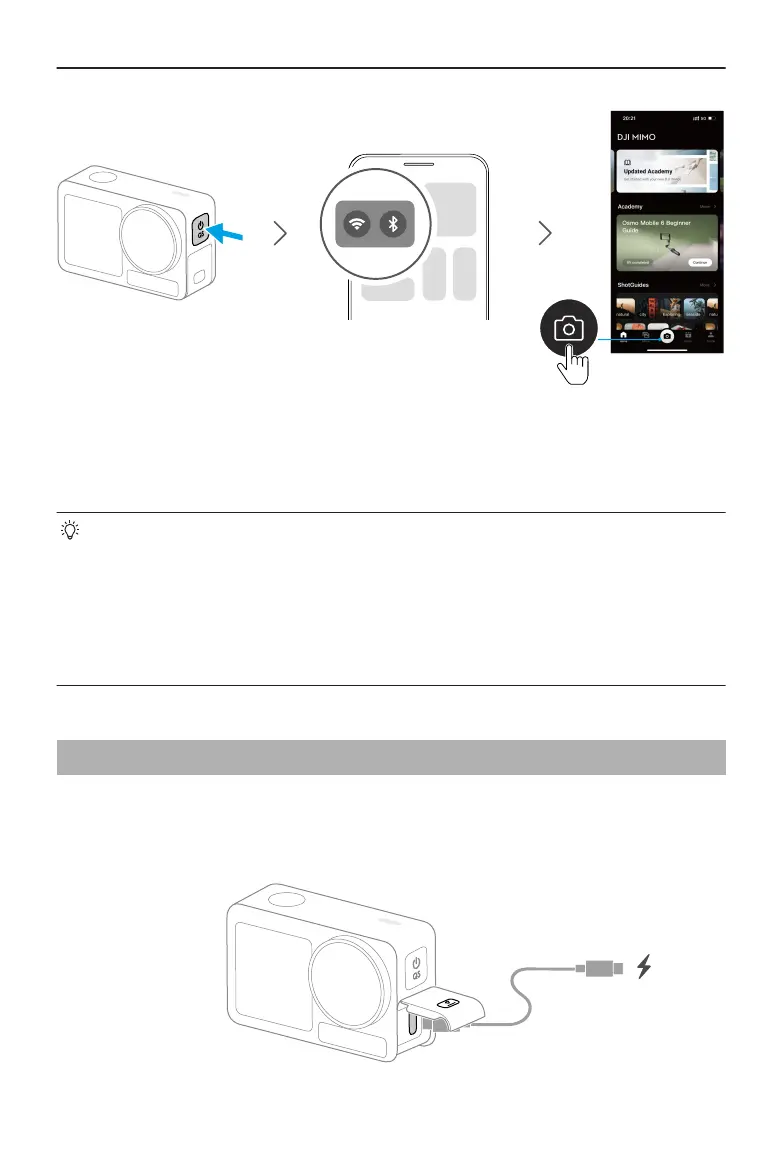
When the camera is used with the DJI Mimo app, you can monitor the current camera
view, set the camera parameters, and control the camera with a mobile device. The DJI
Mimo app enables you to get most out of the camera with a series of functions, such as
transferring, editing, sharing les and livestreaming.
If there is a problem when connecting to DJI Mimo, follow the steps below:
1. Make sure both Wi-Fi and Bluetooth are enabled on the mobile device.
2. Make sure the DJI Mimo app has the latest rmware version.
3. Swipe down from the top of the screen to enter the control menu, select
Wireless Connection > Reset Connection. The camera will reset all connections
and Wi-Fi passwords.
2.5 Charging the Battery
It is recommended to use a USB-C charger that supports Power Delivery or PPS
(Programmable Power Supply). When powered o, the status LEDs blink green while
charging. When the status LEDs turn o, the battery is fully charged.
Osmo Action 5 Pro User Manual
© 2024 DJI All Rights Reserved. 15



 To Next Page