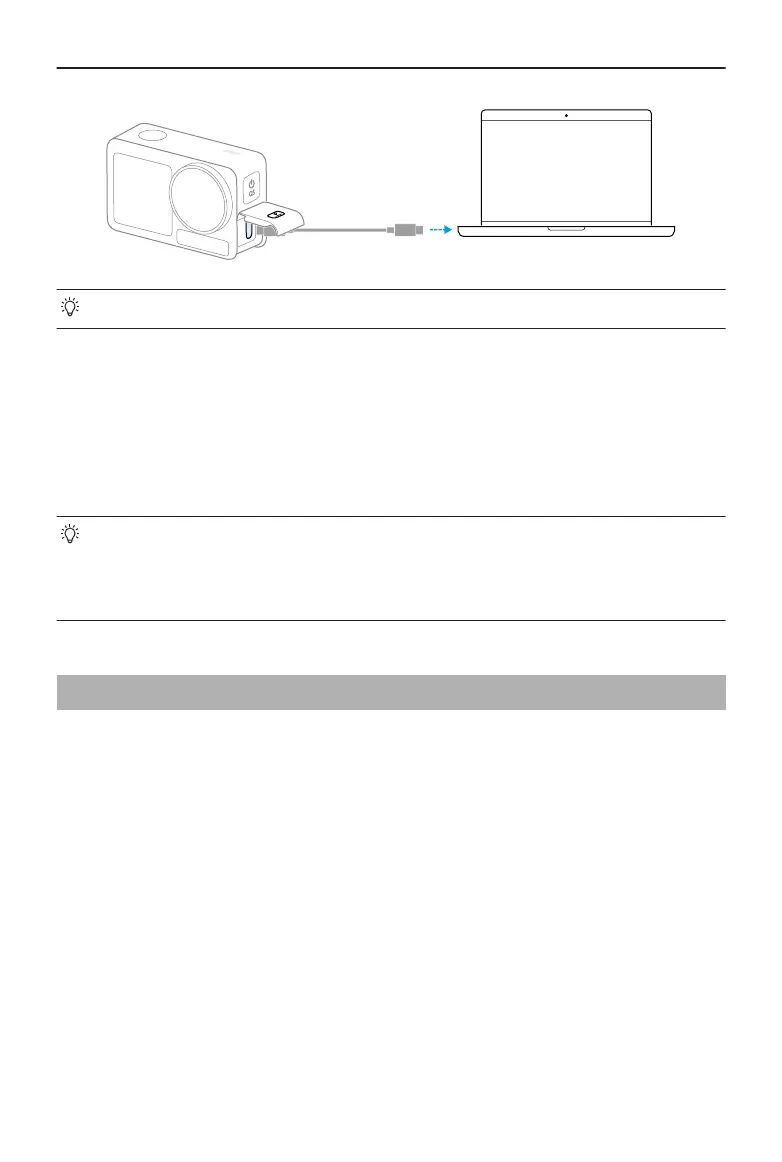
• Reconnect the device to the computer if a le transfer is interrupted.
USB Mode for Transferring Files
For mobile devices that support OTG connection, the les can be transferred from the
camera to the mobile device with USB mode.
Connect the camera to a mobile device with the Type-C to Type-C PD Cable (included).
When connected, view and transfer photos and videos via the device album or le
management.
• If the camera cannot automatically recognize the mobile device in USB mode,
swipe down from the top of the screen and enter the control menu. Tap Settings
> USB Mode, and use the Type-C to Type-C PD cable to connect the camera to
the device.
4.9 Connecting a Microphone
The product supports connecting two DJI wireless microphones simultaneously via
Bluetooth, allowing stable wireless audio recording and remote control of shooting.
Follow the steps below to connect the wireless microphones.
1. Enter the control menu and tap the settings icon. Select Wireless Microphone settings
and the transmitter to be linked, and then the camera is ready to link with a
transmitter.
2. Power on the transmitter and make sure the transmitter is ready to link via Bluetooth.
3. Initiate the transmitter to start searching for nearby Bluetooth devices.
4. When the transmitter is successfully linked with the camera, you can view the
connection status according to the prompt on the screen.
5. Once linked, you can use the transmitter to control the camera to start recording, with
the audio being captured by the transmitter.
Osmo Action 5 Pro User Manual
24 © 2024 DJI All Rights Reserved.



 To Next Page