• To record videos with Gyro data, disable EIS mode and set the camera FOV to
Wide.
4.2 Setting the Image Parameters
In the camera view, tap to adjust the image and audio parameters. Tap PRO to adjust
pro parameters.
Various parameters can be set in dierent shooting modes, such as the following:
• Image Adjustment: Users can adjust the texture and noise reduction based on their
needs for optimal image quality.
• Colors: Normal 8bit, Normal 10bit, HLG 10bit, and D-Log M 10bit are available. HLG
mode records with wide dynamic range and color gamut which can be displayed on
an HLG-compatible TV or monitor. D-Log M is designed for professional color grading
when post-editing. In high-contrast or multi-color scenarios (e.g., garden, eld, etc.), it
can enlarge the dynamic range for more color-grading in post-production.10-bit color
depth enables smoother color transition. With D-Log M selected, users can turn on
Color Recovery to preview of the color eects in the liveview.
• Audio Parameters: Channel, Wind Noise Reduction, and Microphone are available.
When Wind Noise Reduction is enabled, the camera will reduce the wind noise picked
up by the built-in microphone using algorithms. Note that Wind Noise Reduction does
not work when connected to the external microphone.
4.3 Setting the System Functions
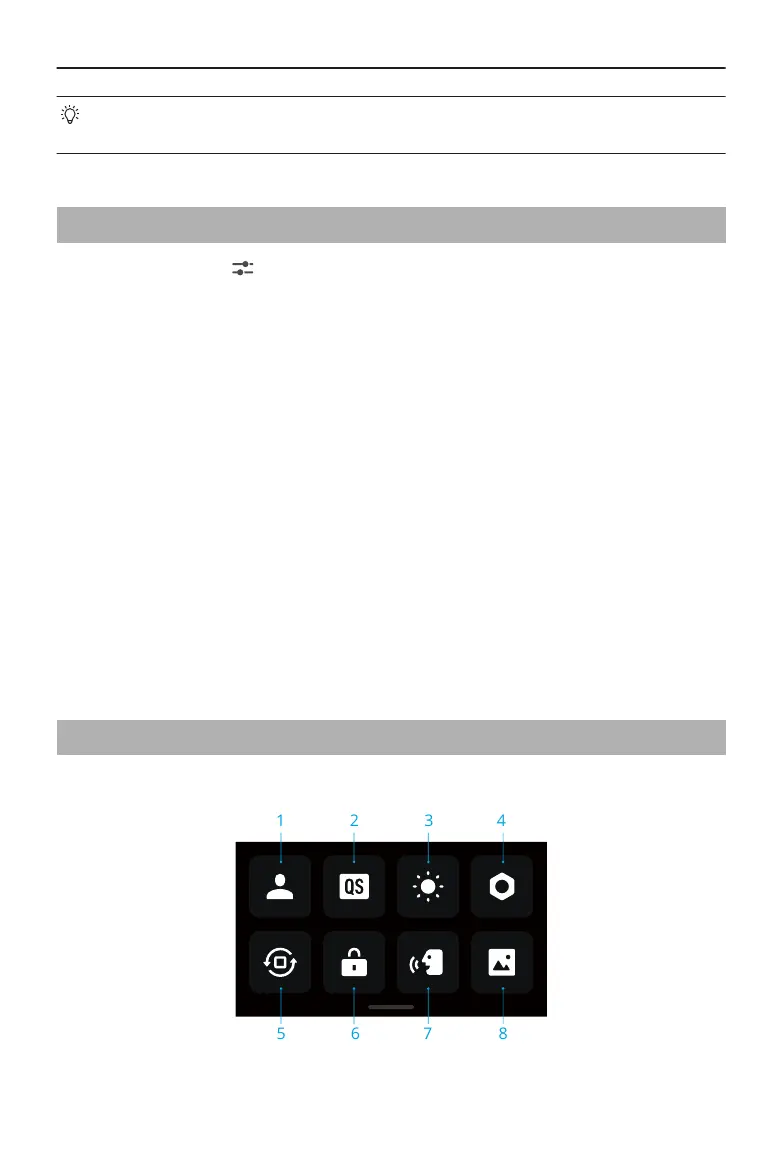
Swipe down from the top of the screen to enter the control menu.
1. Custom Modes
Osmo Action 5 Pro User Manual
© 2024 DJI All Rights Reserved. 21


 To Next Page