LUXEPaINTBaLL.COm
866.573.LUXE(5893)
PaGE 19
4.1 INTrODUCTION TO PrOGrammING
SETTING VaLUES
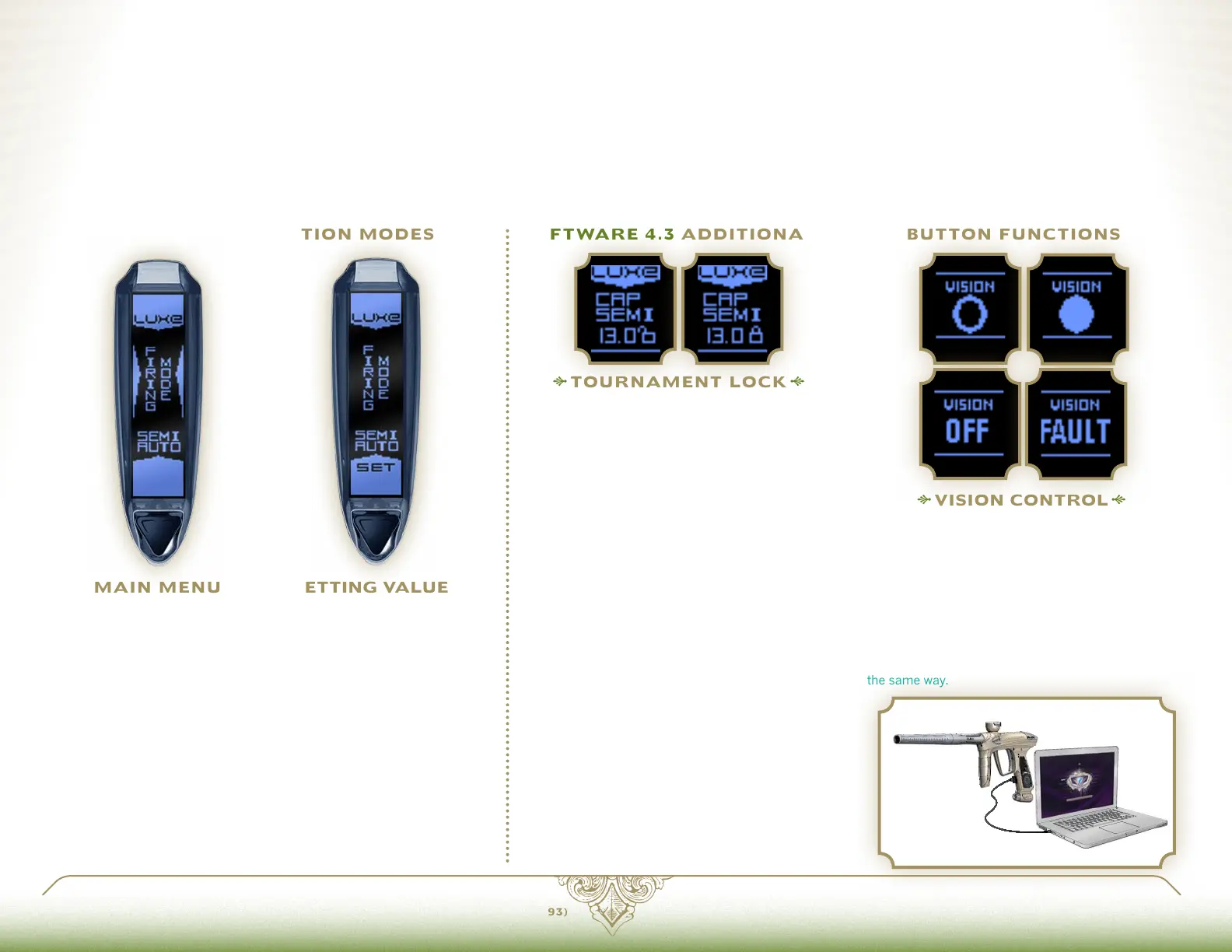
The word "SET" appears on the
bottom tab, and the side tabs
disappear when a menu item is
selected for setting The joystick
controller or trigger may be used
to cycle through the available
values for each setting.
maIN mENU
Within the main menu, you may
choose which setting you want to
check or change. The Main Menu
is indicated by tabs appearing on
the sides and bottom of the OLED
display and the Luxe® verbally
announcing that it is in the main
menu.
VISION CONTrOL
&
BrEECH STaTUS
The Luxe® is equipped with a Vision break-beam
anti-chop system. The status of the Vision system
is indicated in the OLED display. An empty circle
indicates the breech is empty, while a full circle
indicates a ball has been detected. "OFF" indictates
that Vision has been de-activated, and "FAULT"
indicates an error, such as debris blocking the Vision
sensor. Vision may be deactivated by a quick double-
tap of the power button. It may be turned back on
the same way.
TOUrNamENT LOCk
FIELD LEGaL
Paintball tournaments and field operators require that
paintball markers be locked so that their velocity and
firing modes cannot be changed on the field. The lock
status is indicated by a locked or unlocked padlock in
the OLED display. When the Luxe® Tournament Lock
is on, an allen wrench must be used to remove the
marker's rubber grip, providing access to the joystick
to enter the Main Menu and make any adjustments.
When the Luxe is unlocked, turning on the Luxe while
holding the trigger back will enter the Main Menu for
adjustment using the trigger and power button. The
trigger may then be used to lock the marker once
adjustment is complete.
SOFT WarE 4.4 FaCTOrY rESET
PRESSING AND HOLDING THE TRIGGER FOR approximately
5 seconds while in programming mode will result in the Luxe®
resetting all menu items to their factory default values. Factory
Reset is confirmed by 3 chirps from the speaker.
SOFTWarE 4.2 NaVIGaTION mODES SOFT WarE 4.3 aDDITIONaL POWEr BUTTON FUNCTIONS
Luxe® programming mode is entered by moving the joystick in any direction, or if the Luxe® is unlocked, by turning it on while holding back the trigger. This will
place the marker in its main menu, which is indicated by voice feedback and tabs which appear at the bottom and sides of the OLED display. Push the joystick in the
directions of its arrows, or pull the trigger to scroll through the available settings, each of which is identified by a verbal response and the OLED display. To make a
change, find the desired setting and move the controller to its + or – position, or tap the power button. The Luxe® will display the currently selected value for that
sub-menu on its OLED display with "SET" appearing on the bottom tab. Additionally it will speak the current value. Changes may be made to the setting by using the
+ or – directions on the joystick to increase or decrease the setting or pulling the trigger to cycle through the available values. Once a new setting has been chosen
(changed dwell setting, new firing mode, etc.) scrolling with the arrows or tapping the power button will return to the main menu, allowing other settings to be checked
or changed. Press the power button for approximately 2 seconds to turn off the Luxe® and exit programming mode. When programming is complete, re-secure the
grip. When the Luxe® tournament lock is engaged, programming mode may only be activated by moving the joystick, which is not accessible without tools. The Luxe®
can be locked into any tournament or field legal mode required.
SOFT WarE 4.5 USB INTErFaCE
INCLUDED WITH YOUR LUXE® is a USB/SATA cable,
which can be used to read or adjust the marker's
settings and re-flash the circuit board with firmware
updates, alternate language OLED firmware or alternate
voice sets. Download the latest version of the Luxe® USB
Interface software, instructions, voice files and firmware
at LuxePaintball.com.
WARNING: Do not use the USB/SATA cable with pre-2.0
Luxe® circuit boards as damage may result. Only install
Luxe® OLED firmware.


 To Next Page