DualCom Programming and Installation Guide Digital Monitoring Products
15
Letters and Special Characters
Use the number pad directions below to enter letters and special characters on a number pad or use the standard
keyboard directions to enter letters and special characters on a standard keyboard.
Number Pad
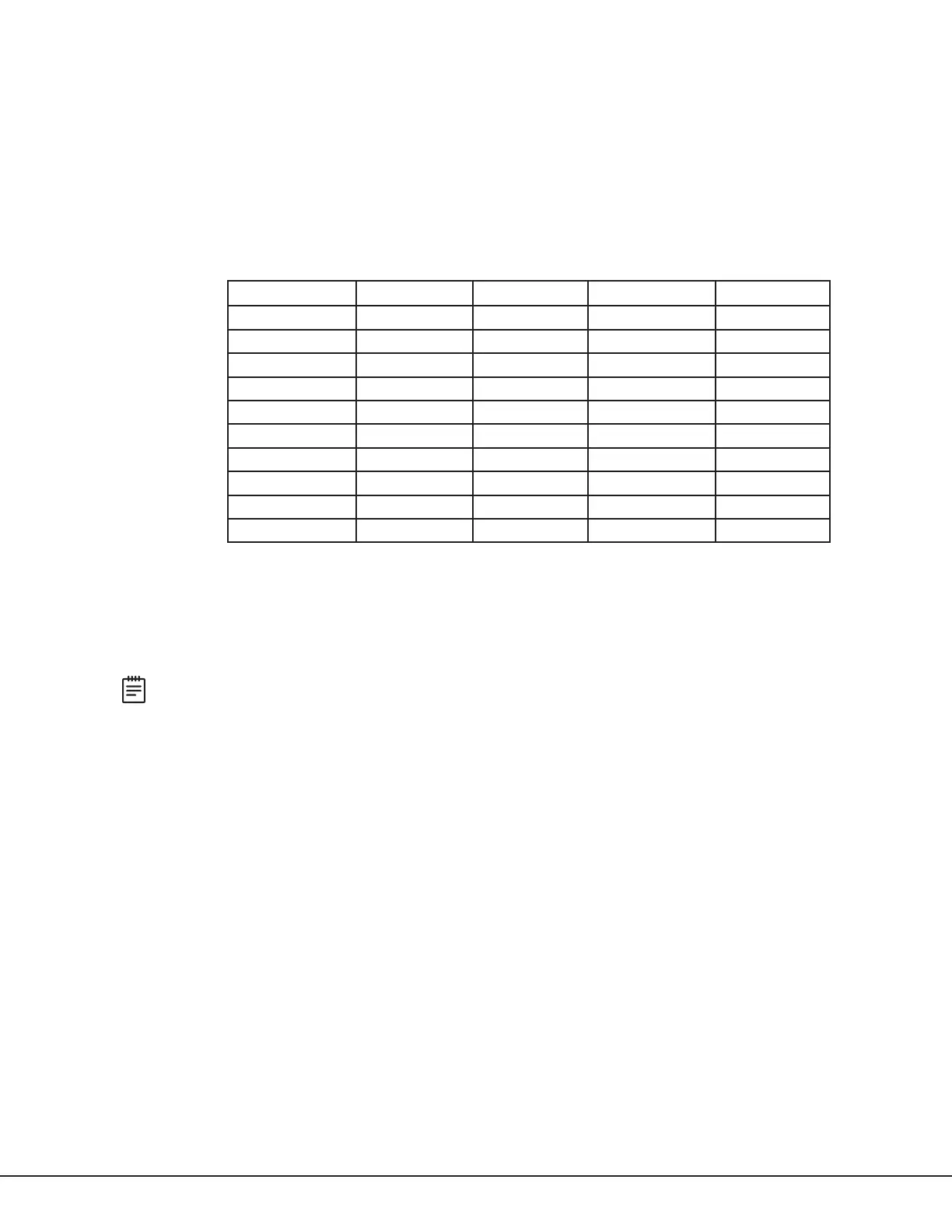
1. Choose a character from Table5.
2. Identify the number the character correlates with and press that number on the number pad.
3. Identify the select area for that character and press that select area on the keypad. To access the lowercase
letter, press that select area again.
4. When the desired character displays on the keypad, return to step1 to enter another character or press CMD if
finished.
Number Select Key 1 Select Key 2 Select Key 3 Select Key 4
1 A B C (
2 D E F )
3 G H I !
4 J K L ?
5 M N O /
6 P Q R &
7 S T U @
8 V W X ,
9 Y Z space _
0 ‑ . * #
Standard Keyboard
• Press ABC to access uppercase letters.
• Press abc to access lowercase letters.
• Press !@# to access symbols and special characters.
• Press 123 to access the number pad.
Note: Not all keypad prompts accept letters and/or symbols. For example, pressing P on the ENTER CODE
prompt could display a 6 on the keypad.
Current Programming
Each programming option that displays shows the information already programmed in the communicator memory. To
change the already programmed information, simply replace the information. To change a programming option that
requires a YES or NO response, press the select area for the desired response.
Table 5: Entering Letters and Special Characters in the Number Pad



 To Next Page