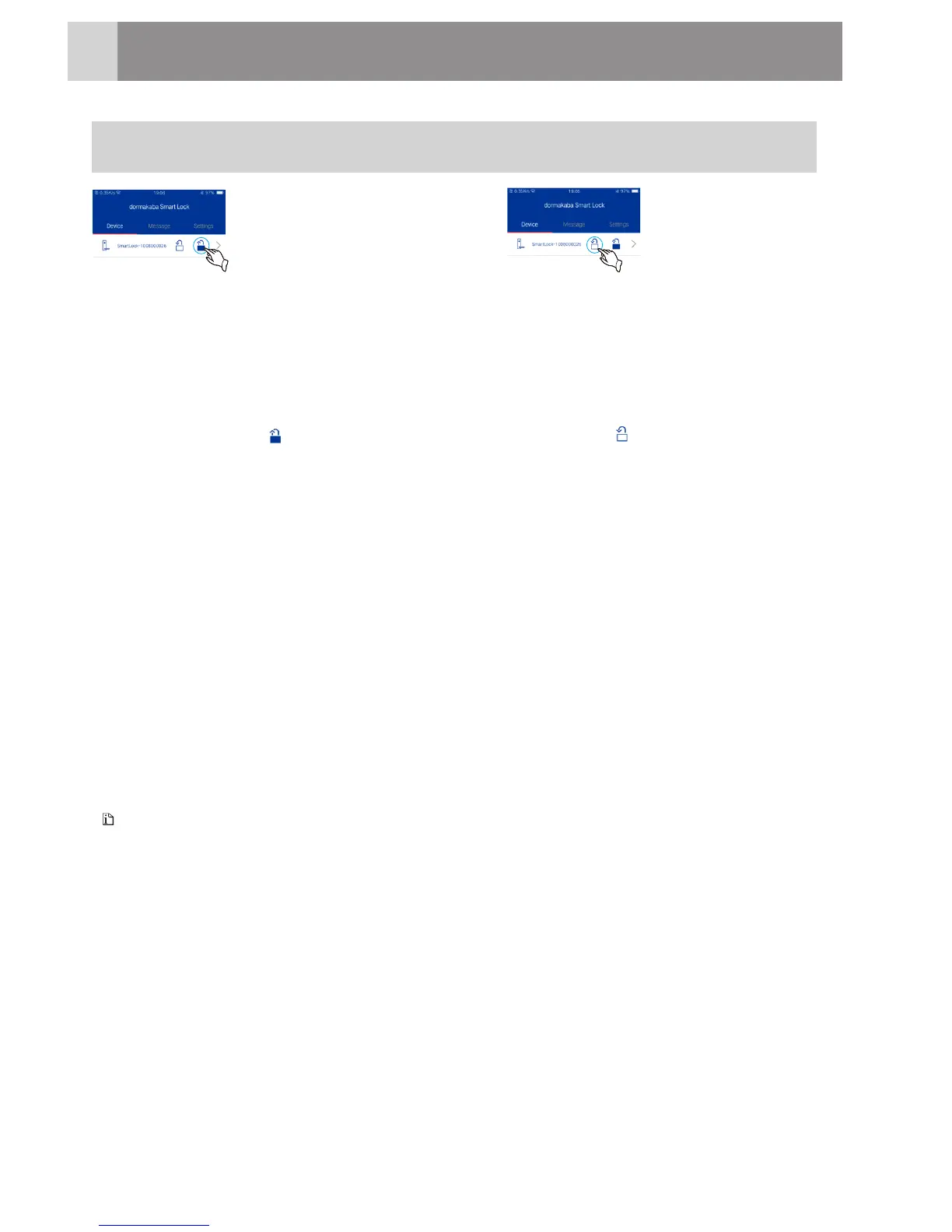
Locking: enter management
Interface, and click
the lockingicon"".The smart
lock is successfully locked.
Refresh device information:
Enter device management interface and press one binding device until a selection
menu pops up. Click “Refresh Device Information” to synchronize the data in APP
and smart lock system.
1
HowtoUse
Device Management
Unlocking: enter management
Interface and click
the locking icon " " . The
smart lock is unlocked.
Unbind the device:
Enter device management interface and press one binding device until a
selection menu pops up. Click “Unbind the Device” and then click“OK” to
delete the device from the APP device list.
Shake to Unlock:
Enter “Device Information” and shake your mobile to unlock.
To realize unlocking by shaking the mobile phone, the distance between the mobile
phone and the lock shall be within 10 m and they are connected successfully.
Note
17




 To Next Page