Vigor2910 Series User’s Guide
186
3
3
.
.
1
1
5
5
.
.
9
9
P
P
i
i
n
n
g
g
D
D
i
i
a
a
g
g
n
n
o
o
s
s
i
i
s
s
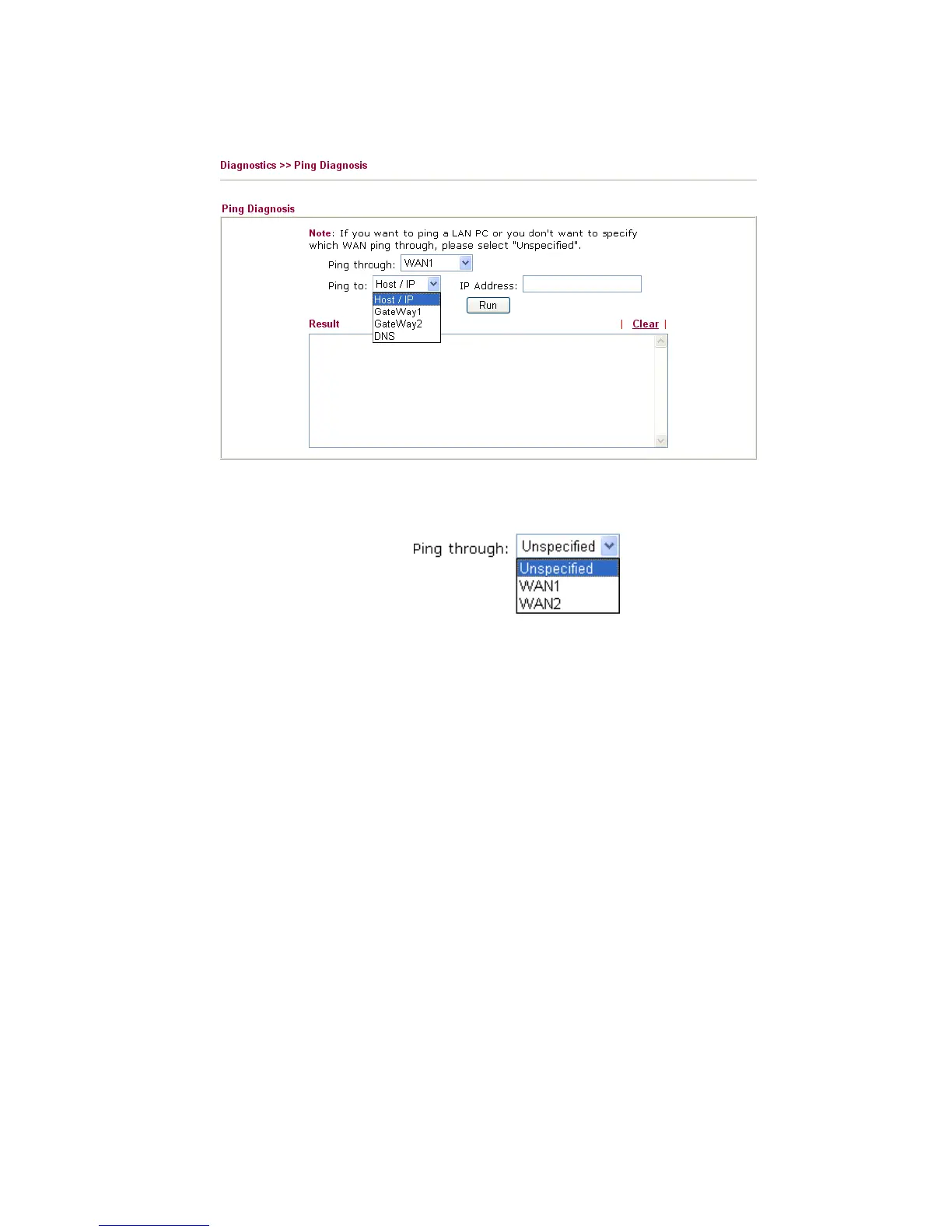
Click Diagnostics and click Ping Diagnosis to pen the web page.
Ping through Use the drop down list to choose the WAN interface that you
want to ping through or choose Unspecified to be determined
by the router automatically.
Ping to Use the drop down list to choose the destination that you
would like to ping.
IP Address Type in the IP address of the Host/IP that you want to ping.
Run Click this button to start the ping work. The result will be
displayed on the screen.
Clear Click this link to remove the result on the window.
3
3
.
.
1
1
5
5
.
.
1
1
0
0
T
T
r
r
a
a
c
c
e
e
R
R
o
o
u
u
t
t
e
e
Click Diagnostics and click Trace Route to open the web page. This page allows you to
trace the routes from router to the host. Simply type the IP address of the host in the box and
click Run. The result of route trace will be shown on the screen.



 To Next Page