Vigor2910 Series User’s Guide
212
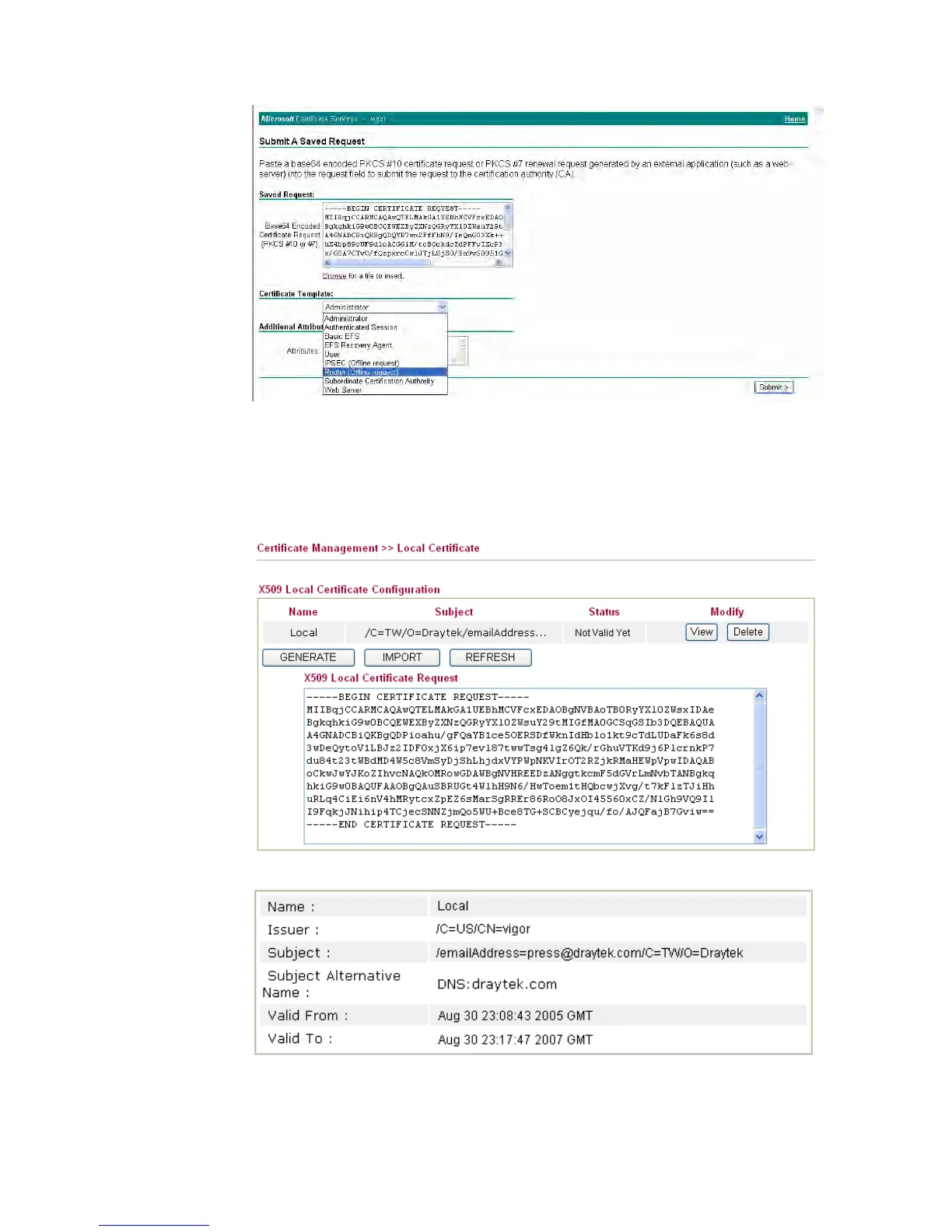
Then you have done the request and the server now issues you a certificate. Select Base
64 encoded certificate and Download CA certificate. Now you should get a certificate
(.cer file) and save it.
5. Back to Vigor router, go to Local Certificate. Click IMPORT button and browse the
file to import the certificate (.cer file) into Vigor router. When finished, click refresh
and you will find the below window showing “------BEGINE CERTIFICATE------.....”
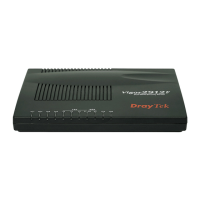
6. You may review the detail information of the certificate by clicking View button.



 To Next Page