Remote Recording is a feature allowing
you to schedule a recording when you’re
away from home.
Once you’ve connected your DStv
Explora to the internet, you need to get
a Connect ID and link it to your DStv
Explora smartcard number.
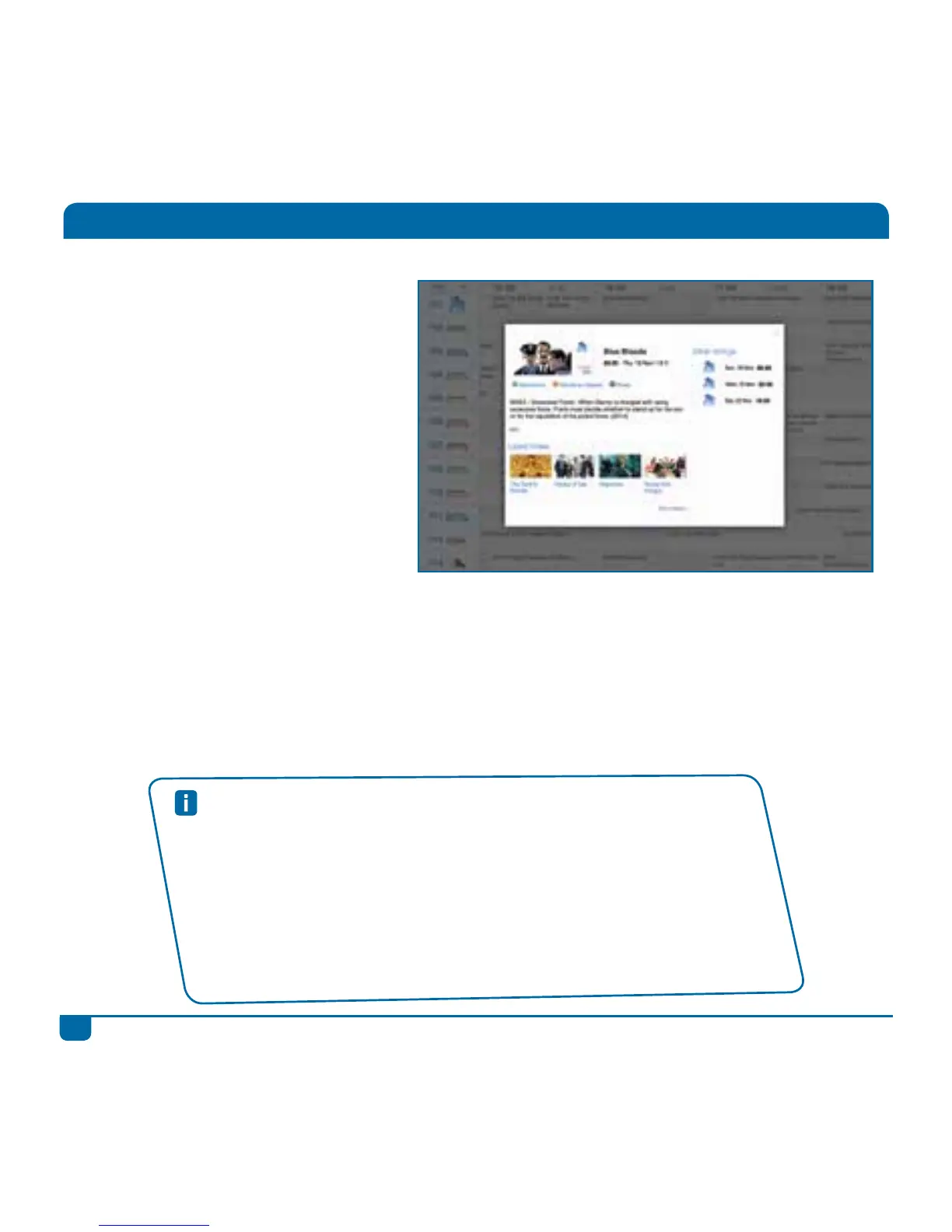
If using your laptop, login in to our TV
Guide, select the programme you want
to record and we’ll do the rest. And if
you’re using a smartphone or tablet,
download our app (DStv Now) and follow the same steps.
All Remote Recordings take priority, so if there are any other scheduled recordings in progress or in
conflict, these will be deleted and rescheduled where possible.
Note : Remote Recordings are only available in selected countries.
Visit dstv.com/GetConnected for more information, including full Terms and Conditions.
Remote Recordings
Quick Tips
We recommend switching on the “Auto Delete” feature on your DStv Explora. This
automatically deletes recordings if space is required for new ones. To switch “Auto
Delete” on :
• Press the blue DStv button
• Go to “Settings”
• Select “User Preferences”
• Select “Recordings”
• Set “Auto Delete” to “On”
• Press BACK to save your setting


 To Next Page