22
Owner's Manual for
DUKE RCO Speed Oven
• “WRITE STATS TO USB” will appear in the
center of the screen
• Press the RIGHT key to write the oven
stats to the USB. This includes all of the
information from the Oven Setup screens,
the Oven Stats screens and the Error Stats
screen.
• Press the LEFT key to exit back to the main
screen.
d. SOFTWARE menu
• From the USB Main Screen, either press
3 or use the UP and DOWN and SELECT
keys to enter the SOFTWARE menu.
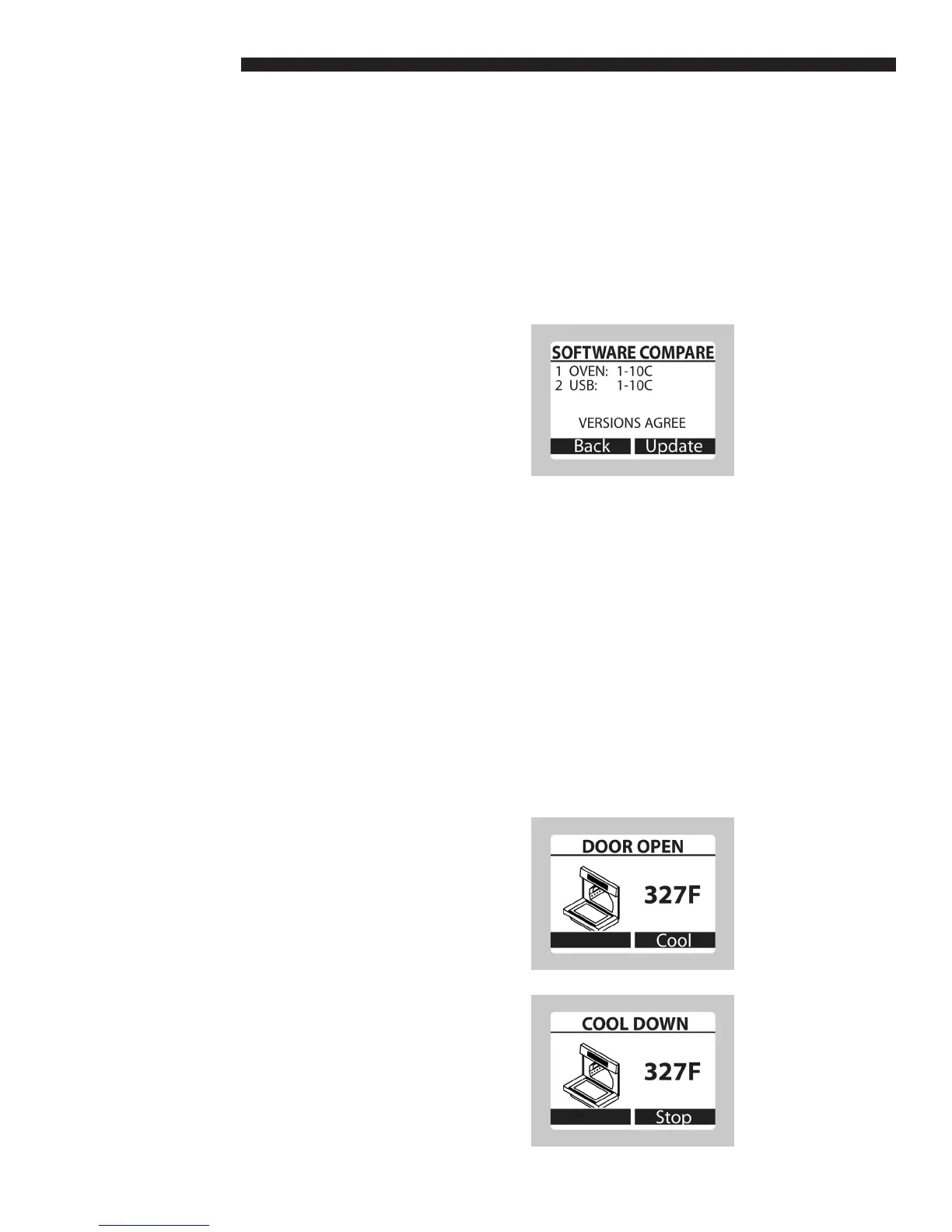
• “1 OVEN:” and “2 USB:” appear on the
screen with the respective software versions
behind them. If there is no le on the
USB, it will be stated at the bottom of the
screen. The software compare function will
automatically indicate whether or not the
oven and USB versions agree.
• Press the LEFT key (Back) to return to the
main USB screen or press the RIGHT key
(Update) to enter the WRITE RECIPES
screen.
• A message appears asking, “Are you sure
you want to update the oven software?”
Press the LEFT key (Back) to exit or the
RIGHT key (Update) to proceed.
• The screen will display “Wait” and it could
take up to 20 seconds to update the
software
• When done, the controller will reboot.
11. COOL DOWN
a. Heated - Door Open
• If the door stays open when the oven is
above 150 °F (65 °C) for 25 seconds with no
activity, an audible alarm will sound.
• Press the RIGHT key (Silence) to silence
the alarm.
b. Cool Down
• Press the RIGHT key (Cool Down) to turn
the fans to high, which will cool down the
oven.
• Press the RIGHT key (Stop Cool Down) to
turn the fans off.
• The cycle is complete once the oven
temperature is below 150 °F (65 °C). The
fans will shut off and the display reverts to
the Standby screen.
• WARNING: Interior oven surfaces may still
be hot.
OPERATING INSTRUCTIONS



 To Next Page