Home
Durabook
Battery Charger
S14I
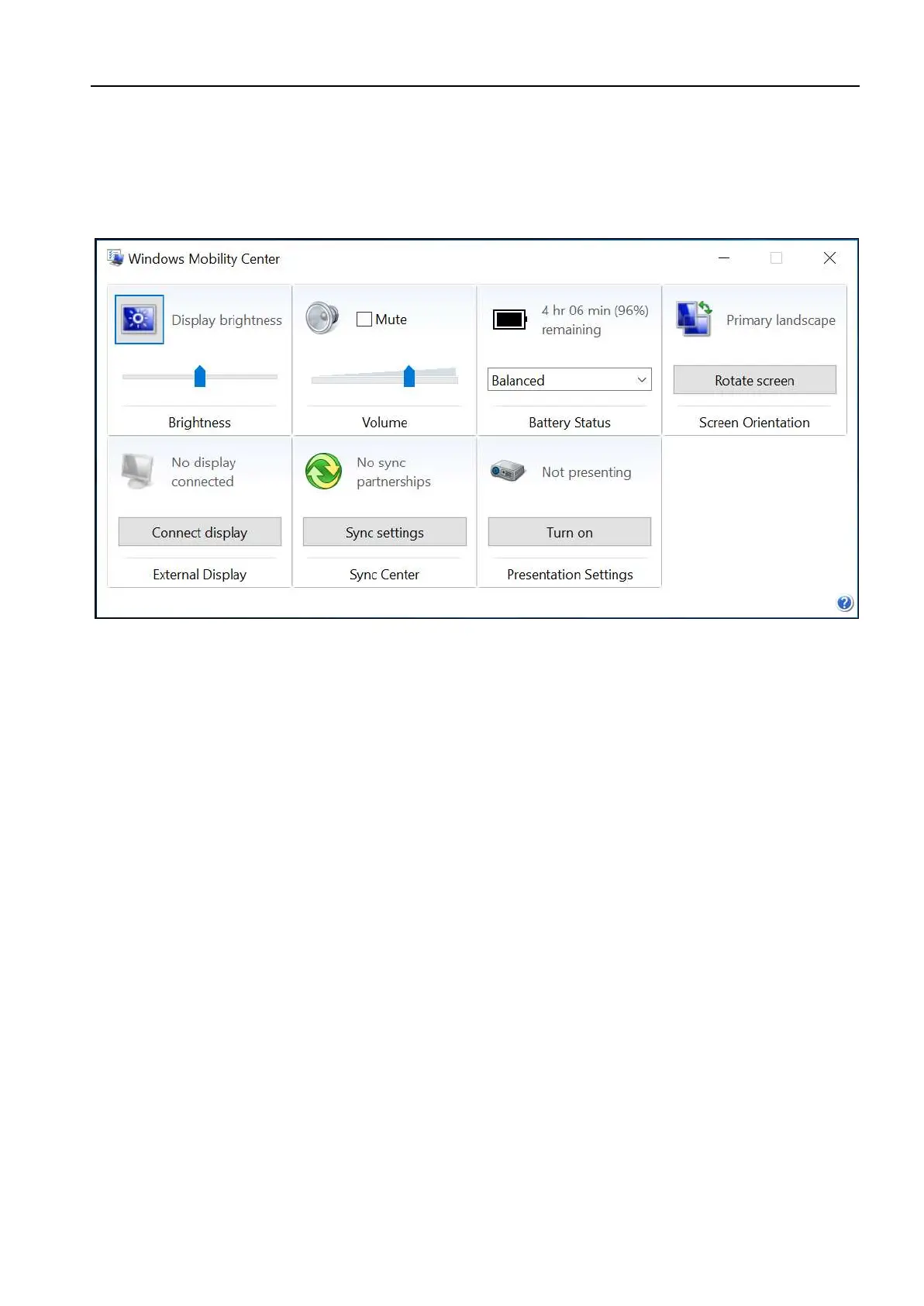
Page 22 (Accessing the Mobility Center)
Durabook S14I - Accessing the Mobility Center
81 pages
Manual
Save Page as PDF
To Next Page
To Next Page
To Previous Page
To Previous Page
Loading...
Operating Your
Notebook
EN
-
22
A
cc
es
si
ng
th
e
Mo
bi
li
t
y C
en
te
r
T
ap
t
h
e
M
ob
il
it
y
C
ent
er
t
ab
to
ad
j
ust
or
co
nf
i
gu
re
t
he
b
ri
ght
ne
ss
,
v
ol
um
e
le
ve
l,
m
ut
e
fu
nc
ti
on
,
ba
tt
ery
s
t
at
us,
sc
re
en
or
ie
nt
a
ti
on
,
ex
te
rn
al
d
isp
l
ay
, s
yn
c,
a
n
d
p
res
en
ta
t
io
n
se
tt
in
gs
.
21
23
Table of Contents
Main Page
Default Chapter
2
Table of Contents
2
Before You Start
5
Package Contents
5
Product Overview
6
Front View
6
Back View
7
Right View
8
Left View
9
Rear View
10
Status Indicators
11
Getting Started
12
Installing the Battery
12
Charging the Battery
13
Charging Time
13
Checking the Battery Level
13
When to Replace the Battery Pack
14
Removing the Battery
14
Connecting the Power
15
Connecting the AC Adapter
15
Using Battery Power
15
Starting Your Notebook
16
Turning on Your Device
16
Turning off Your Device
16
Using the Keyboard
17
Using the Touch Pad
18
Operating Your Notebook
19
Using the Quick Menu
19
Quick Menu Overview
19
Viewing the Version Information
20
Viewing the Battery Charge Cycles
20
Configuring the Programmable Button (P1)
20
Configuring the Programmable Button (P2)
21
Assigning an Application to the P1/P2 Button
21
Accessing the Mobility Center
22
Configuring the Touchscreen Settings
23
Configuring External Antenna Switching Mode
24
Using the Camera
25
Opening Camera App
25
Taking Photos
26
Recording Videos
27
Adjusting Brightness
28
Setting Photo Timer
29
Configuring Camera Settings
29
Viewing Photos/Videos
30
Making Connections
31
Installing the Memory Card
31
Installing the Sim Card
32
Installing the Smart Card
35
Using the Optical Disk Drive
36
Placing a Disc
36
Connecting the Microphone/Headset
37
Connecting Usb Devices
38
Connecting to External Displays
39
Connecting to a Local Area Network (Lan)
40
Replacing the Hard Disk Drive (Hdd)
41
Connecting to Wireless Connections
42
Using the Bios Setup Utility
50
Bios Setup Menu
50
Main Menu
52
Advanced Menu
53
Boot Menu
58
Security Menu
59
Save & Exit Menu
60
Maintaining and Caring for Your Notebook
61
Protecting Your Notebook
61
Storing and Handling Your Notebook
61
Cleaning Your Notebook
63
Traveling with Your Notebook
64
Troubleshooting
65
Preliminary Checklist
65
Solving Common Problems
65
Display Problems
67
Hard Disk Problems
68
Other Problems
72
Appendix
73
Copyright
73
Specifications
73
Regulatory Statement
76
Federal Communications Commission Statement
76
Declaration of Conformity
76
RF Exposure Warning
77
Battery Disposal
77
Warning Explosion Hazard
77
Class 1 Laser Product
78
Safety Instructions
80


 To Next Page