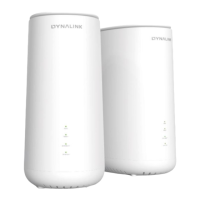
DynalinkXDL-WRX36 | FAQ & Troubleshooting
48
Troubleshooting
(If you are having problems with your router, try the basic section below before looking for further solutions.)
Basic
Troubleshoot the router hardware
Your computer might have lost connectivity to the router due to unplugged cable, wireless interference or system
updates. Make sure your router meets all three conditions below.
1. The power adapter is properly plugged into the power outlet and the router’s power jack connector.
2. If your computer is connected by Ethernet cable, the cable is properly plugged into the router’s LAN port.
Alternatively, if you are using WiFi to connect your computer to the router, the wireless signal is good and the
security password is correct.
3. The LED in the front of the router displays solid blue after the booting process has completed.
Ping the router from your computer
Use the ping command in your computer to verify that the LAN connection to the router is set up properly.
1. Open the command prompt: from Start menu, type “cmd” and press Enter.

 To Next Page
 Loading...