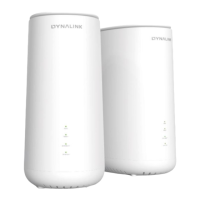
DynalinkXDL-WRX36 | FAQ & Troubleshooting
53
Advanced
I. WebGUI
Cannot access the Web User Interface to configure settings
1. There might be another user currently logged in from another device, or previous user did not log out
successfully. Leave the router WebGUI idle for 5 minutes and the router will automatically log out any user
due to timeout. Then try to access the WebGUI again.
2. There might conflicting proxy settings in your device or computer. Make sure that proxy is disabled. Also,
check if the device/computer IP is being obtained automatically. You will need to check the support for your
device or computer’s operating system e.g. Windows, Mac OS, for detailed instructions how to do this.
3. The LAN IP address might be conflicting with the WAN IP address assigned by your ISP. Unplug the Ethernet
cable from the router’s Internet port to disable temporarily the WAN IP. Try accessing the WebGUI again, if
successful, before reconnecting the Internet port cable, change the LAN IP address of your router.
II. Access to the Internet
Cannot connect to the Internet
Follow below solution to verify the Internet settings and adjust if required to fix the problem.
Log in to the router’s WebGUI. Check if the Internet Status does not display a smiling face in the dashboard
(smiling face indicates Internet is ok).
Click Internet Status > WAN and see if there is not a WAN IP address assigned. If the router has successfully
obtained a WAN IP address, but your device still cannot access to the Internet. Make sure the DNS server

 To Next Page
 Loading...