21
Navigating the On Screen Display (OSD) Menu
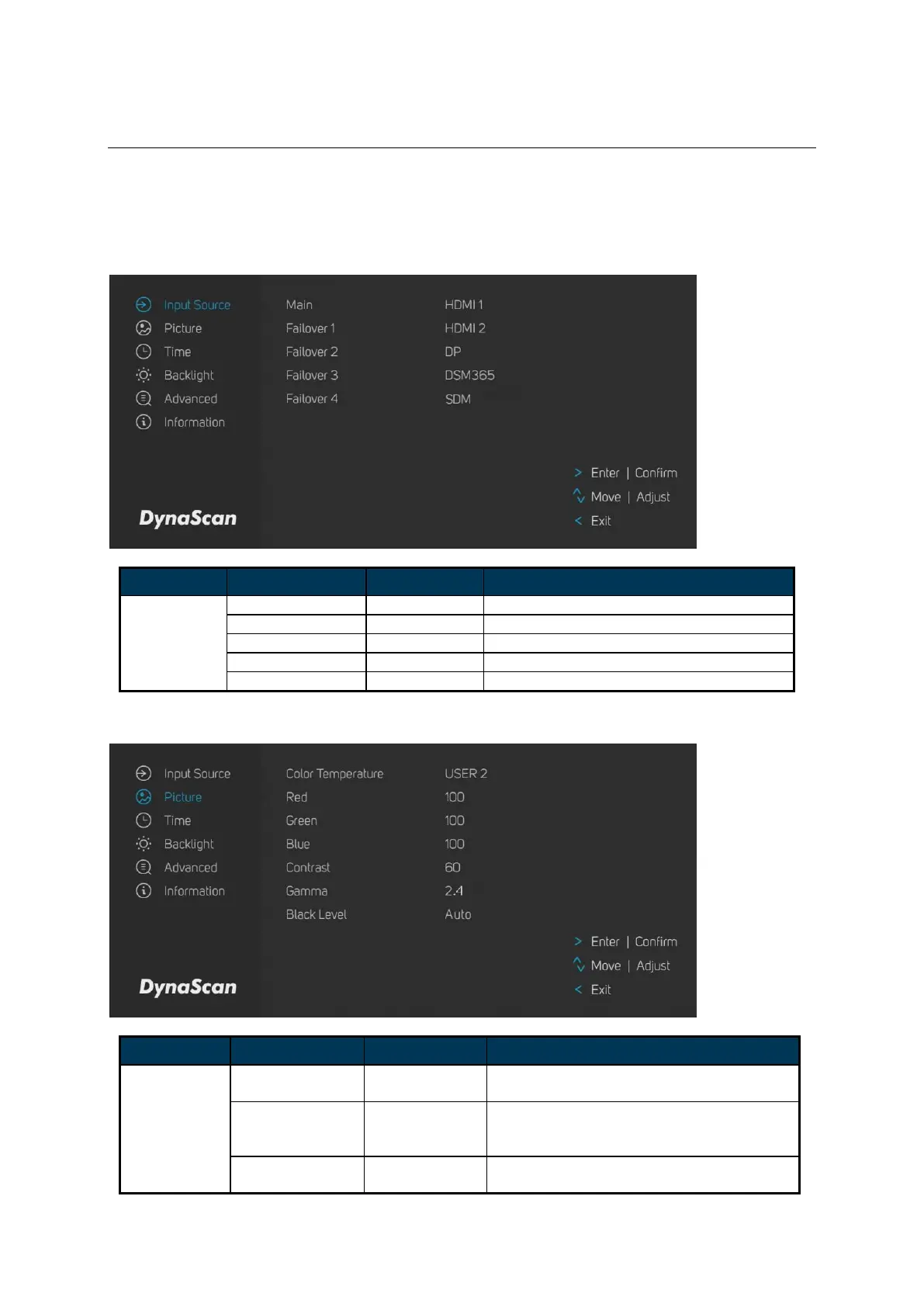
Press the MENU button on the built-in keypad or remote control to show the OSD. Use the
navigation arrows to select and adjust the menu items.
*The change of each setting can only enable when you press “LEFT” (refer to p.15) to back to the last
menu layer.
1. Input Source
Set the Main input to display.
Set the Failover 1 input to display.
Set the Failover 2 input to display.
Set the Failover 3 input to display.
Set the Failover 4 input to display.
Select the color temperature. (User2,
User1, D93, D65 and D55).
Adjust the red light level. Range 0 – 100.
Note: The feature is only supported on
User2 mode.
Adjust the green light level. Range 0 –
100.



 To Next Page