Operation
Switching on
To switch the speakers on from standby mode:
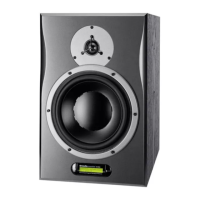
Press on top of one of the speakers (Xeo 10) or point the remote control at a speaker and press .
▪ The speakers will automatically search for an active audio signal. If found, the signal will be output (autoplay function).
▪ If there is no input signal, the speakers will continue scanning the inputs for the next 20 minutes and enter sleep mode.
If there is no input signal, the speakers will go into standby mode after a certain period.
Playback of Connected Sources
▪ Once you have connected your Xeo speaker with a direct input, simply choose your desired source on the remote.
▪ The speakers will automatically detect the signal and start playback. Master and slave speaker will connect wirelessly if
set in the same zone.
▪ If no signal is applied to either input, the speakers will continue scanning the inputs for the next 20 minutes and enter
sleep mode.
Playback of a Bluetooth Device
Once you have paired your device with your Xeo 10/20/30, you can connect by choosing the Xeo 10/20/30 from
your list of Bluetooth devices.
▪ Select Bluetooth on the remote control and press play on your Bluetooth device.
Disconnect
The O button has three functions:
▪ Standby Mode: Press the button to switch o speakers (Standby Mode).
▪ Night Mode: Press and hold the button for 5 to 9 seconds to enable/disable Night Mode. The LEDs will turn o, and they
will only turn on shortly when you are interacting with the speakers.
▪ Deep Sleep: Press and hold the button until the speakers turn o. In Deep Sleep mode, auto-sensing functionality is
turned o and low-wattage mode is engaged.
16 Xeo User manual


 To Next Page