141
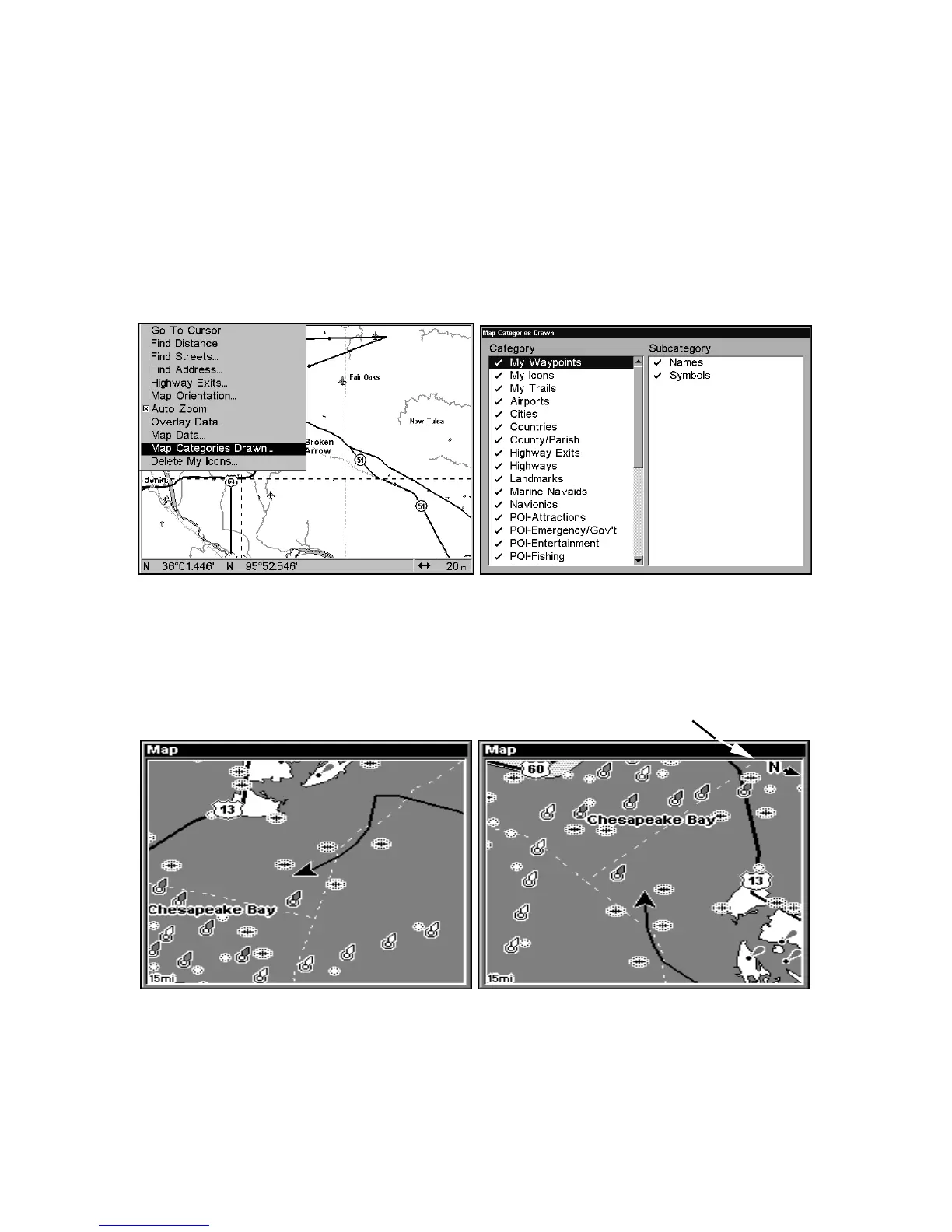
Map Detail Category Selection
This menu determines which of the mapping features are shown on the
screen. This includes, waypoints, trails, icons, cities, highways, etc. You
can select any of these items, customizing the map to your needs.
To get to Map Categories:
1. From the Map Page, press
MENU|↓ to MAP CATEGORIES DRAWN |ENT.
2.
Press ↑ or ↓ to select a category or press → then press ↑ or ↓ to select
a subcategory. Press
ENT to turn it off (no check) or on (checked.)
3. To return to the last page displayed, press EXIT|EXIT.
Map Menu (left); Map Categories Drawn Menu (right).
Map Orientation
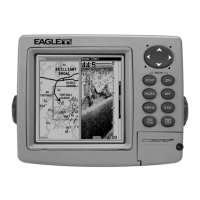
By default, this receiver shows the map with north always at the top of
the screen. This is the way most maps and charts are printed on paper.
Map orientation is shown in north up (left) and track up (right).
This is fine if you're always traveling due north. What you see to your
left corresponds to the left side of the map and what you see on your
right is shown on the right side of the map. But if you travel any other
direction, the map doesn't line up with your view of the world.
In Track Up mode, map shows "N" and arrow to indicate north.



 To Next Page