17
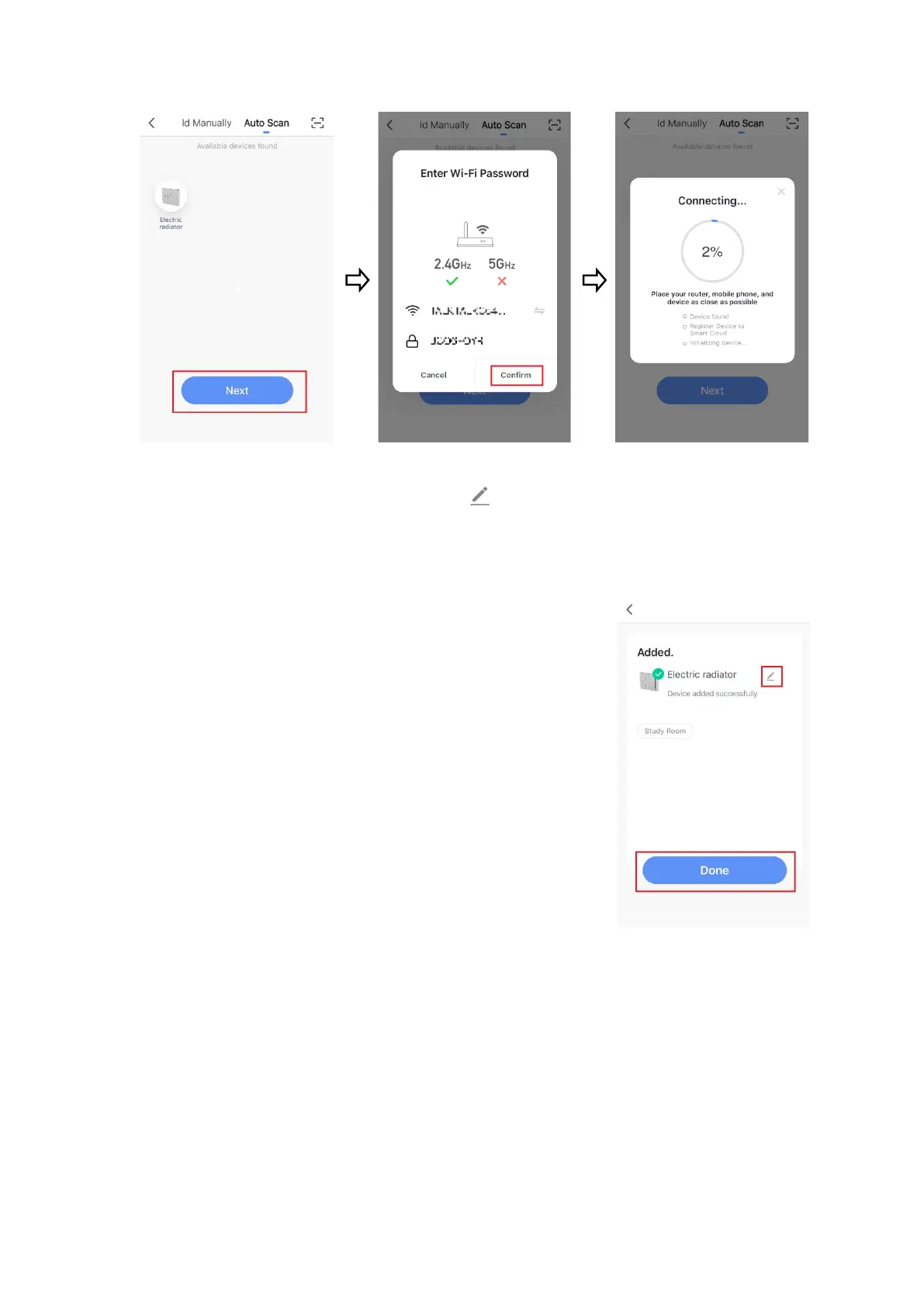
7. The radiator will begin connecting. When it is successfully added, it will
appear as below on the app. Press to change the name of the radiator
or Done to return to the home screen.
Troubleshooting
If the radiator does not connect on the first attempt:
• Make sure both the radiator and your smart device
are in range of your router.
• Make sure you complete the connection process in
3 minutes. If the 180 seconds has reached the end of
its count, begin the process again.
• Ensure your router has a strong internet connection.
• Ensure WiFi is enabled on the radiator.
• Ensure WiFi and Bluetooth are enabled on your
smart device.
• Make sure the app has registered successfully.
• Make sure your smart device is connected to the same WiFi network as that
to which you are attempting to connect your radiator.
• Ensure you are connected to a 2.4G WiFi band. See instructions within the
app if you are currently connected to a 5G band.
• Check any local restrictions on your WiFi. WiFi networks in public places such
as hotels and airports may require extra identification steps.


 To Next Page