EasyManua.ls Logo

Edimax AR-7084A - User Manual

Edimax AR-7084A
86 pages
Print Icon
To Next Page IconTo Next Page
Loading...
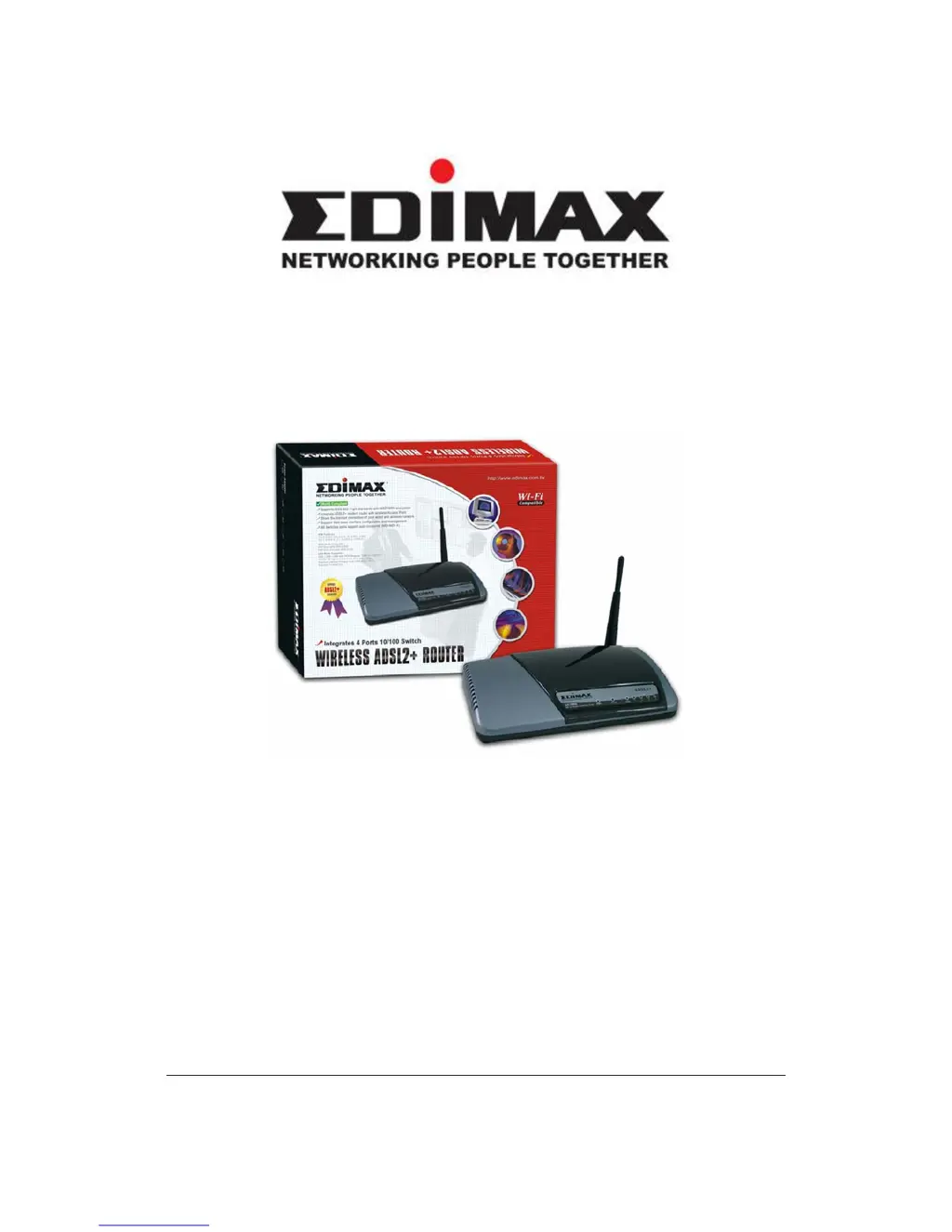
AR-7084A / AR-7084gA
AR-7084B / AR-7084gB
W
W
i
i
r
r
e
e
/
/
W
W
i
i
r
r
e
e
l
l
e
e
s
s
s
s
A
A
D
D
S
S
L
L
2
2
+
+
R
R
o
o
u
u
t
t
e
e
r
r
User’s Manual
Version: 2.0
(January, 2007)

Other manuals for Edimax AR-7084A

Questions and Answers

  • R
    ronald09Aug 6, 2025
    What to do if I forget my Edimax AR-7084A Network Router username or password?
    • T
      Travis GarciaAug 6, 2025
      If you've forgotten your password after changing it, you'll need to upload the default configuration file. Note that this will erase all custom settings and restore the factory defaults, including the password. Alternatively, press the Reset button for five seconds, then release it. When the LAN LED begins to blink, the defaults have been restored. Remember, the default username is "admin", and the default password is "1234". Ensure you enter these correctly, as they are case-sensitive. It's highly recommended to change these defaults and store them securely.
  • M
    meganrossAug 10, 2025
    How to fix Edimax AR-7084A Network Router if I cannot access the web management?
    • R
      Robert MurphyAug 10, 2025
      First, ensure you're using the correct IP address for your Edimax Network Router. Double-check the router's IP address. Also, verify that your computer and the router's IP addresses are on the same subnet for LAN access. If you've changed the router's LAN IP address, enter the new address as the URL.
  • L
    Lauren CharlesAug 15, 2025
    Why is the ADSL connection failing on my Edimax AR-7084A?
    • C
      Christopher DillonAug 15, 2025
      Check the cable connections between the ADSL port and the wall jack, ensuring the ADSL LED on the rear panel is lit. Verify that the VPI, VCI, encapsulation type, and multiplexing settings match those provided by your ISP. Restart the router; if issues persist, confirm these settings with your ISP.
  • K
    Kendra Jackson PhDAug 19, 2025
    What to do if I cannot access the Web Management of Edimax AR-7084A Network Router after activating the ACL function?
    • M
      Mary ValenciaAug 19, 2025
      When ACL is activated, you need to set ACL rules to allow users to use specific services. Verify that you have set these rules; otherwise, all users will be restricted from using any service from LAN or WAN. If you cannot access the Web Management, press and hold the Reset button for over 5 seconds to restore the router to its default settings. After the router restarts, log in using the default IP Address 192.168.2.1.
  • M
    Melissa CrossAug 23, 2025
    Why can't my Edimax AR-7084A Network Router get a WAN IP address from the ISP?
    • J
      Jordan MurilloAug 23, 2025
      The ISP provides the WAN IP address after authenticating you, which may involve a username and password, MAC address, or hostname. If you're using PPPoE or PPPoA encapsulation, ensure you've entered the correct Service Type, User Name, and Password, paying attention to the correct casing.
  • J
    Jennifer ConradAug 27, 2025
    What to do if the ADSL LED on my Edimax AR-7084A Network Router does not light up?
    • M
      michael74Aug 27, 2025
      Check the telephone wire and connections between the ADSL2+ Router's DSL port and the wall jack. Ensure that your telephone company has checked your phone line and configured it for DSL service. Try resetting your ADSL line to reinitialize your link to the DSLAM.
  • B
    Brandi RobinsonSep 1, 2025
    How to troubleshoot if the LAN LED on my Edimax AR-7084A Network Router doesn't light up?
    • A
      Amanda HallSep 1, 2025
      Check the Ethernet cable connections between your ADSL2+ Router and the computer or hub. Also, check for faulty Ethernet cables. Ensure your computer’s Ethernet card is working properly.

Summary

Introduction

1.1. FEATURES

Comprehensive list of ADSL2/2+ compliance, Wireless AP features, Router functions, and Access Management capabilities.

1.2. MINIMUM REQUIREMENTS

Lists the necessary devices and software components for configuring and using the ADSL2+ Router.

1.3. PACKAGE CONTENT

Details all items included in the ADSL2+ Router package, such as the router itself, antenna, power adapter, and cables.

1.4. HARDWARE PLACEMENT

Provides guidance on the physical installation and placement of the ADSL2+ Router, including rear panel details.

Hardware Installation

Setup Wizard

3.1. AUTOMATICALLY SET ISP

Step-by-step guide for automatically configuring the router's ADSL settings by selecting the Internet Service Provider from a list.

3.2. MANUALLY SET ISP

Instructions for manually configuring ADSL settings if the ISP is not found in the wizard, requiring specific connection details.

IP Address Setting

Windows XP

Detailed procedure for configuring IP address settings on Windows XP for automatic IP acquisition from the router's DHCP server.

Windows 2000

Step-by-step instructions for setting up IP address configuration on Windows 2000 to obtain an IP address automatically.

Windows 95;98;Me

Guide on how to configure TCP/IP settings on Windows 95/98/Me for automatic IP address assignment by the router.

Windows NT

Procedures for setting up IP address acquisition on Windows NT, ensuring it obtains an IP automatically from the router's DHCP server.

Web Management Configuration

5.1. QUICK START

Introduces the Quick Start feature for rapid router configuration and Internet connection setup.

5.2. INTERFACE SETUP

Covers the configuration of network interfaces, including Internet, LAN, and Wireless settings for the router.

5.3. ADVANCED SETUP

Explains advanced router configurations like Firewall, Routing, NAT, and ADSL settings for enhanced network control.

5.4. ACCESS MANAGEMENT

Details how to manage network access through features like ACL, IP Filter, SNMP, UPnP, and DDNS for security and control.

5.5. MAINTENANCE

Provides options for router maintenance, including administrator settings, time zone, firmware updates, system restart, and diagnostics.

5.6. STATUS

Allows users to view device information, system logs, and traffic statistics for monitoring the router's operation.

Troubleshooting

Glossary

Edimax AR-7084A Specifications

General IconGeneral
Device TypeWireless Router
Frequency Band2.4 GHz
Wireless SpeedUp to 54 Mbps
SecurityWEP, WPA, WPA2
Ports1 x WAN, 4 x LAN
Wireless Standard802.11b/g
WAN Ports1
LAN Ports4
Antenna2 x 5dBi
FeaturesNAT, Firewall
Weight300 g

Related product manuals