25
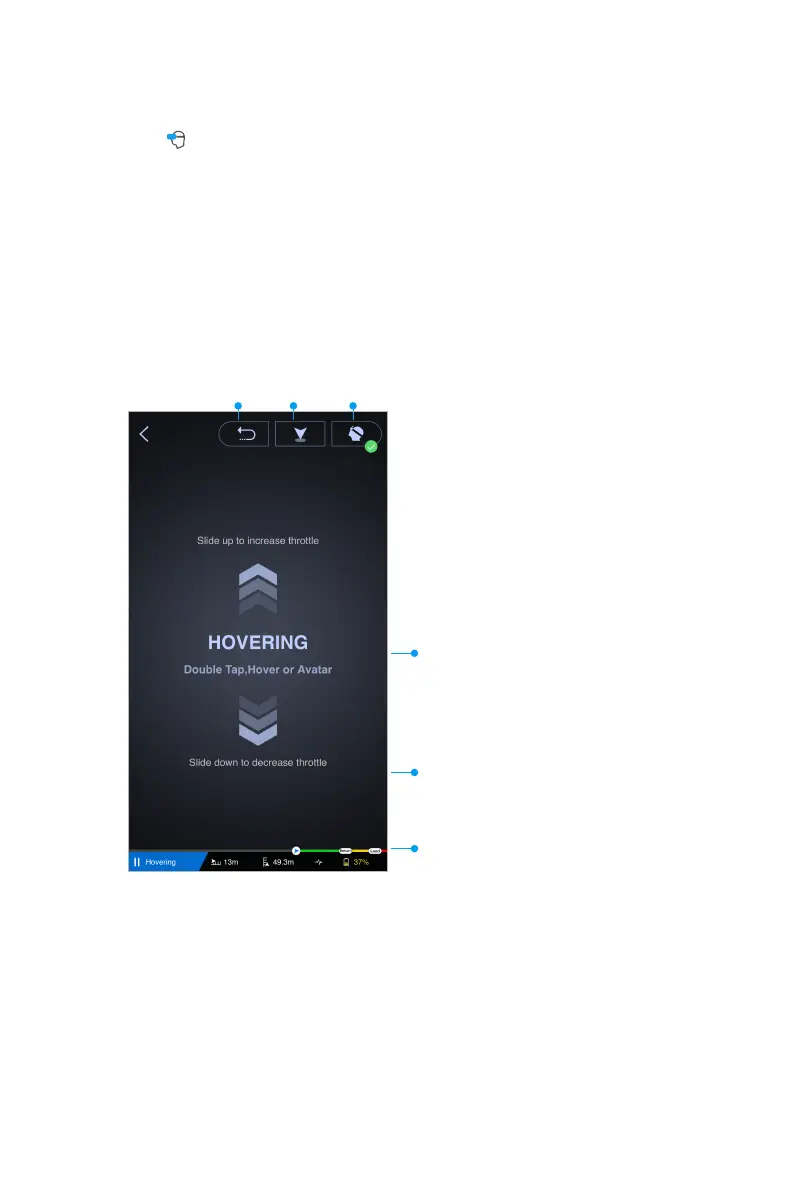
Click the icon above to enter VR mode where you can control your drone effortlessly without looking at your
cellphone screen.
Control gestures are as below.
(1)Slide up to increase GHOSTDRONE’ s altitude.
(2)Slide down to decrease GHOSTDRONE’ s altitude.
(3)Double tap to trigger emergency hover, and double tap again to dismiss hover.
(4)GHOSTDRONE’ s flying is still controlled by the tilting of your cellphone.
Note: Please hold your cellphone flat when you do not want the drone to preform maneuvers.
Return Land Head tracking
5. VR Mode
(1)Slide right to enable VR Goggles’ head tracking
function (head tracking is enabled by default.) When
head tracking is enabled, you can control the camera
gimbal’ s pitch by moving your head up and down to
capture the best views as you desire.
(2)Slide left to disable VR Goggles’ head tracking.
Camera gimbal’ s pitch won’ t be controlled by
moving the VR Goggles up and down when head
tracking is disabled. This mode is good for shooting
stationary objects.
1. Gimbal Pitch
Double tap to trigger emergency hover, and double
tap again to dismiss hover.
Slide down to decrease GHOSTDRONE’ s altitude.
Drone Status: (from left to right) flight mode, horizon-
tal distance, altitude, connection status and battery
percentage.



 To Next Page