will automatically repair the holes in the model and mark the color, you can do
the following during or after the scanning
Hold down the middle mouse button to zoom in and out of the model
Hold down the left mouse button and drag the mouse to rotate the model
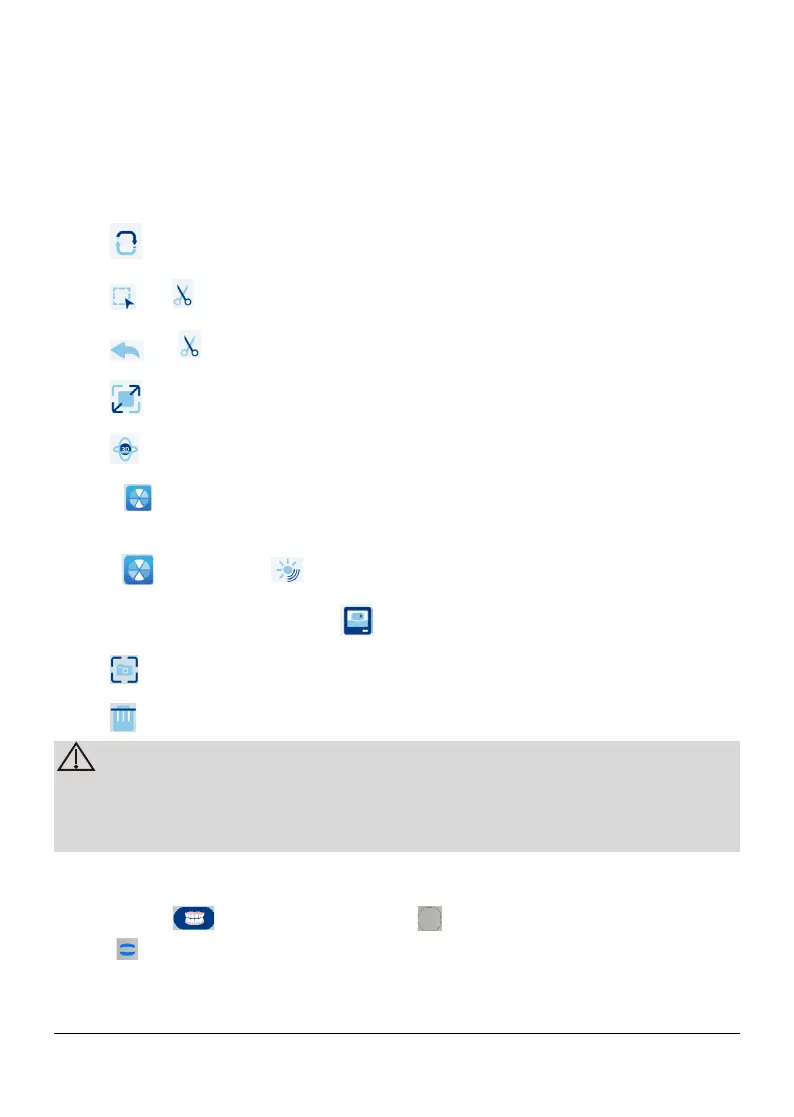
Click to exchange the upper jaw and lower jaw
Click in draw a curve on the 3D model to delete unnecessary data.
Click in to undo the previous step
Click to scale the 3D model to the best view
Click Show 3D center
Select , displays the 3D model in the actual color. When deselected,
displays the 3D model in monochrome
Select , then select , the model color is more realistic
Adjust model perspective, click , capture the model image
Click to take a snapshot of the 3D model displayed on the screen
Click to delete the model
The holes will be displayed in green. It is recommended to scan these
areas until the holes disappear.
Re-dry the teeth as appropriate throughout the acquisition process.
6.1.5 Scanning the bites
1) select the ,OR press the button on the scanner to select the bites
mode
2) Place the tip of the scanner into the buccal side in the patient’s mouth, then
rotate the tip to align with the teeth, close the patient’s mouth and confirm that
Page 27 / 51


 To Next Page