EasyManua.ls Logo

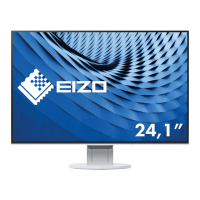
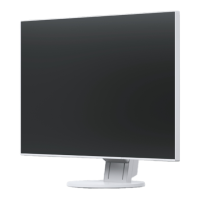
Eizo FLEXSCAN EV2456 - User Manual

Eizo FLEXSCAN EV2456
49 pages
Print Icon
To Next Page IconTo Next Page
Loading...
Important
Please read PRECAUTIONS, this User’s Manual, and the Setup Guide
(separate volume) carefully to familiarize yourself with safe and
effective usage.
Please refer to the Setup Guide for basic information ranging from
connection of the monitor to a PC to using the monitor.
For the latest product information including the User’s Manual, refer
to our web site :
http://www.eizoglobal.com
Color LCD Monitor
Users Manual

Table of Contents

Questions and Answers

  • N
    Natalie SmithSep 2, 2025
    Why brightness cannot be adjusted on my Eizo FLEXSCAN EV2456 Lcd monitor?
    • M
      Melanie GarzaSep 2, 2025
      If brightness cannot be adjusted on your Eizo Lcd monitor, and Auto EcoView is set to “On,” the “Brightness” may not be adjustable due to the advanced settings of Auto EcoView. Change the maximum and minimum values for “Brightness” in the Auto EcoView advanced settings, or set Auto EcoView to “Off”. You can also change the maximum and minimum values for “Ambient Light” in the Auto EcoView advanced settings, or set Auto EcoView to “Off.”
  • T
    thomas34Aug 31, 2025
    What to do if the input signal is out of range on my Eizo FLEXSCAN EV2456 Lcd monitor?
    • M
      Michael HuntAug 31, 2025
      If the input signal on your Eizo Lcd monitor is out of the specified frequency range, verify that the PC is configured to meet the resolution and vertical scan frequency requirements of the monitor. Reboot the PC. Select an appropriate setting using the graphics board’s utility.
  • D
    Devin SheltonAug 29, 2025
    How to fix blurred text on Eizo Lcd monitor?
    • I
      Ian KingAug 29, 2025
      If the text appears blurred on your Eizo Lcd monitor, ensure that the PC is configured to meet the resolution and vertical scan frequency requirements of the monitor. If you are using a resolution other than the recommended one, try adjusting the “Sharpness” in the Setting menu.
  • J
    johnmooreAug 27, 2025
    Why USB devices connected to my Eizo FLEXSCAN EV2456 Lcd monitor do not work?
    • A
      Amanda SpencerAug 28, 2025
      If USB devices connected to your Eizo Lcd monitor aren't working, first check whether the USB cable is connected correctly. Try using a different USB port on the monitor or on the PC. Rebooting the PC can also help. Check if the PC and OS are USB compliant. Update to the latest USB 3.0 driver or connect the monitor to the USB 2.0 port. Check the PC’s BIOS setting for USB when using Windows.
  • C
    Cory ClineAug 26, 2025
    Why is the screen too bright or too dark on my Eizo Lcd monitor?
    • B
      blevinstiffanyAug 26, 2025
      If the screen of your Eizo Lcd monitor is too bright or too dark, use the “Brightness” or “Contrast” settings in the Setting menu to adjust it. Alternatively, try changing the Auto EcoView setting to “On,” which allows the monitor to automatically adjust the screen brightness based on the ambient brightness.
  • D
    Darlene HuntAug 25, 2025
    What to do if a message appears on my Eizo Lcd monitor?
    • S
      Sarah CoxAug 25, 2025
      If your Eizo Lcd monitor displays a message, verify that your PC is turned on and that the signal cable is properly connected. Try switching the input signal. If the problem continues, turn off the main power switch on the rear side of the monitor, and then turn it on again.
  • A
    Angela MillerAug 22, 2025
    What to do if the power indicator is lighting orange on my Eizo Lcd monitor?
    • C
      Christopher LarsenAug 22, 2025
      If the Eizo Lcd monitor's power indicator is lighting orange, try switching the input signal. Move the mouse or press any key on the keyboard. Also, check whether the PC is turned on. If these steps don't work, turn off the main power switch on the rear side of the monitor, and then turn it on again.

Summary

Chapter 1 Introduction

Controls and Functions

Identifies and explains front controls, indicators, and sensors on the monitor.

Chapter 2 Basic Adjustment;Setting

Switching Input Signals

How to select the active input source for the monitor display.

Adjusting Brightness

Instructions for manually adjusting the screen brightness level.

Chapter 3 Advanced Adjustment;Setting

Setting Menu Operation

Overview of navigating and performing adjustments within the monitor's setting menus.

Setting Menu Functions

Detailed explanation of adjustable settings like color, brightness, and gamma.

Signal Settings

Configuration options for input signals, including picture expansion and sharpness.

Chapter 4 Administrator Settings

Administrator Functions

Explanation of administrator-level settings like input detection and key lock.

Chapter 5 Troubleshooting

No Picture Issues

Solutions for common issues where the monitor displays no image.

Imaging Problems

Troubleshooting steps for image quality issues like brightness and blurriness.

Other Problems

Solutions for issues not related to picture display, like audio or USB.

Chapter 6 Reference

Product Specifications

Technical specifications of the FlexScan EV2456 monitor.

Eizo FLEXSCAN EV2456 Specifications

General IconGeneral
3DNo
HD typeWUXGA
Pixel pitch0.27 x 0.27 mm
Screen shapeFlat
Display diagonal24.1 \
Separate H/V syncYes
Display resolution1920 x 1200 pixels
Display technologyLED
Native aspect ratio16:10
Vertical scan range55 - 76 Hz
Horizontal scan range31 - 81 kHz
Viewable size, vertical324 mm
Contrast ratio (typical)1000:1
Display number of colors16.78 million colors
Viewable size, horizontal518.4 mm
Display brightness (typical)350 cd/m²
Supported graphics resolutions640 x 480 (VGA), 720 x 400, 800 x 600 (SVGA), 1024 x 768 (XGA), 1280 x 1024 (SXGA), 1600 x 1200 (UXGA), 1680 x 1050 (WSXGA+), 1920 x 1200 (WUXGA)
USB hub version3.2 Gen 1 (3.1 Gen 1)
Headphone connectivity3.5 mm
USB upstream port typeUSB Type-B
USB Type-A downstream ports quantity2
AC input voltage100 - 240 V
AC input frequency50 - 60 Hz
Energy efficiency scaleA to G
Power consumption (max)44 W
Power consumption (standby)0.5 W
Power consumption (typical)13.5 W
Operating temperature (T-T)5 - 35 °C
Operating relative humidity (H-H)20 - 80 %
Sustainability certificatesCB, CCC, CE, China RoHS, ENERGY STAR, EPEAT Bronze, Federal Communications Commission (FCC), ICES, PSE, RCM, RoHS, TCO, TUV, UKCA, VCCI, WEEE, cTUVus
Tilt up angle range- °
Number of OSD languages9
Panel mounting interface100 x 100 mm
On Screen Display (OSD) languagesCHI (SIMPL), CHI (TR), DEU, ENG, ESP, FRE, ITA, JPN, SWE
RMS rated power2 W
CertificationCE, UKCA, CB, TÜV/GS, TÜV/Ergonomics (including ISO 9241-307), TCO Certified Generation 9, EPEAT 2018 (US), TÜV/Blue Low Light Content, TÜV/Flicker Free, RCM, cTÜVus, FCC-B, CAN ICES-3 (B), TÜV/S, PSE, VCCI-B, EPA ENERGY STAR, RoHS, WEEE, China RoHS, CCC
Product colorBlack
Cables includedAC, USB
Harmonized System (HS) code85285210
Weight and Dimensions IconWeight and Dimensions
Depth (with stand)190 mm
Height (with stand)351.4 mm
Weight (with stand)5700 g
Depth (without stand)45.5 mm
Width (without stand)531 mm
Height (without stand)341.9 mm
Weight (without stand)3700 g

Related product manuals