- 16 -
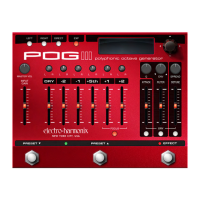
Crossfade (XFD) POG3 allows musicians to set up custom expression set-
tings for each slider and knob. Assign the slider and knob positions from
any available preset to the heel or toe or choose Custom to create new
assignments. When arranging custom settings, it is usually good practice
to only move the controls which are to be swept by the expression pedal.
Note: when choosing a preset for heel or toe, the expression settings from
that preset are ignored.
Heel: Select
Rotate NavCoder CW for Presets. This allows for obtaining the heel’s slider
and knob positions from any available preset. Optionally, the controls may
be further tweaked by pushing right on the NavCoder to enter the Heel
setup screen. The settings on the screen start from the chosen preset.
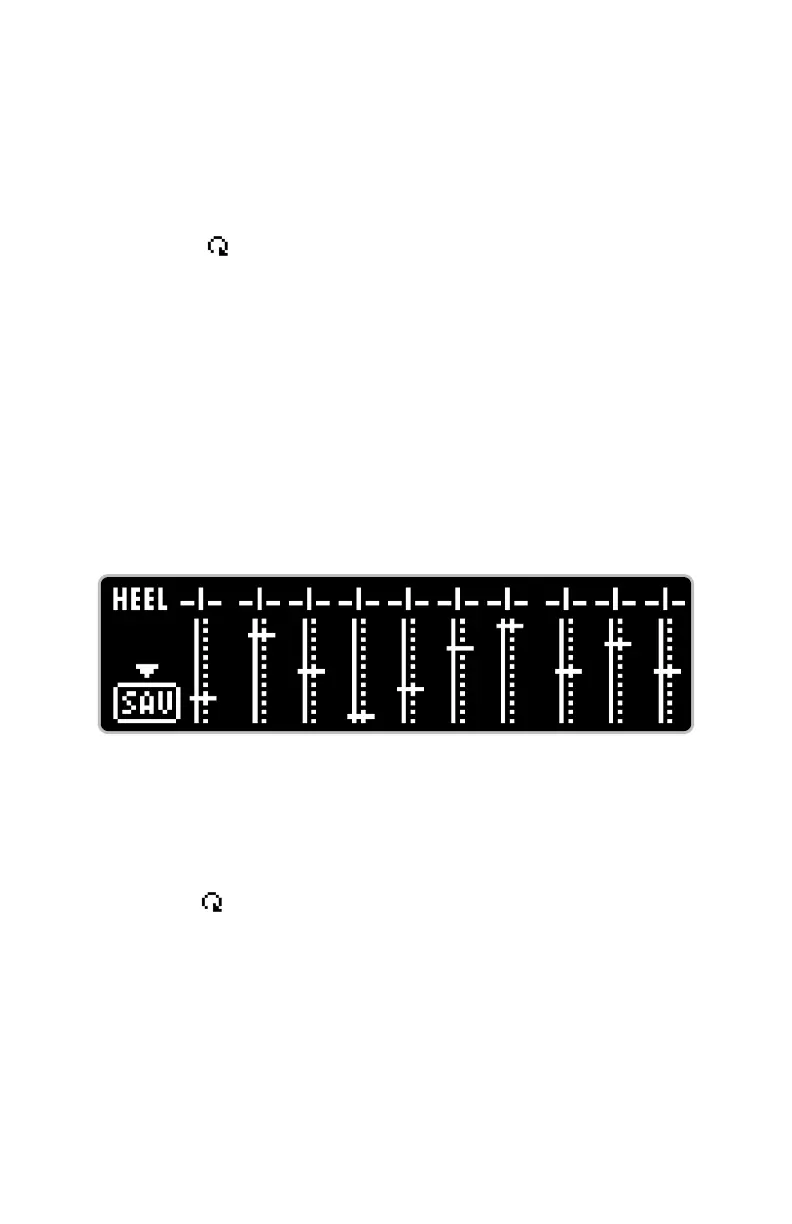
Rotate NavCoder CCW for Custom. Push NavCoder right to enter the Heel
setup screen:
1. Upon entering the setup screen, the POG3 will ask you to set the expression
pedal to the heel setting. Upon doing so, a Graphic View screen will appear.
Note: settings can be changed without an expression pedal attached but
the displayed controls might not update as they are moved because POG3
defaults to the toe position. Optionally, set the No-Pedal Value to 0 to
see your heel settings.
3. Push the NavCoder downward to save the heel settings. The POG3 will
Toe: Select
Rotate NavCoder CW for Presets.
Rotate NavCoder CCW for Custom. Push right on the NavCoder to enter the
Toe setup screen.
The Toe setup screen works the same as for Heel. One difference is that
you can move the expression pedal to hear and see the sliders and knobs
sweep as you tweak their toe positions.
Note: if you return to Crossfade to edit either the heel or toe, the Preset
number you originally chose will not be displayed. The screen will show
“Preset”, and allows for the settings to be edited with a NavCoder right push.
Crossfade Mode – Heel setting screen




 To Next Page