26
◆SELECTING THE IMAGE SOURCE
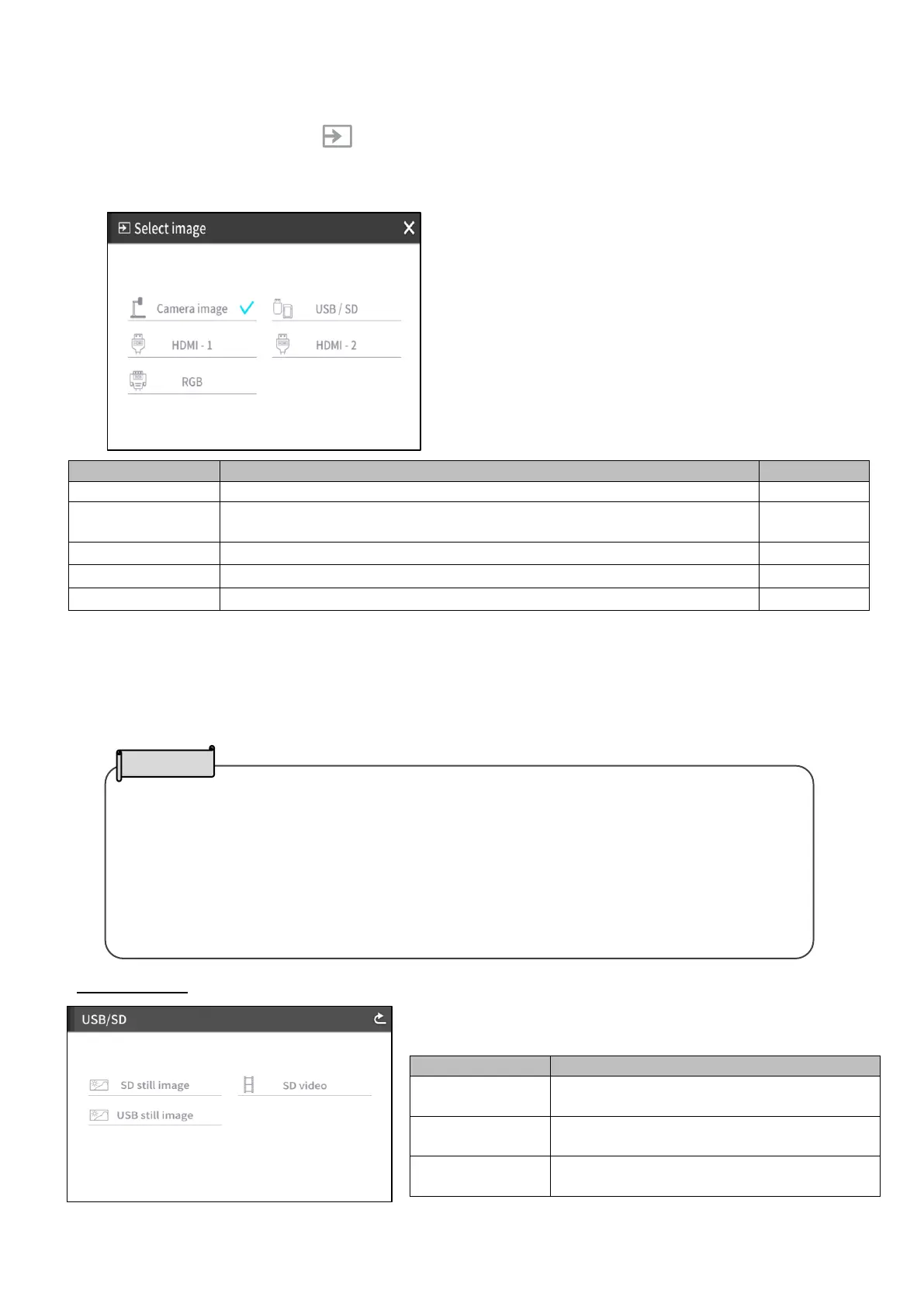
Press the Select image button [ ] on the operating panel to display the Select image menu.
The image of the selected device is displayed on the LCD touchscreen and external monitor.
The input selection can also be performed from the remote control using the input source select
buttons.(⇒P.17)
To display the camera image.
To display the USB/SD menu for displaying still image or playing
video files.
To display images being input to the HDMI in 1 port.
To display images being input to the HDMI in 2 port.
To display images being input to the RGB in port.
Press [ X ] button to go back to the screen being displayed previously.
※When RGB is selected, the image being input is not displayed on the LCD touchscreen.
※When HDMI 1 or HDMI 2 is selected, the signals being sent to the unit can be output as USB
signals, HDMI signals, RGB signals, and HDBasetT signals (for PX-30E only), and can be
recorded or captured.
USB/SD menu
To display the menu to playback still
image saved in the SD card.
To display the menu to play videos saved
in the SD card.
To display the menu to playback still
image saved in the USB flash drive.
・
When using a PC with output mode selection feature, setup according to the following
instruction:
1. Connect a PC to the PX-10E/30E.
2. Set the output mode of the PC to “EXTERNAL OUTPUT”.
3. Press the Select image button and select either “HDMI-1”, “HDMI-2”, or “RGB”.
・
Do not change the resolution of the image being input while selecting the external input.
・No image will be displayed when HDCP signals are input.



 To Next Page