Service Manual: ET1517L, ET1717L
ES600904 Rev B, Page 9 of 44
Menu Remark Required
Yes/No
1. When “Power Locked”, the “power” button
will be disappeared.
Yes
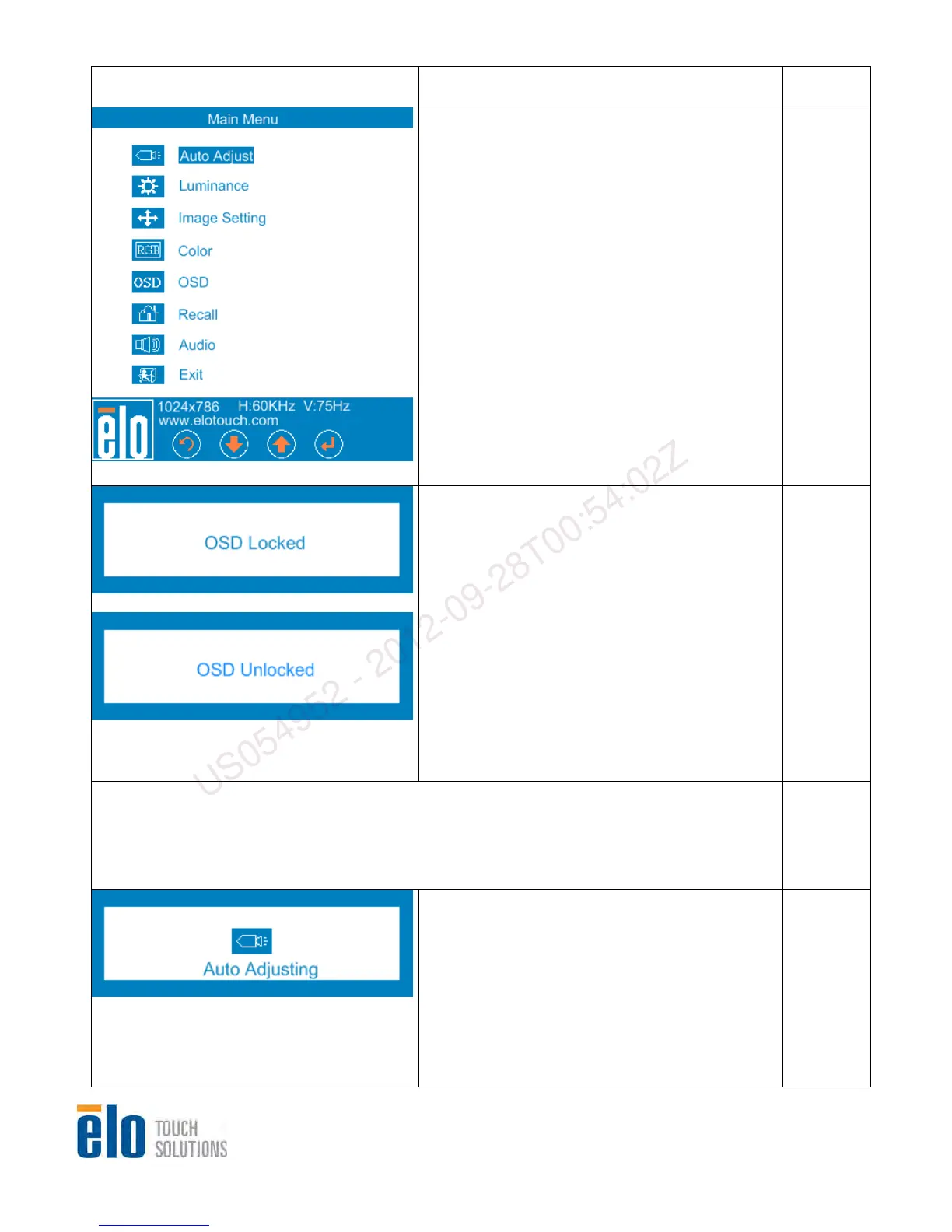
1. Press the “Menu” and “+” keys for two
seconds to toggle the monitor’s OSD Locking
feature between locked and unlocked. This
feature allows end-users no access to the
monitor’s OSD controls. The OSD will show
an “OSD Locked” message for 5 seconds
when becoming locked, and will show an
“OSD Unlocked” message for 5 seconds
when becoming unlocked.
While the OSD is locked, pressing any of the
“Menu”, “+”, “-“, or “Select” keys will have no
effect on the OSD.
Default setting is unlocked.
Yes
1.1 Auto Adjust Menu
Automatically adjusts the system clock to the input analog RGB video signal, affecting the
H-position, V-position, Clock, and Phase menu items. This adjustment is only available on
VGA input video.
1. There is an “Auto Adjusting” message when
executing “Auto Adjust” on the center of the
screen until finishing.
Yes
US054952 - 2012-09-28T00:54:02Z


 To Next Page