12.0 Recording Video
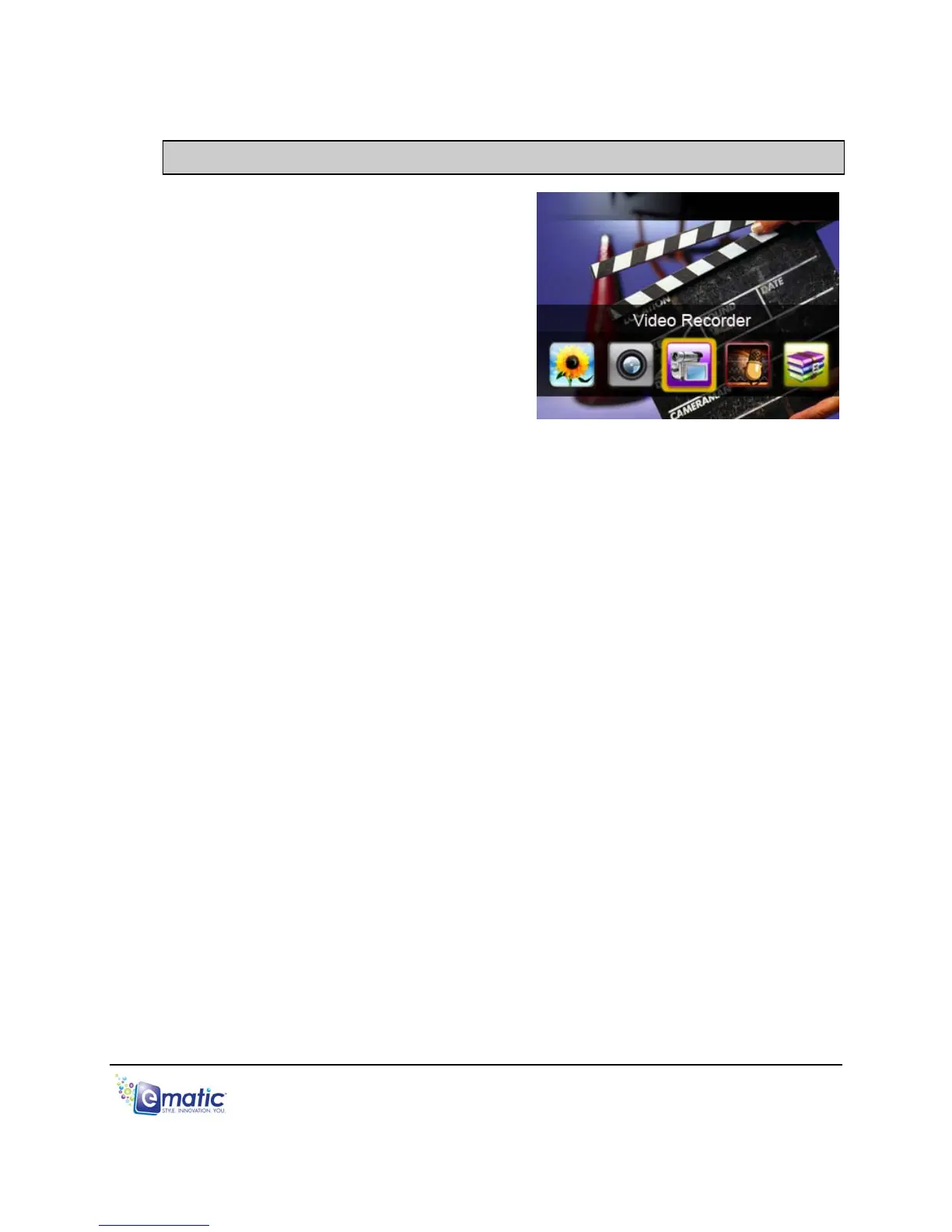
12.1 Entering Video Recorder Mode
To enter the VIDEO RECORDER Mode:
1. Use the Mode Selector to navigate
to the VIDEO RECORDER Mode.
2. Press the MENU/ENTER button to
select the VIDEO RECORDER
Mode.
12.2 Basic Video Shooting Operations
To record video:
1. Use the display as a Viewfinder.
2. A status bar will appear indicating:
The length of the current recording.
Whether a recording is in progress. A red dot indicates a recording is in
progress, while a yellow dot indicates a recording is not in progress.
3. Begin recording by pressing the CAMERA button.
4. End a recording by pressing the VOL/EXIT button. (Your videos will be
saved to the VIDEO folder.)
5. Return to the Mode Selector by pressing the VOL/EXIT button.
To view your videos from the Video Recorder Mode:
1. Press and hold the HOLD/ENTER button for a minimum of 3 seconds.
2. Release the HOLD/ENTER button to display a menu of file and play
options.
3. Select PREVIEW.
4. Your recordings are named using the digits of the date and time. If, for
example, you recorded a video on January 5, 2010 at 7 seconds at
6:05pm, then the filename would be 20100105180507.avi.
To view your videos from the Videos Mode:
1. Select a video file from the Camera folder.
2. Press the MENU/ENTER button to view the video.
E5 Series User Manual Page 21 of 35


 To Next Page