18
MODEL SOLU COMP II SECTION 4.0
DISPLAY AND OPERATION
SECTION 4.0
DISPLAY AND OPERATION
4.1 DISPLAY
4.2 KEYPAD
4.3 PROGRAMMING AND CALIBRATING THE SOLU COMP II - TUTORIAL
4.4 SECURITY
4.5 USING HOLD
4.1. DISPLAY
The Solu Comp II has a two-line display.
The display can be customized to meet
user requirements (see Section 5.10).
Figure 4-1 shows the default screen.
The Solu Comp II has information
screens that supplement the data in the
main display. Press or to view the
information screens. The last informa-
tion screen is the software version.
During calibration and programming,
key presses cause different displays to
appear. The displays are self-explanato-
ry and guide the user step-by-step
through the procedure.
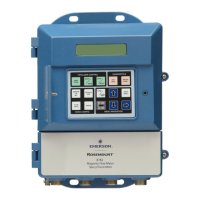
4.2 KEYPAD
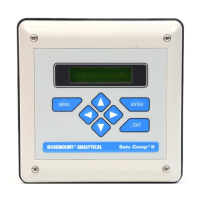
Figure 4-2 shows the Solu Comp II key-
pad.
FIGURE 4-1. Default Display During Normal Operation
FIGURE 4-2. Solu Comp II Keypad
Four arrow keys move the cursor around the screen. A blinking word or
numeral show the position of the cursor. The arrow keys are also used to
change the value of a numeral. Pressing ENTER stores numbers and set-
tings and moves the display to the next screen. Pressing EXIT returns to
the previous screen without storing changes. Pressing MENU always
causes the main menu screen to appear. Pressing MENU followed by
EXIT causes the main display to appear.


 To Next Page
 Loading...