eMKW-TD0054-21- Page 14
Getting Started with the KUDUwave™ Software
Practitioner Details
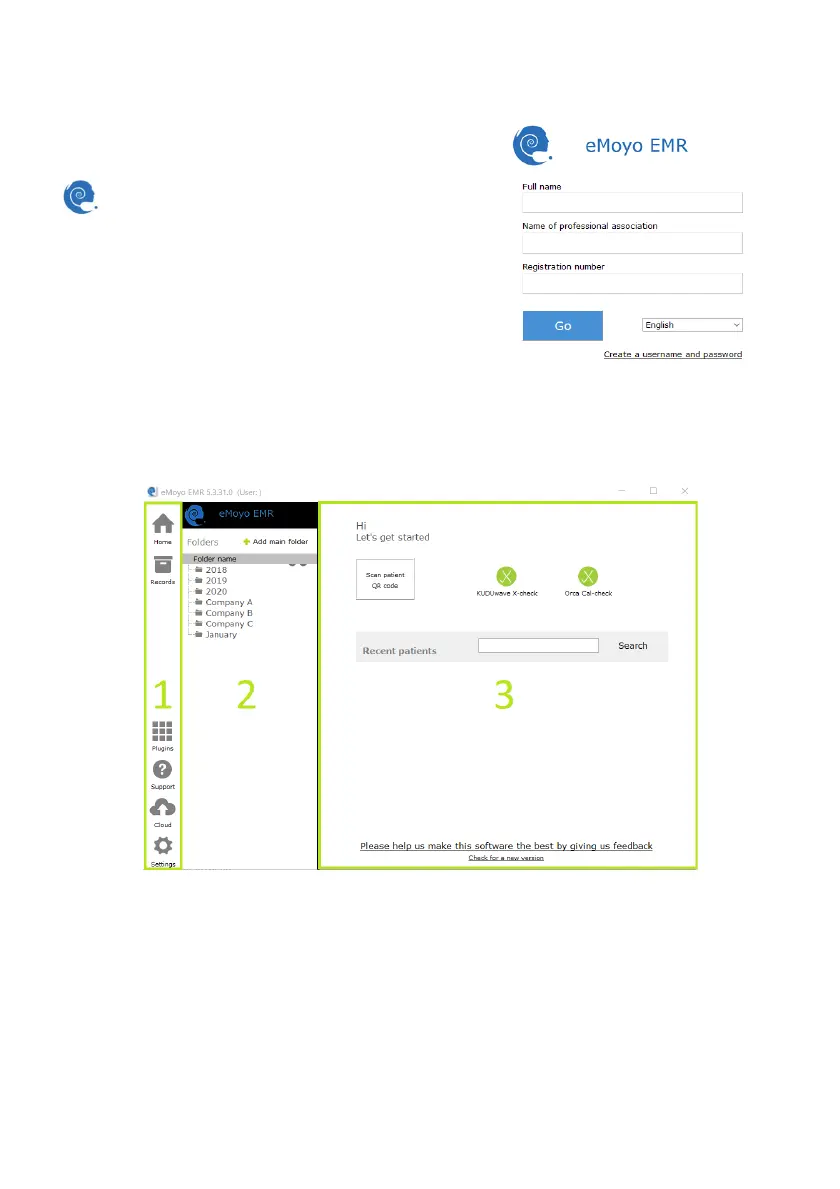
Run the eMoyoEMR application by double clicking on the
icon on your desktop, and enter your details (not
mandatory). These details will appear on all reports and
audiograms.
You can also select your language of choice.
Click the “Go” button to proceed.
Home Page
Your Portal to Patient Management
The home page appears as below with 3 main sections.
1. System Menu
Here you have access to:
● Home
(return to the home page)
● Records (
return back to the folder you were busy with)
● Plugins
(additional features which can be added to your software)
● Support
(Contact support here, or use these tools to troubleshoot)
● Cloud
(synchronization of data to eMoyo cloud storage)
● Settings
(backup data, personalise your reports and more
)


 To Next Page