eMKW-TD0054-21- Page 23
Working with Patients
Add and manage your patient data within the Patient Interface. The patient interface will appear when a
new patient is created or by double clicking on the patient file in the data view pane of the home page.
Adding a New Patient
To create a new patient, first select or create the folder under which the patient should be stored, then
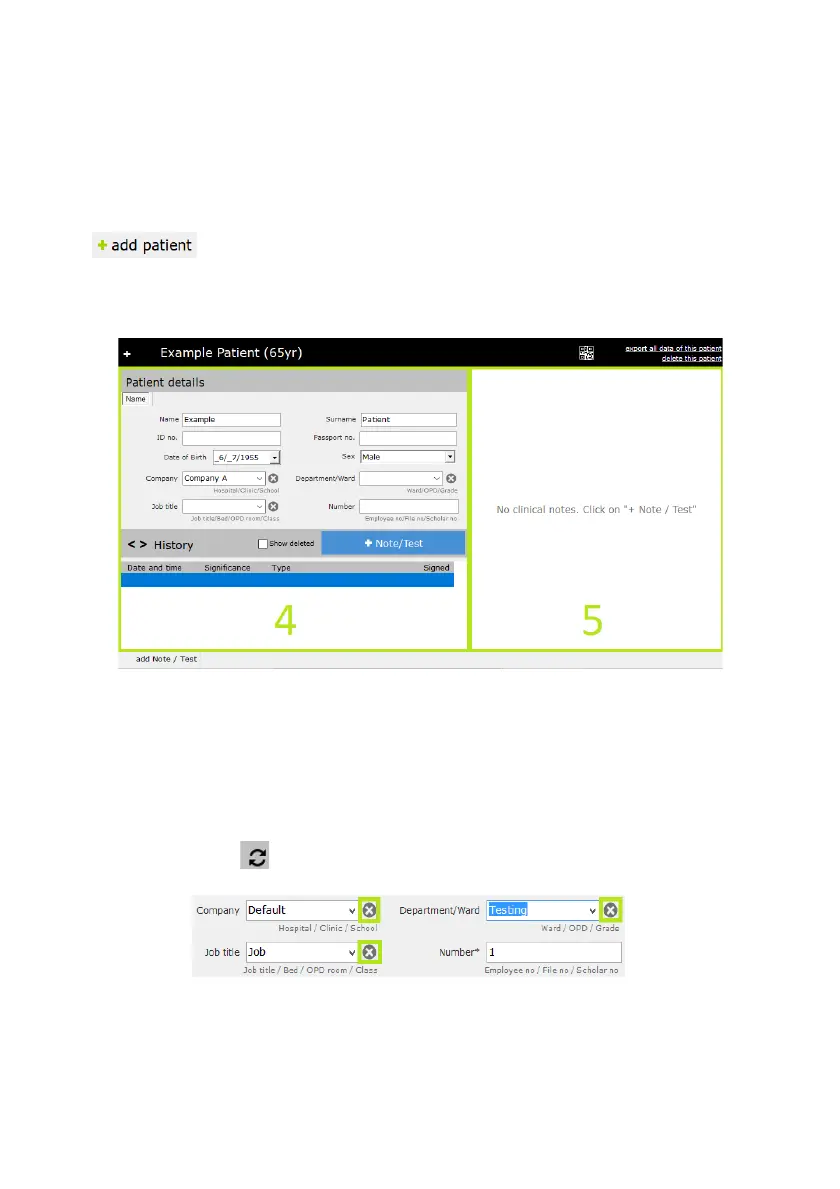
click . This will open the Patient Interface where you can add the patient’s details in the
Patient Data Pane (4). Any test data can be previewed in the Test Data Pane (5). To edit patient details,
select the field by clicking in the field and enter the new information. All tests thereafter will have the
updated information. Patient information on saved tests cannot be edited.
Tips:
●
Click the tab key to quickly navigate between fields.
●
After entering a South African ID number, click the Tab key to automatically populate the date
of birth, age and gender..
●
Folder names are assumed to be company names, and subfolders as job titles. These fields will
be automatically populated with these details. Correct them if necessary and the option will
become available in the drop down menu for each patient which is added later. To delete an
item from a drop down menu, select it, and then click the “X” icon.
●
To refresh click



 To Next Page