eMKW-TD0054-21- Page 43
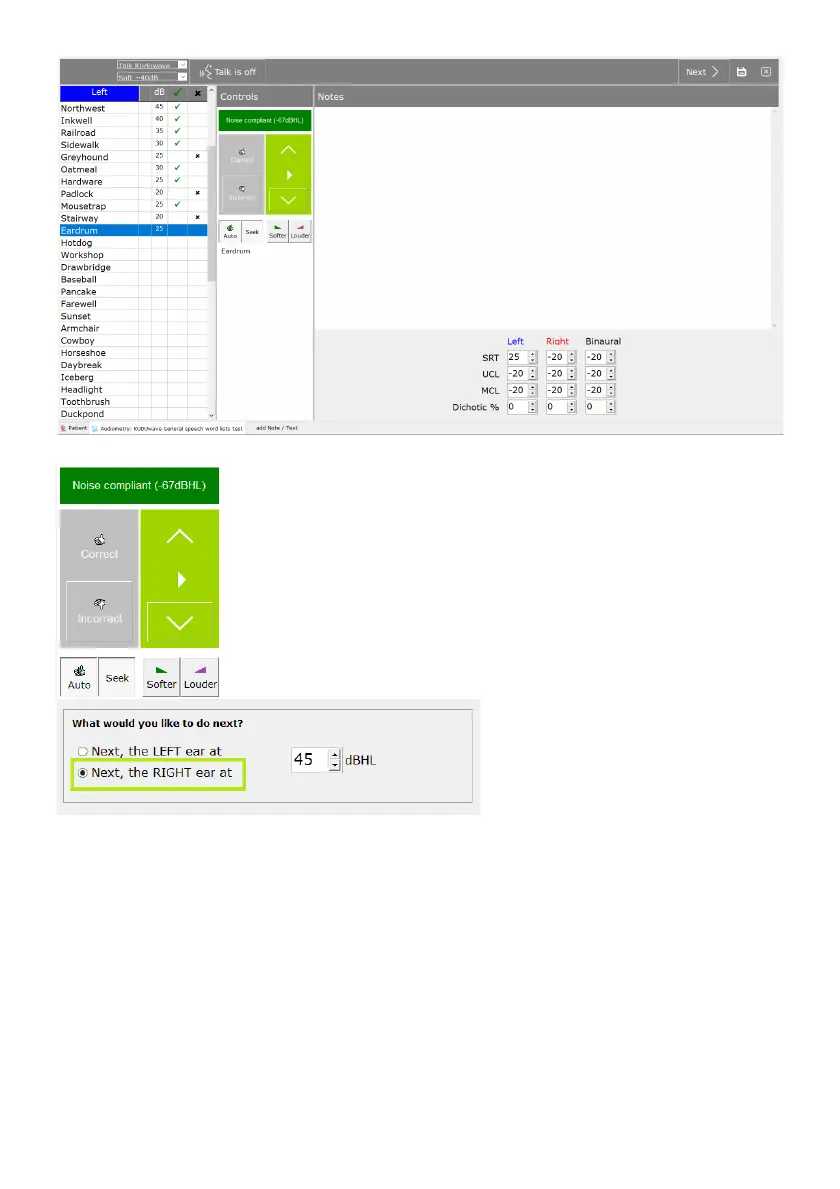
Click the “Correct” button with the thumbs up if the patient recites the word
correctly. If Auto and Seek is selected, the next word will be read to the patient
at 5 dBs softer. Use the “Incorrect” button with the thumbs down if the patient
did not recite the word correctly or did not hear the word. If incorrect, the next
word will be read at 5 dBs louder. Deselect Auto if you do not want the next
word to be played immediately. Deselect Seek, if you do not want the dB level
to change automatically.
Use the up and down keys to navigate through the word list. The “Play” button
will read the word to the patient and the loudness of the word can be changed
by clicking the “Softer” or “Louder” buttons.
Click the “Next” button to continue once
testing of the left ear is complete. Select
the Right ear option and specify the
Intensity level testing should begin at.
The same procedure must be done for
the Right ear. Once complete click
“Save”.
Speech in Noise Testing with QuickSIN
The assessment of speech in noise provides important diagnostic information which the pure tone
audiogram cannot reliably predict. The KUDUwave provides speech in noise testing through its
integration with QuickSIN. Once purchased online, access QuickSIN by adding a patient or select an
already existing patient. Click on the button: “+Note/Test” and from the menu, select the Audiometry:
KUDUwave General Speech word lists test.


 To Next Page