34 Continuum User’s Manual
Additional Lockout Feature
There is an additional lockout feature that the clinician can use to remove
the option of a treatment from the screen so that the patient does not have
the option of selecting a particular treatment type. It can be accomplished as
follows:
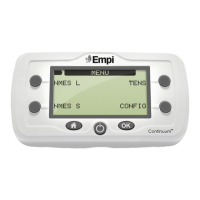
1. On the main options page, press “CONFIG” to get to the CONFIG menu
2. Press “LOCKS” (Lower Right Soft Key).
3. Using the Left Soft Keys, scroll down to one of the four lock items (NMES
L.MUSCLES, NMES S.MUSCLES, TENS and EDEMA). Then, using the upper
right hand soft key, scroll until a forbidden icon is shown.
4. Press the “Home” button to get back to the main menu. Notice that the
therapy option has been removed from the display.
Unlocking the Device
When the Empi Continuum is locked, it allows the clinician to control
the patient’s use of the device to assure access to only the pre-selected
protocol. “Unlocking” the device gives the clinician the ability to set up a new
treatment protocol. To “unlock” the device, perform the following steps:
1. Press the ON button to turn on the device, or press the Home button.
2. Once the main Options menu is displayed, choose “CONFIG” option.
3. Choose the “LOCKS” option.
4. Using the Left Soft Keys, scroll down to a lock items (NMES L.MUSCLES,
NMES S.MUSCLES, TENS and EDEMA).
5. Use the lower right side soft key to scroll the item’s value until an “unlock”
icon is shown.
6. Press the Home button to return to the main menu.
View & Reset Compliance Data
The Empi Continuum monitors patient usage of the device. This feature helps
determine patient compliance with the selected protocol(s). The following
information is collected:
•Number of total sessions
•Total session time (hours)
•Average session time (minutes)
•Average Channel 1 Intensity
•Average Channel 2 Intensity
Product Information (Clinician)


 To Next Page