40
Display Features
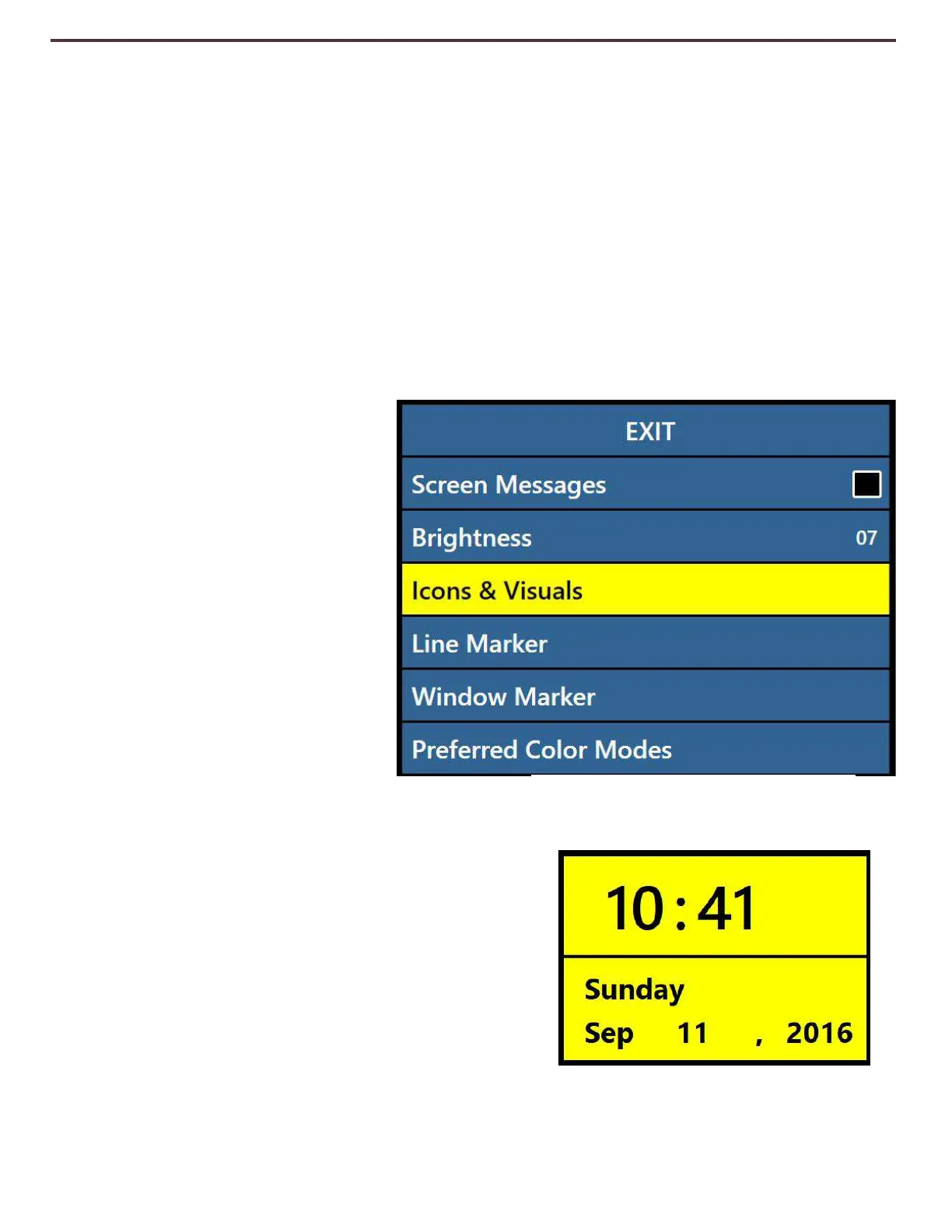
The User can select their preferred display and visual settings using this menu. Display Settings
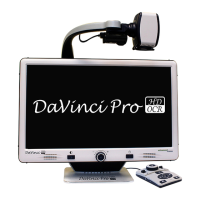
control all graphical user interfaces, icons and visuals that can be viewed on DaVinci Pro and
consists of the following options:
1)
Screen Messages (ON/OFF) – these are all system and software notifications, warnings and
alert messages that are displayed to inform the user of various conditions such as when
lights are turned on “Lights ON” or when saving a file, “Saving…”, Download Complete,
Factory Settings Restored etc. The user can turn all such display messages ON or OFF.
2)
Brightness (1-10) – user can select the preferred Brightness level for the LCD display and User
Interface.
3)
Icons & Visuals – Allows user to Enable or Disable the display of icons such as lights ON/OFF
icons or panning icons when in Preview/live or Freeze mode.
4)
Line & Window Markers –
Enables or disables Vertical or
Horizontal Window Markers.
These can be used to better
focus on segments of text while
you are in CCTV Mode.
5)
Preferred Color Modes – This
option allows you to select the
preferred color modes that are
cycled through utilizing the
[Mode] key on both the control
console and device Front Panel.
The device comes pre-loaded
with several color defaults but
these can be changed according
to your preference.
Time & Date Settings
DaVinci Pro remembers the current time & date once it
is set.
To set the current time/date:
1)
Enter the Menu by pressing the [Mode Up] and
[Find/Enter] buttons on Control Console.
2)
Rotate the [Scroll Wheel] clockwise until ‘User
Settings >> Time & Date is highlighted.
3)
Press [Find/Enter] to select ‘Time & Date’ sub menu.
Figure 20 Display Features


 To Next Page