49
Note: If you have already connected devices or computers to your product via Wi-Fi Direct, they
will be disconnected when you change the frequency range. You cannot re-connect from devices
that do not support 5 GHz frequency range when changing to 5 GHz.
• To restore all Wi-Fi Direct settings to their factory defaults, select Restore Default Settings and
press the OK button.
Parent topic: Wi-Fi Direct Mode Setup
Wi-Fi Protected Setup (WPS)
If your network uses a WPS-enabled wireless router or access point, you can quickly connect your
product to the network using Wi-Fi Protected Setup (WPS).
Note: To check if your router is WPS-enabled, look for a button labeled WPS on your router or access
point. If there is no hardware button, there may be a virtual WPS button in the software for the device.
Check your network product documentation for details.
Using WPS to Connect to a Network
Parent topic: Wi-Fi Networking
Using WPS to Connect to a Network
If you have a WPS-enabled wireless router or access point, you can use Wi-Fi Protected Setup (WPS) to
connect your product to the network.
1. Press the WPS button on your router.
2. From the home screen, select Wi-Fi Setup and press the OK button.
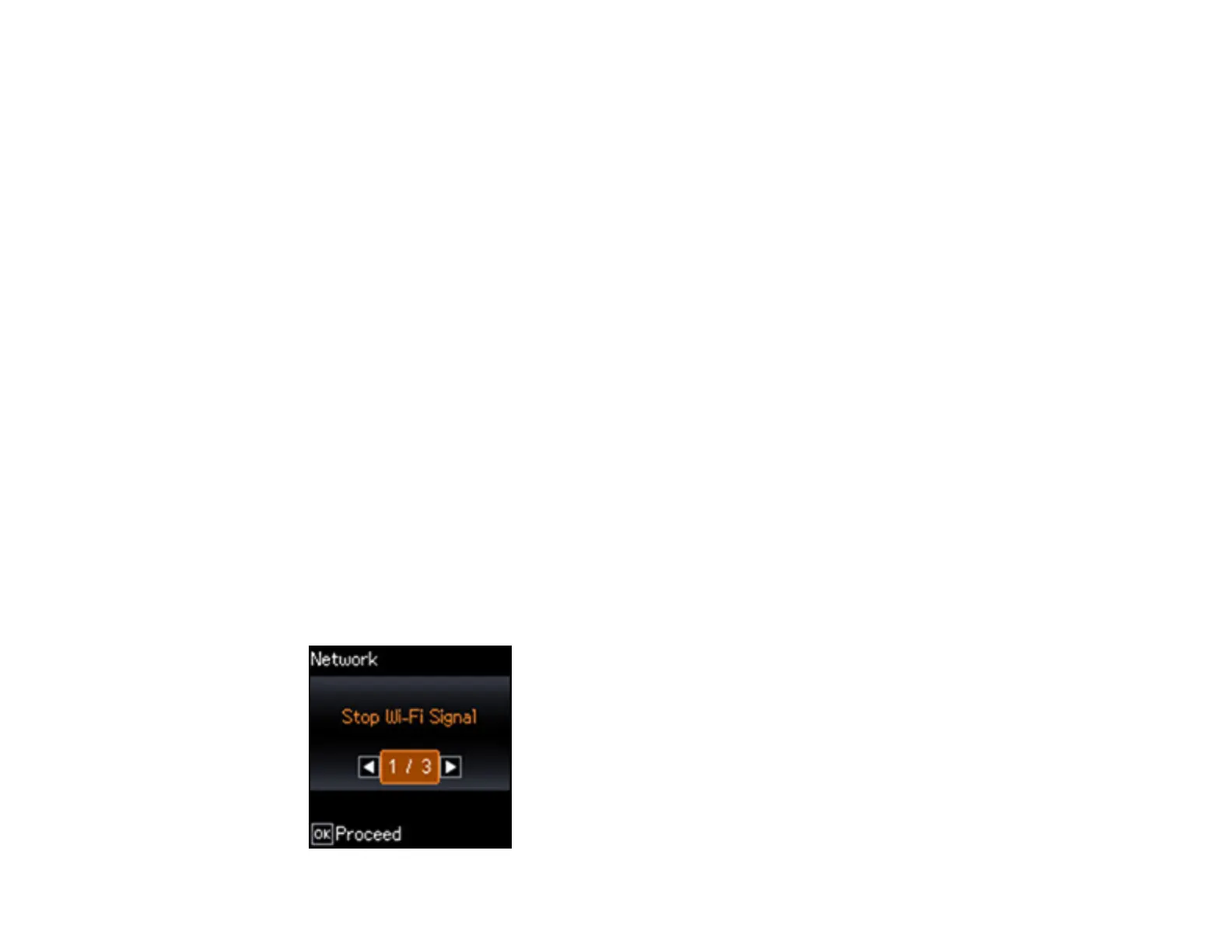
You see this screen:



 To Next Page