115
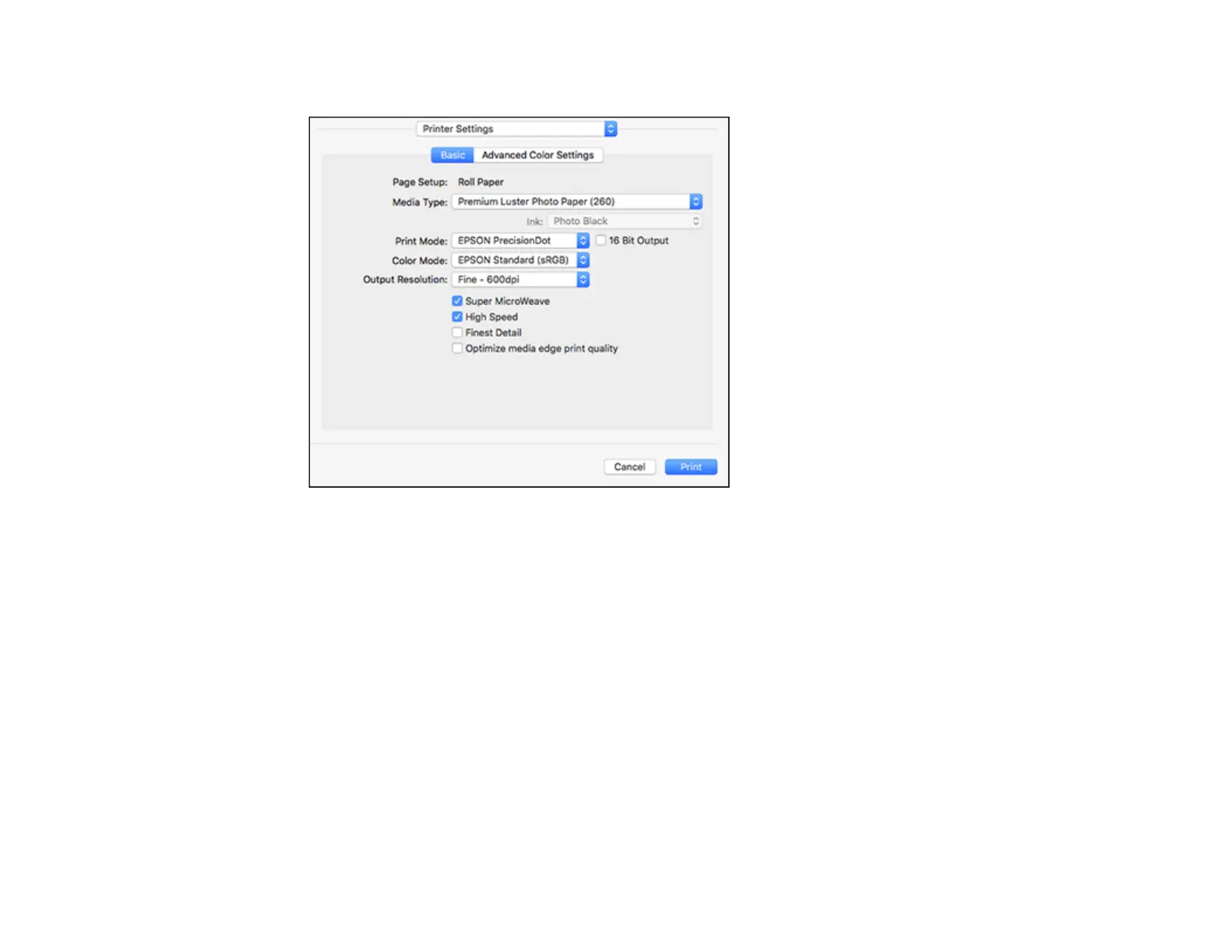
You see these settings:
10. Select the type of paper you loaded as the Media Type setting.
Note: The setting may not exactly match the name of your paper. Check the media type settings list
for details.
Note: The Ink setting may change depending on the size and type of paper you select. To avoid
changing black ink more often than necessary, set the printer to the type of black ink you usually use
on the control panel.
11. Select one of the following as the Print Mode setting:
• Select EPSON Precision Dot for any type of photographic printing.
• Select Advanced B&W Photo to print black-and-white photos on certain types of photo paper.
See the list of Advanced B&W Photo options for details. If your paper type does not support this
option, print black-and-white photos using the EPSON Precision Dot setting.
• Select Grayscale when using plain paper.



 To Next Page