97
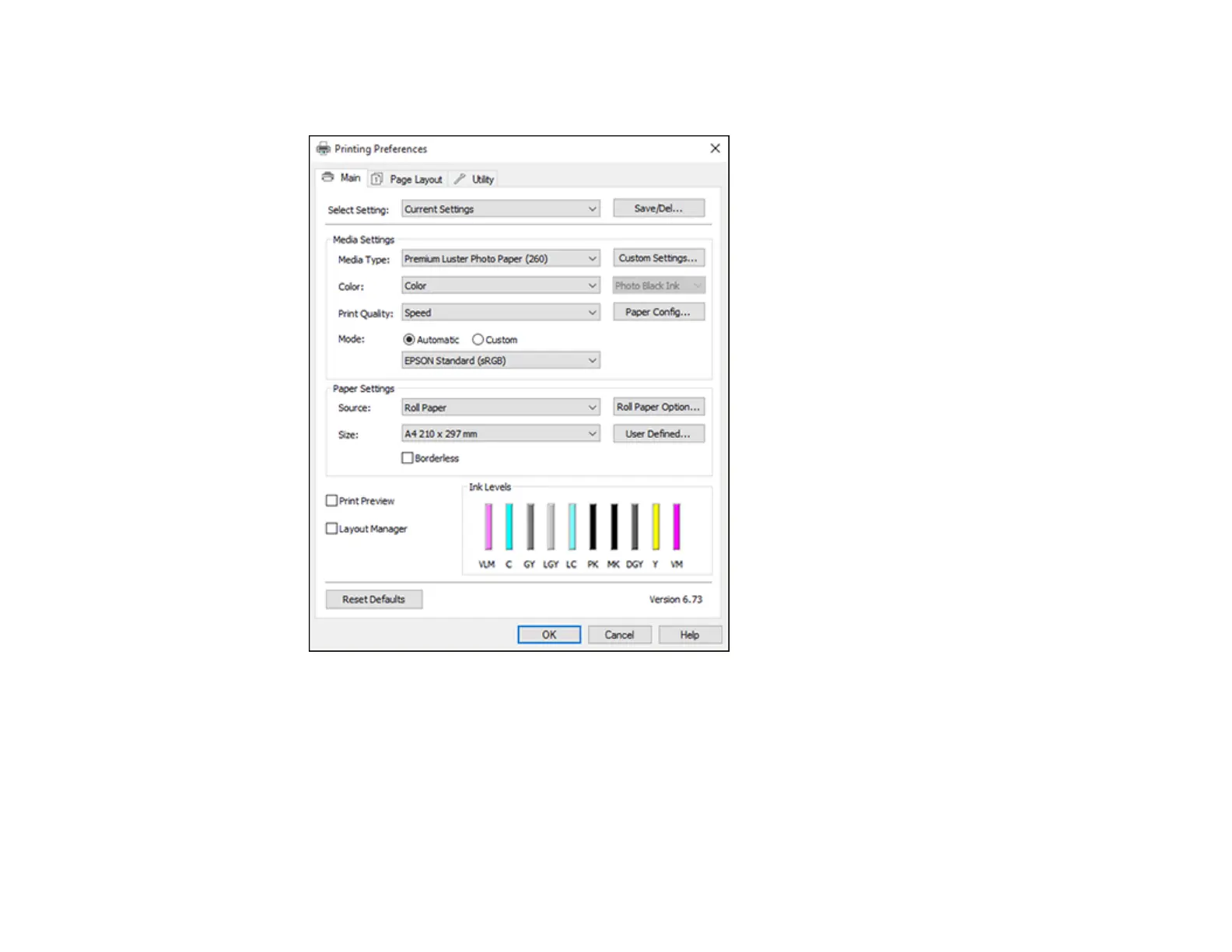
3. Select Layout Manager on the Main tab and choose an option for the Size setting that matches the
size of the document in your application.
Note: You select the size of the paper you are printing on in a later step.
4. Click OK and then click Print, if necessary.
The Layout Manager screen opens and displays one page in the layout.
5. Leave the Layout Manager screen open and repeat steps 1 to 4 to arrange additional print data. The
pages are added to the Layout Manager screen.



 To Next Page