Editing: Transforming Your Images 3-11
A
B
3
NOTE
To maintain image quality when printing, you should always
increase the resolution when you enlarge an image. For example,
if you scale a picture by 600 percent (make it six times larger),
you should increase the resolution from 200 to 1200.
Rotating Rotating
You can use the Rotate tool to tilt or turn a selected part
of an image. To rotate an entire image to the exact
degree you want, use the RotateRotate command on the Edit
menu.
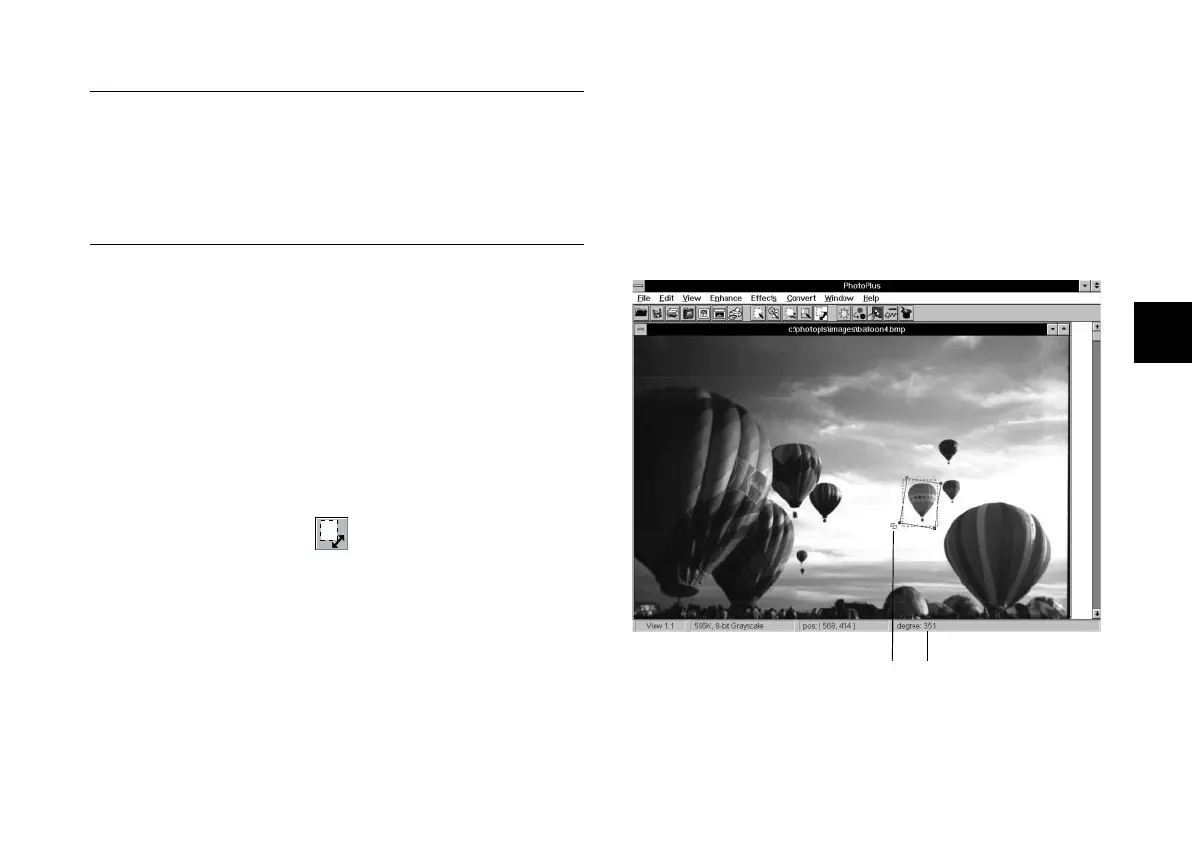
Rotating a SelectionRotating a Selection
Follow these steps:
1 Click the Rotate tool.
2 Click and drag on the part of the image you want to
rotate. When you release the mouse button, an
“animated” rectangle surrounds the selected area.
3 Click and drag a corner of the selection to rotate it.
The selected area “floats” on top of the original
image; you can move it by clicking inside the
selection and dragging with your mouse.
4 To remove the selection mask, click the Crop tool
and then click the image outside of the selection.
Rotate tool
Status bar shows
angle as you rotate
the selected area.
php_3.fm5 Page 11 Monday, July 8, 1996 3:17 PM



 To Next Page