3-12 Editing: Transforming Your Images
Rotating an Entire ImageRotating an Entire Image
You can use the RotateRotate command on the Edit menu to
rotate either a selected area or an entire image. With
this command, you can even set the exact degree of
rotation. Follow these steps:
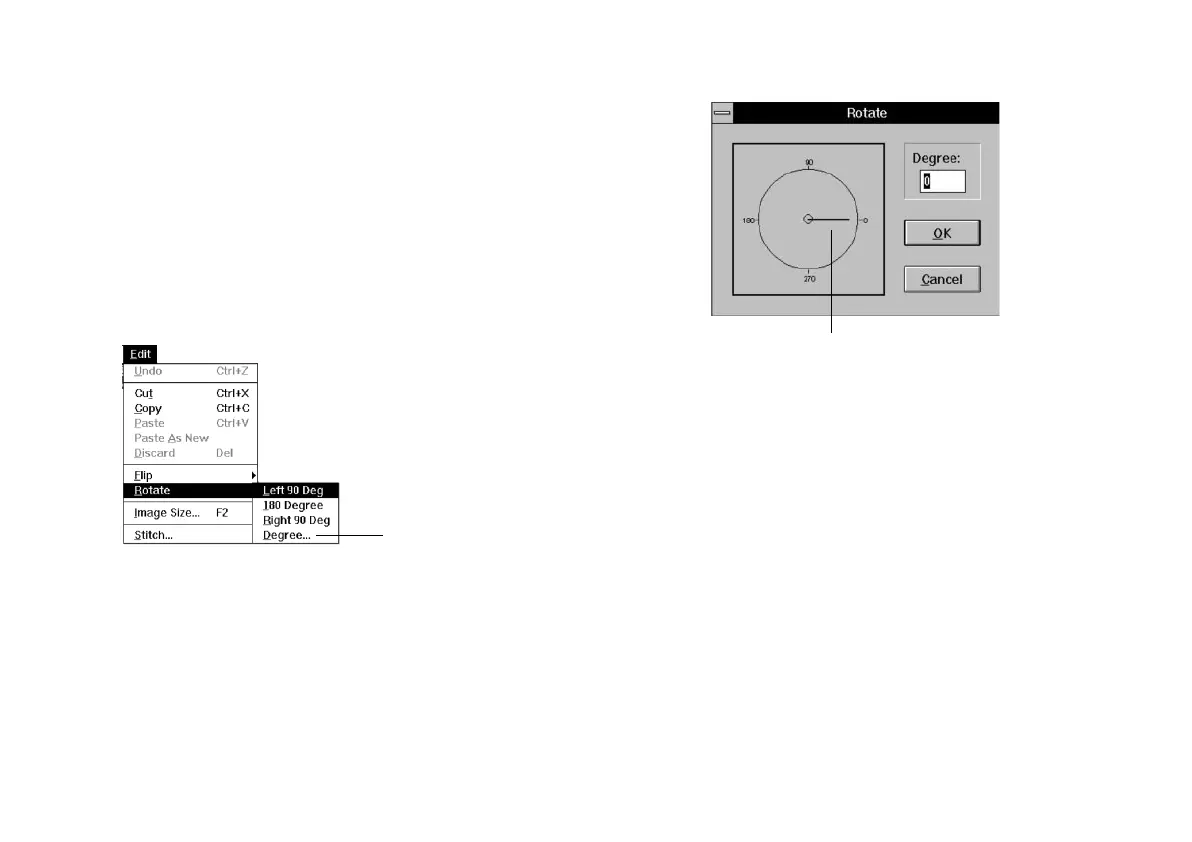
1 Choose RotateRotate from the Edit menu. The following
list of choices appears:
2 Choose the angle you want, or choose DegreeDegree to
display the Rotate dialog box, shown to the right.
3 Enter the exact degree of rotation in the box or drag
the dial.
4 Click OK to rotate the image.
FFlipping an Image or Selectionlipping an Image or Selection
You can use the FlipFlip command on the Edit menu to
reverse or “turn over” a selected area or an entire image.
Horizontal flipping is a great technique to use when
you’re printing a T-shirt transfer. Then the image is
flipped back the right way on the T-shirt.
Click to select the exact
degree of rotation you want.
Drag the way you want to
rotate your image.
php_3.fm5 Page 12 Monday, July 8, 1996 3:17 PM



 To Next Page