4-6 Enhancing: Playing with Your Images
3 If you want to see a small area of your image
enlarged in the Before and After windows, click the
Pan Mode box.
4 Slide the control to increase or decrease the
sharpening effect.
5 Click OK when you’re finished.
BlurringBlurring
You can use the Blur tool to give your image a softer, less
focused effect. Follow these steps:
1 Select the area you want to change, or make sure no
area is selected if you want to change the entire
image.
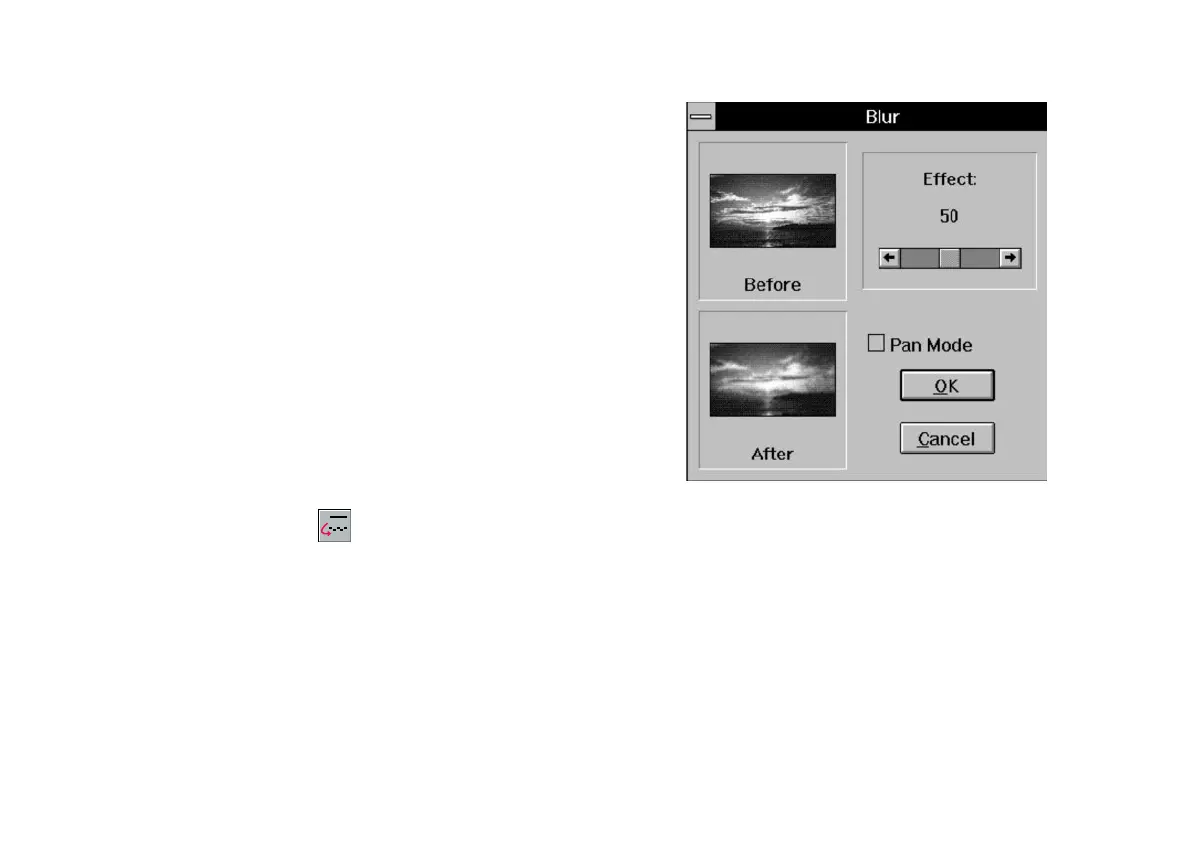
2 Click the Blur button or choose BlurBlur from the
Enhance menu. The Blur dialog box appears, as
shown on the right.
3 If you want to see a small area of your image
enlarged in the Before and After windows, click the
Pan Mode box.
4 Slide the control to increase or decrease the
softening effect.
5 Click OK when you’re finished.
php_4.fm5 Page 6 Monday, July 8, 1996 3:20 PM






 To Next Page