SpectroProofer Mounter 24"/44" User’s Guide
Troubleshooting
17
Troubleshooting
When Error Message
Appears in the Printer’s
Control Panel
The error message will appear on the printer’s
control panel when an error has occurred in this
product. Please refer to the User’s Guide of the
printer for the error content and how to solve the
problem.
When Ink Gets on the
Front or Back Side of the
Paper
Ink attached to the Paper Presser or the backing
could have been transferred to the paper. Follow
the steps below to clean the Paper Presser and the
backing.
A
Remove the mounter from the printer, and
put the mounter with the base face toward
you.
See “Removing the Mounter” on page
15
B
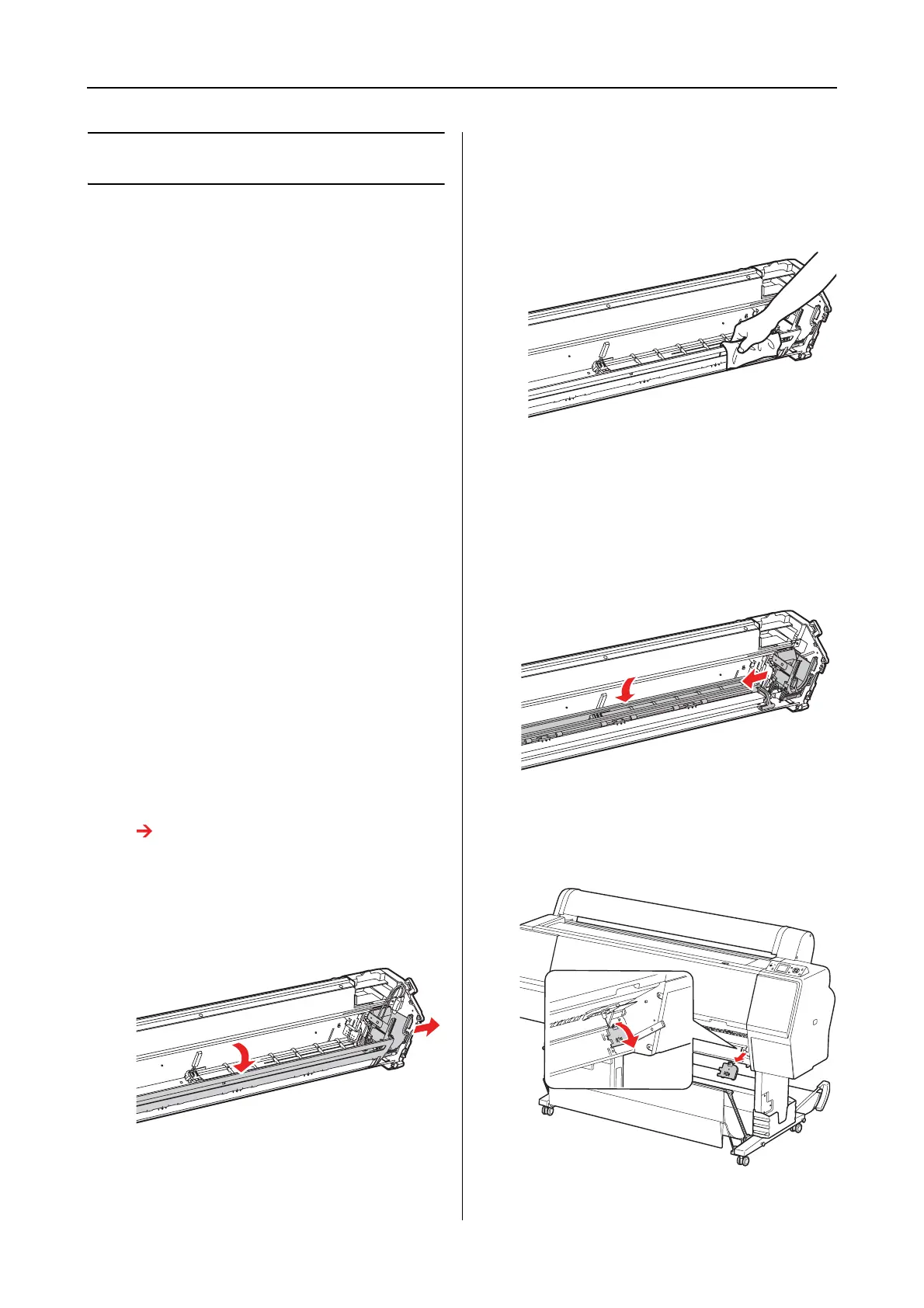
Move the Color Measurement Device
carriage to the far right, and raise the Paper
Presser toward you.
C
Clean the Paper Presser using a soft, clean
cloth dampened with a mild detergent.
Wipe it as illustrated below.
Then, wipe it with a dry, soft cloth.
D
Push back the Paper Presser fully, and slide
the Color Measurement Device carriage to
the left until it touches the Paper Presser.
This enables the Paper Presser to be fixed
and prevents the plate from falling when
lifting the mounter.
E
Remove the white calibration tile holder
from the printer.


 To Next Page