EasyManua.ls Logo

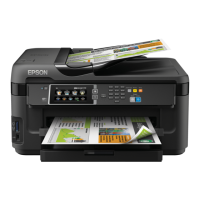
Epson WF-7525 - User Manual

Epson WF-7525
84 pages
Print Icon
To Next Page IconTo Next Page
Loading...
SERVICE MANUAL
Color Inkjet Printer
Epson WF-7525 / Epson WF-7521 / Epson WF-7520/
Epson WF-7515 / Epson WF-7511 / Epson WF-7510/
Epson WF-7018 / Epson WF-7015 / Epson WF-7012/
Epson WF-7011 / Epson WF-7010
SEMF10-012

Table of Contents

Questions and Answers

  • J
    Jessica CollinsAug 19, 2025
    What to do if my Epson WF-7525 All in One Printer says 'Ink end error'?
    • E
      Edwin BonillaSep 12, 2025
      If your Epson All in One Printer displays an 'Ink end error', it means you need to replace the indicated ink cartridge(s). The specific cartridges needing replacement will be listed.
  • B
    Brent JohnsonAug 21, 2025
    What to do if my Epson WF-7525 has a paper jam error?
    • M
      Michael CurryAug 21, 2025
      If your Epson All in One Printer indicates a paper jam error, press the OK button on the printer to view instructions on how to remove the jammed paper.
  • V
    Victoria RollinsAug 23, 2025
    Why does my Epson WF-7525 say 'Paper out error'?
    • A
      Andrew BradleyAug 23, 2025
      The 'Paper out error' on your Epson All in One Printer indicates either that the printer is out of paper or that there is a paper jam. Check the paper size and load paper correctly into the paper cassette.
  • S
    spencerjuliaAug 26, 2025
    What to do if my Epson All in One Printer says 'Ink cartridge detection error'?
    • J
      Jennifer KeithAug 26, 2025
      If your Epson All in One Printer displays an 'Ink cartridge detection error', it means the printer cannot recognize the indicated cartridge(s). Try reinstalling the cartridge(s).
  • J
    jmartinezAug 27, 2025
    How to fix Epson WF-7525 'No paper cassette error'?
    • K
      Kyle AlexanderAug 27, 2025
      To fix the 'No paper cassette error' on your Epson All in One Printer, load the cassette correctly and press OK.
  • N
    nicole84Aug 30, 2025
    How to fix Epson WF-7525 'Printer fatal error'?
    • J
      Julia DavidsonAug 30, 2025
      To resolve a 'Printer fatal error' on your Epson All in One Printer, turn the power off, and then turn it on again.
  • L
    Linda WestSep 1, 2025
    What to do if my Epson All in One Printer has a 'Printer fatal error (paper jam)'?
    • S
      Seth SmithSep 1, 2025
      If your Epson All in One Printer displays a 'Printer fatal error (paper jam)', it means there is a paper jam inside the printer, in the back, or in the ADF. Press the OK button to see instructions on how to remove the jammed paper.
  • C
    Christopher DoyleSep 3, 2025
    What does 'Waste ink pad end error' mean on my Epson WF-7525?
    • T
      tanya49Sep 3, 2025
      The 'Waste ink pad end error' on your Epson All in One Printer indicates that the printer's ink pad is at the end of its service life.
  • J
    Judith WilliamsSep 5, 2025
    What does 'Waste ink pad near end error' mean on my Epson All in One Printer?
    • J
      Judy NavarroSep 5, 2025
      The 'Waste ink pad near end error' on your Epson All in One Printer indicates that the printer's ink pad is nearing the end of its service life.
  • T
    Traci CamachoSep 7, 2025
    How to resolve 'Paper size mismatch error' on Epson WF-7525?
    • L
      Lisa YoungSep 7, 2025
      The 'Paper size mismatch error' on your Epson All in One Printer means that no paper source matches the paper size setting. Load the appropriate paper into Cassette 1 and press OK.

Summary

CHAPTER 1 PRODUCT DESCRIPTION

1.1 Features

Lists key features and differences across WF-7520, WF-7510, and WF-7010 models.

1.2 Printing Specifications

Details technical specifications for printing, including resolution, speed, and paper handling.

1.3 Scanner Specifications

Outlines technical specifications for the scanner and ADF units for specific models.

1.4 Control Panel

Describes the printer's control panel layout, buttons, LEDs, and LCD functions.

1.5 Various Settings

Explains how to configure various printer settings via the panel operation.

CHAPTER 2 OPERATING PRINCIPLES

2.1 Overview

Introduces the chapter's focus on printer mechanism operating principles.

2.2 Motors and Sensors

Lists and illustrates the various motors and sensors within the printer mechanism.

2.3 Optical Sensor Control

Explains the operating principles of the printer's optical sensor control system.

2.4 Power-On Sequence

Details the step-by-step sequences the printer follows when powering on.

CHAPTER 3 TROUBLESHOOTING

3.1.1 Error Message List

Comprehensive list of error messages, LED indications, and their corresponding LCD displays.

3.1.2 Troubleshooting Workflow

Provides a flowchart to guide troubleshooting based on error conditions and printer status.

3.1.3 Fatal Error Code

Lists fatal error codes for the printer, scanner, and ADF, with possible causes.

3.1.4 FAX Troubleshooting

Covers fax-specific troubleshooting, including logs and error codes.

CHAPTER 4 DISASSEMBLY;REASSEMBLY

4.1 Overview

Introduces the chapter and provides lists of necessary tools and jigs for disassembly.

4.2 Disassembly;Reassembly Procedures

Outlines procedures for disassembling major parts and units.

4.3 Detailed Disassembly;Reassembly Procedure for each Part;Unit

Provides detailed, step-by-step instructions for disassembling and reassembling individual printer components.

4.4 Routing FFCs;cables

Details the correct routing of Flexible Flat Cables (FFCs) and other cables during reassembly.

4.5 Connector Summary

Illustrates the printer's connector layout and cable connections for reference.

CHAPTER 5 ADJUSTMENT

5.1 Required Adjustments

Lists required adjustments based on replaced parts and explains symbols used in adjustment tables.

5.2 Details of Adjustments

Provides detailed procedures for specific adjustments like belt tension and platen gap.

CHAPTER 6 MAINTENANCE

6.1 Overview

Introduces maintenance information for optimal printer condition.

6.1.1 Cleaning

Provides instructions for cleaning exterior parts and internal components.

6.1.2 Lubrication

Lists types of grease and tools required for lubrication procedures.

6.2 Lubrication Points and Instructions

Details specific points and procedures for applying grease to printer components.

Epson WF-7525 Specifications

General IconGeneral
Print TechnologyInkjet
Max Scan Resolution1200 x 2400 dpi
ConnectivityUSB, Ethernet, Wi-Fi
FunctionsPrint, Copy, Scan, Fax
Paper Handling Input250 sheets
Duplex PrintingYes
Fax Speed33.6 Kbps
Supported Paper SizesLetter, Legal, A4, A5, B5
Fax Transmission Speed3 seconds per page
Paper Capacity250 sheets
Operating Systems SupportedWindows, macOS
Scanner TypeFlatbed

Related product manuals