Product description Control Panel 17
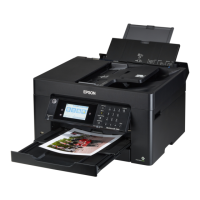
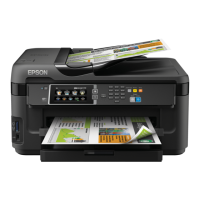
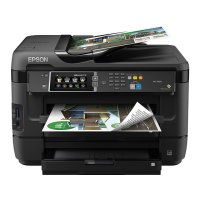
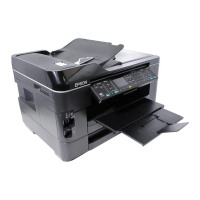
Epson WF-7520/7510/7010 series Revision A
Operating
Starting filling of ink
(after carriage moves)
Flash --- --- ---
Replace the cartridge(s) and close the
scanner unit.
<Ink Cartridges>XXXXXXX
*5
Ink cartridge cover open
error
Flash
*2
--- --- ---
The ink cartridge cover is open. Close the ink
cartridge cover.
Starting initialization Flash --- --- ---
Install the ink cartridges. See the setup sheet
for details.
Initializing Flash --- --- ---
Initializing...Please wait.
Do not turn off until initialization is
complete. This takes about 7 minutes.
Filling of ink Flash --- --- --- Charging ink...Please wait.
Checking ink cartridges Flash --- --- --- Checking the ink cartridges...
Drying 1st side
(printing from PC)
Flash --- --- ---
Printing 2-sided document. Do not touch the
paper in the output tray until printing is
complete.
Printing (PC) Flash --- --- --- Printing...
Printing nozzle check
pattern
Flash --- --- --- Printing...
Printing printer status
sheet
Flash --- --- --- Printing...
Printing (UPNP) Flash Flash --- --- Printing...
Receiving data Flash Flash --- --- Receiving data...
Canceling (PC)
*6
Flash --- --- --- Canceling...
Cleaning (PC) Flash --- --- --- Cleaning print head...Please wait.
Print head cleaning Flash --- --- --- Cleaning print head...Please wait.
Canceling nozzle check
pattern print
Flash --- --- --- Canceling...
Canceling printer status
sheet print
Flash --- --- --- Canceling...
Initializing network Flash
*2
Flash --- --- ---
Waiting for network
initialization
Flash
*2
--- --- --- ---
Network initialization
(LED ON)
OFF
*2
ON --- --- ---
Network initialization
(LED OFF)
OFF
*2
OFF --- --- ---
Preparing to update
firmware (cancel OK)
ON
*2
Flash at
high speed
--- --- Preparing to update...
Updating firmware Flash
*7
OFF OFF OFF
Updating firmware...Do not turn power off.
It turns off and on automatically when
complete.
Preparing to update
firmware
ON
*2
Flash at
high speed
--- --- Preparing to update...
Canceling firmware
update
ON
*2
Flash at
high speed
--- --- Canceling...
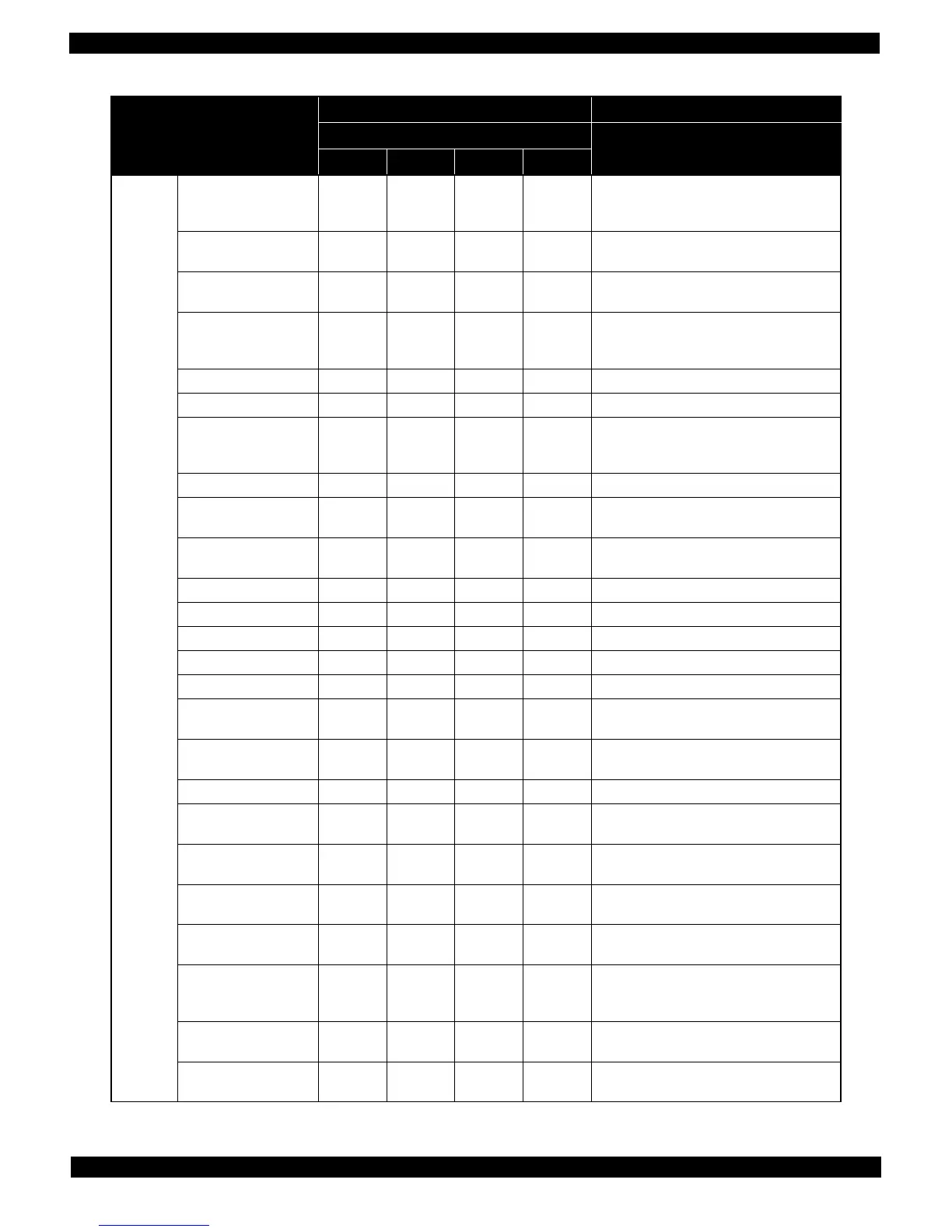
Table 1-8. LEDs and LCD Indications
Status
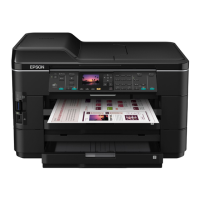
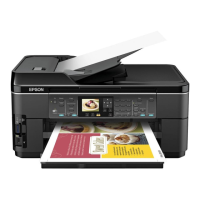
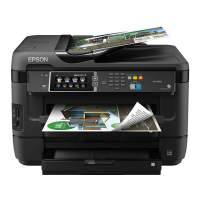
WF-7010 series WF-7520/7510 series
LED
LCD Message
Power Network Paper Ink







 To Next Page