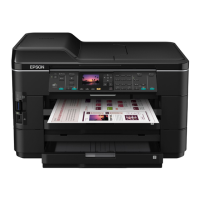
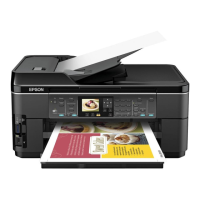
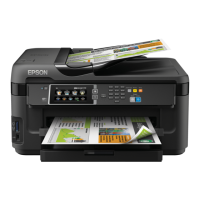
Epson WF-7520/7510/7010 series Revision A
Appendix Troubleshooting Workflow 32
This flowchart is compiled based on the following contents.
• Our experience regarding the quality problem
• ESK’s repair data
• Printer Mechanism specification for WF-7520/7510/7010 series
WF-7010 series are not equipped with the Scanner / ADF unit,
therefore, the troubleshooting related to the Scanner / ADF unit is
not applied.
Fatal error
Please refer to “ 3.1.3 Fatal Error
Code (p33)”
for troubleshooting.
Waste ink pad end error
[Occurrence Condition]
This error occurs when
maintenance counter in EEPROM
exceeds the specified value.
[Major Occurrence Timing]
• Power-on timing
• Print start timing
• Cleaning timing
• Ink Cartridge replacement timing
[Troubleshooting]
• Waste Ink Pad (Waste Ink Tray
Assy or Paper Guide Lower
Porous Pad) replacement
• Maintenance counter reset
Ink end error
[Occurrence Condition]
This error occurs when ink in Ink
Cartridge is empty.
[Major Occurrence Timing]
• Power-on timing
• Print start timing
• Cleaning timing
• Ink Cartridge replacement
timing
• During printing
[Troubleshooting]
• Ink Cartridge replacement
[NOTE]
If this error occurs during auto
duplex print operation, printer
stops and eject the paper
automatically even if the printing
is not completed.
Ink cartridge detection error
[Occurrence Condition]
This error occurs when Ink
Cartridge data is incorrect or Ink
Cartridge is not recognized
correctly.
[Major Occurrence Timing]
• Power-on timing
• Print start timing
• Cleaning timing
• Ink Cartridge replacement
timing
[Major Troubleshooting]
• Remove and reinstall Ink
Cartridge
• Ink Cartridge replacement
• CSIC Terminal replacement
• CR Contact Module
replacement
• Head FFC replacement
• Main Board replacement
No ink cartridge error
[Occurrence Condition]
This error occurs when Ink
Cartridge is not installed.
[Major Occurrence Timing]
• Power-on timing
[Troubleshooting]
• Ink Cartridge installation
Cover open error
*2
[Occurrence Condition]
This error occurs when Scanner
Unit or Printer Cover is in open
condition.
[Major Occurrence Timing]
• Power-on timing
[Major Troubleshooting]
• Scanner Unit or Printer Cover
close
• Scanner Unit or Printer Cover
replacement
• Cover Open Sensor
replacement
• Main Board replacement
Paper jam error
Please refer to “ Paper jam error ”
of “Error occurs in printing
operation”.
Paper jam error
[Occurrence Condition]
This error occurs when the top/
bottom of paper cannot be
detected by PE Sensor within the
specified steps even if the paper
has been fed correctly.
[Major Occurrence Timing]
• Power-on timing
• Paper loading timing
• Paper eject timing
• Auto duplex print timing
*4
[Major Troubleshooting]
1 Press the “OK” button to eject
the paper.
• If succeeded
Starts paper feeding operation
again if printer has print data.
• If failed
Occurs paper jam error again.
2 If fail in the above 1, remove
the paper by opening Scanner
Unit or Printer Cover and
taking off Duplex Unit.
3 Press the “OK” button again.
• If succeeded
Starts paper feeding operation
again if printer has print data.
• If failed
Occurs paper jam error again.
4 Check the following if failed in
Step 3.
• Foreign material
• Part come-off
• PE Sensor Lever
• PE Sensor
• Paper Guide Front Porous
Pad
• Main board
• Paper Stopper Assy
[NOTE]
If this error occurs during auto
duplex print operation, printer
stops and eject the paper
automatically even if the printing
is not completed. (print data of
adverse side & reverse side is
eliminated.)
Paper out error
[Occurrence Condition]
This error occurs when the top of
paper cannot be detected by PE
Sensor within the specified steps
even if the paper has been fed
correctly. (No paper / paper
loading failed / paper is fed at
slant)
[Major Occurrence Timing]
• Paper loading timing
[Major Troubleshooting]
1 Put papers in Cassette Assy
and press the “OK” button.
2 If a paper stops before reaching
PE Sensor, remove it and
check the paper condition.
3 A) If no damage in the above 2,
set edge guide correctly after
putting papers in
Cassette
Assy
and retry.
B) If damage in the above 2,
check foreign materials /
parts come-off / parts
transformation in paper path.
4 If the problem is not solved by
3-A & 3-B, check the following.
• Foreign material
• Part come-off
• Surface condition of Pickup
Roller or paper feed roller in
Duplex Unit
• PE Sensor Lever
• PE Sensor
• Pre-PE Sensor Lever
• Pre-PE Sensor
• Main Board
• PF Motor or Pickup Motor
• Cassette Assy
• Paper Stopper Assy
Multi-feed error
[Occurrence Condition]
This error occurs on the following
case.
• The top of paper is detected
before the specified steps are
reached.
• Actual paper length is longer
than theoretical one.
[Major Occurrence Timing]
• Paper loading timing
• Paper feed timing
• Paper eject timing
[Troubleshooting]
• PE Sensor Lever replacement
• PE Sensor replacement
• PW Sensor replacement
• Main Board replacement
Paper length mismatch error
for duplex printing
[Occurrence Condition]
This error occurs when actual
paper size is not matched to
theoretical one (both shorter and
longer).
[Major Occurrence Timing]
• Auto duplex print timing
*4
[Troubleshooting]
• PE Sensor Lever replacement
• PE Sensor replacement
• PW Sensor replacement
• Main Board replacement
Paper size mismatch error
*3
[Occurrence Condition]
This error occurs when actual
paper size is not matched to
theoretical one. (shorter only)
[Major Occurrence Timing]
• Paper loading timing
• Paper feed timing
• Paper eject timing
[Troubleshooting]
• PE Sensor Lever replacement
• PE Sensor replacement
• PW Sensor replacement
• Main Board replacement
No Power
*1
[Presumable Cause]
• Power Supply Unit damage
• Main Board damage
[Major Troubleshooting]
• Power Supply Unit
replacement
• Main Board replacement
Poor Printing
[Phenomenon]
• Poor printing quality
• Ink stain on paper
• Dot missing
• Paper eject without printing
[Presumable Cause]
• Driver / Panel mis-setting
• Contamination of CR Scale
• Contamination of Printhead
Cover
• Printhead damage
• Ink clogging of Printhead
• Contamination on Cap / Wiper
of Ink System Assy
• Ink System Assy damage
• Float of Paper Guide Front
Porous Pad
• Narrow PG
• PE Sensor Lever damage
• PE Sensor damage
[Major Troubleshooting]
• Driver / Panel re-setting
• CR Scale replacement
• Printhead Cover cleaning
• Printhead cleaning
• Ink Cartridge replacement
• Printhead replacement
• Rubber cleaning of Cap
• Ink System Assy replacement
• Paper Guide Front Porous Pad
re-installation
• Printer Mechanism (Frame
Base Assy) replacement
• PE Sensor Lever replacement
• PE Sensor replacement
Poor Paper Loading
[Presumable Cause]
• Use of 3rd party media
• Edge guide mis-setting
• Foreign material
• Part come-off
• Contamination of paper feed
roller in Duplex Unit
• Cassette Assy damage
[Major Troubleshooting]
• Recommendation of EPSON
media
• Edge guide re-setting
• Foreign material removal
• Part re-installation
• Roller replacement
• Cassette Assy replacement
Abnormal Noise
[Presumable Cause]
• Foreign material
• Insufficient grease
• Gear damage
[Major Troubleshooting]
• Foreign material removal
• Lubrication of grease
• Gear replacement
Scanner failure
[Presumable Cause]
• Contamination of Scanner Glass
• Contamination of Document Pad
• CIS Unit bonding failure
• CIS Unit damage
• Scanner Motor Assy damage
[Major Troubleshooting]
• Scanner Glass cleaning
• Document Pad cleaning
• Document Pad replacement
• CIS Unit replacement
• Scanner Motor Assy replacement
ADF failure
[Phenomenon]
• No paper feed
• Double feed
• Paper jam
• Paper skew
[Presumable Cause]
• Wear of Pickup Roller
• Wear of ADF Pad Assy
• Gear damage
• ADF Motor damage
• Contamination of Scanner Glass
• Paper Sheet damage
• Foreign material
• ADF Paper Guide Upper Assy damage
• Wear of paper eject roller
• ADF Sensor damage
[Major Troubleshooting]
• ADF LD Assy replacement
• ADF Pad Assy replacement
• Scanner Glass cleaning
• Paper Sheet replacement
• Foreign material removal
• ADF Unit replacement
Finish
*5
Turn on the printer
1
1
Major problem without error message
Print check pattern
What is returned reason?
Copy an image
Copy an image by ADF
Flow A
Return previous flow
Is printing operation
finished without trouble?
Start
ADF/Scanner
unit failure
Printer failure only
No
Yes
No
Yes
No
Yes
No
Yes
No
Yes
No
Start
Yes
*1: If the printer can turn on but turns off right away, the protection circuit may cut off the power
due to an error such as a circuit failure.
*2: For WF-7010 series, this error occurs only when the Printer Cover is opened.
*3: Only for fax printing for WF-7520/7510 series.
*4: Auto duplex printing is available only for WF-7520/7010 series.
*5: In case of “Not Trouble Found”, check fatal error code.
Major problem with error message
Major problem without
error message
Is Power-on sequence
finished without error?
Perform “Flow A”
Yes
No
Is ADF operation finished
without trouble?
Standby condition
ADF failure?
Is scanning operation
finished without
trouble?
Does power-on
sequence start?
No paper cassette error
[Occurrence Condition]
This error occurs when Cassette
Assy cannot be detected.
[Major Occurrence Timing]
• Paper loading timing
[Troubleshooting]
• Check connection for Paper
Stopper Lever Sensor cable
• Replace Paper Stopper Lever
Sensor
Is printing operation
finished without error?







 To Next Page