347
Checking Ink Status on the LCD Screen
When one of your ink cartridges is low or expended, you see a message on the LCD screen. Select
How-to and follow the steps on the LCD screen to replace the ink cartridge.
You can also check the status of the ink cartridges and maintenance box from the product control panel.
Note: You can continue printing while the low ink message is displayed. Replace the ink cartridges when
required.
1. Press the home button, if necessary.
2. Select the icon.
3. Select the Consumables/Others tab.
You see a screen like this:
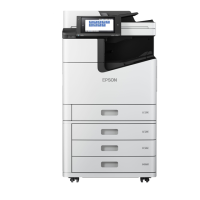
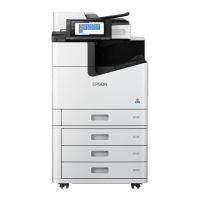
WF-C20600/WF-C20750/WF-C21000:
Downloaded from ManualsNet.com search engine


 To Next Page
 Loading...