Error Messages Solution
Paper jam in the Automatic Document Feeder (ADF).
Remove the jammed paper.
& “Removing jammed paper from the Automatic Document
Feeder (ADF)” on page 158
Paper jam in the Automatic Document Feeder (ADF). Remove
the jammed paper. Press r.
Paper jam inside, in back, or in ADF. Press
to see how to
remove jammed paper.
1. & “Removing jammed paper from the paper cassette(s)” on
page 157
2. & “Removing jammed paper from the rear unit” on
page 155
3. & “Removing jammed paper from the front cover and the
output tray” on page 156
4. & “Removing jammed paper from the Automatic
Document Feeder (ADF)” on page 158 (only for printers with
an Automatic Document Feeder)
5. Press the P button to turn off the printer, and then press the
P button again to turn the printer back on.
Paper jam inside or in back. Press
to see how to remove
jammed paper.
Paper jam inside, in back, or in ADF. Press r.
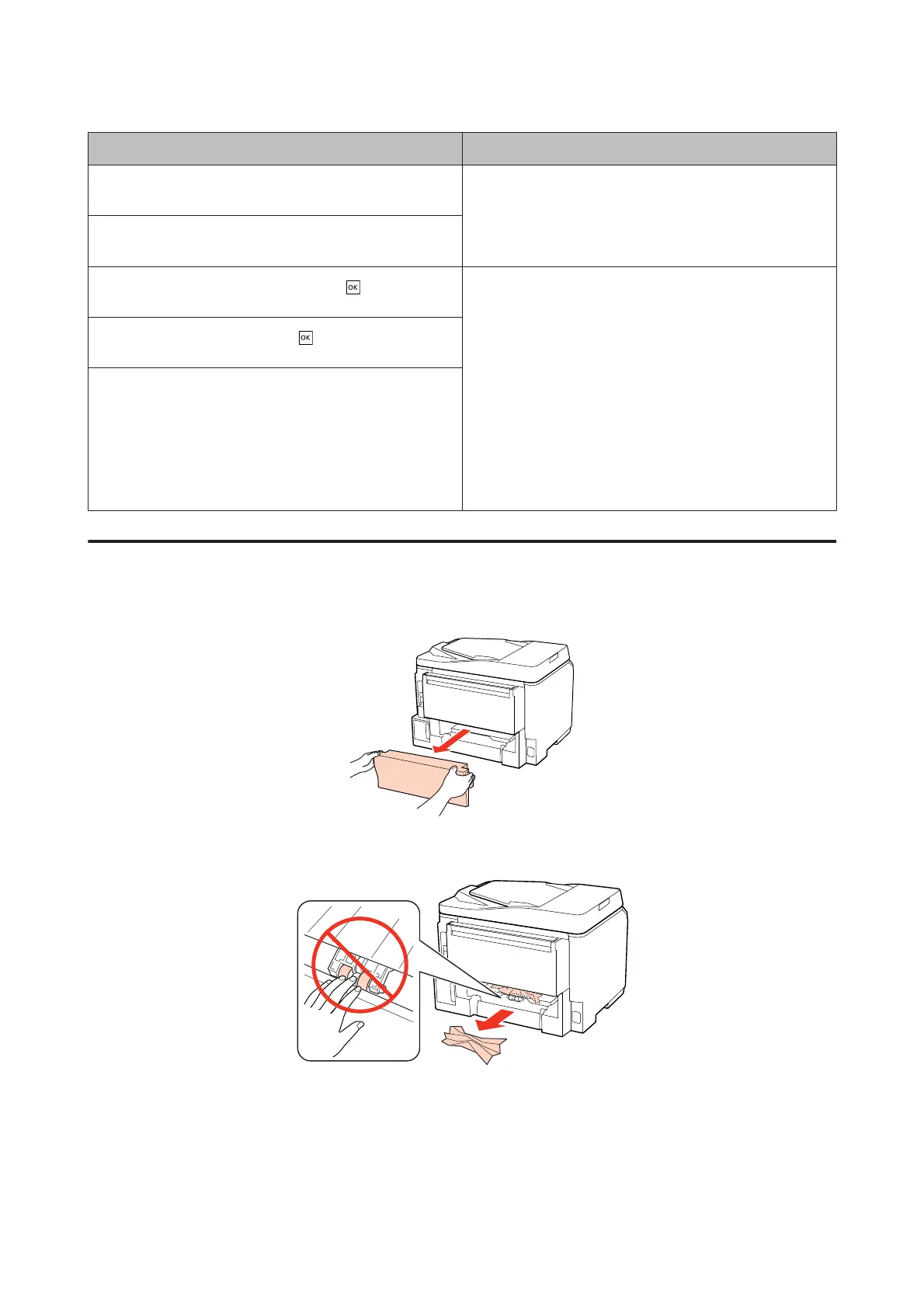
Removing jammed paper from the rear unit
A
Push the buttons on either side of the rear unit at the same time, and then pull the unit out.
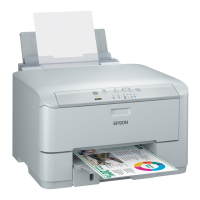
B
Carefully remove the jammed paper.
WP-4511/4515/4521/4525/4530/4531/4535/4540/4545 User’s Guide
Troubleshooting for Printing
155






 To Next Page