EasyManua.ls Logo

ESP GuardCamDeco - User Manual

ESP GuardCamDeco
28 pages
Print Icon
To Next Page IconTo Next Page
Loading...
1
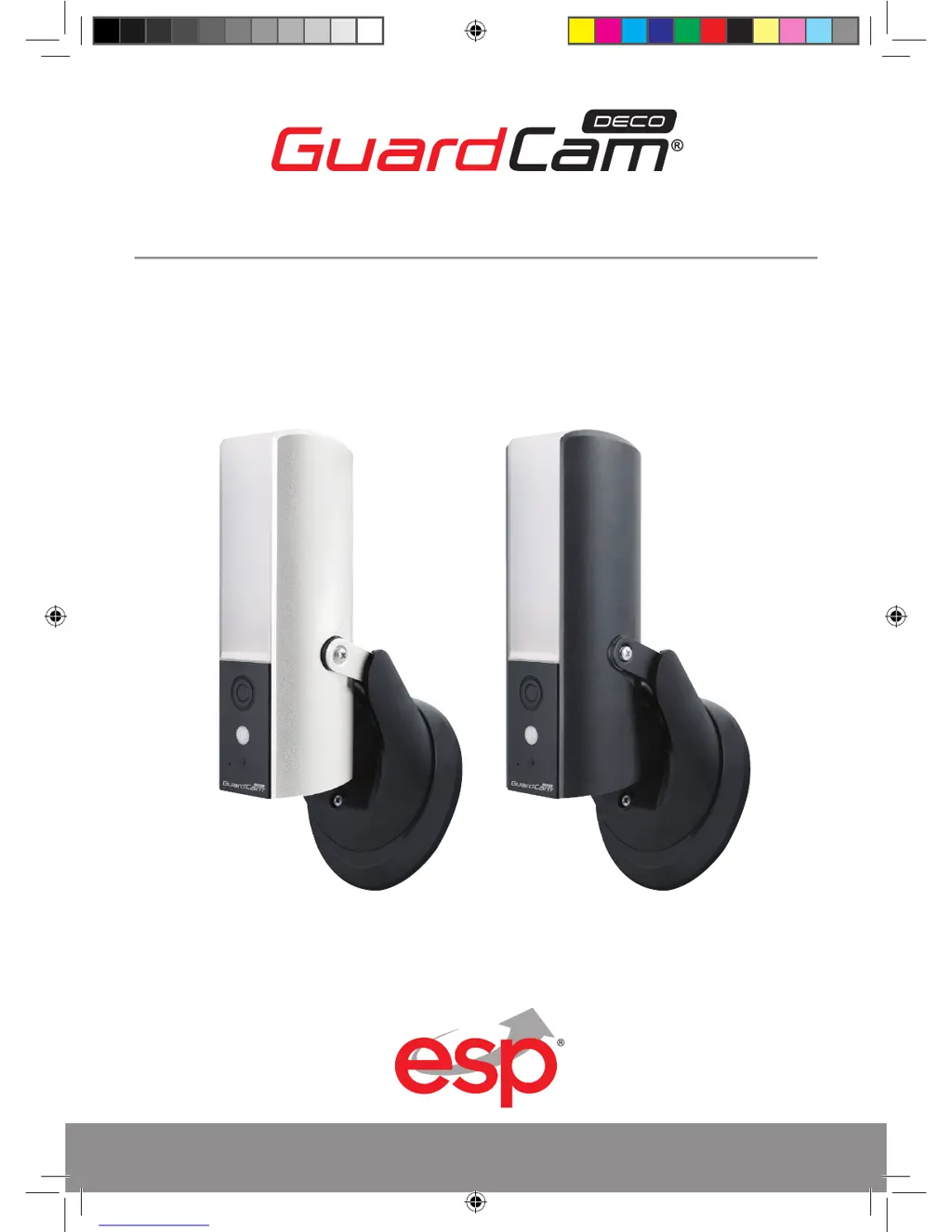
GUARDCAMDECO: COMBINED WI-FI SECURITY CAMERA LED FLOODLIGHT SYSTEM
www.espuk.com
PRODUCT MANUAL
GUARDCAMDECO Manual.indd 1 12/03/2018 14:23:51

Other manuals for ESP GuardCamDeco

Questions and Answers

  • B
    Brianna TrujilloSep 2, 2025
    How to fix ESP GuardCamDeco Security Camera motion detection not working?
    • J
      John MitchellSep 2, 2025
      If motion detection is not working or is overreacting on your ESP Security Camera, ensure the sensitivity setting is turned ON. Also, remember that in motion detection mode, a moving object within the camera's viewing angle is required to trigger the motion sensor for recording.
  • C
    connie99Aug 31, 2025
    Why are email alerts not working on my ESP Security Camera?
    • Z
      Zachary HernandezAug 31, 2025
      If the email alerts are not working for your ESP Security Camera, first, ensure that the email alert function is enabled. Also, verify that you have correctly set up the system configuration as suggested. Finally, double-check that the email address has been entered correctly.
  • P
    Paul MaxwellAug 29, 2025
    How to improve low signal and image quality on my ESP GuardCamDeco Security Camera?
    • P
      Patrick NicholsonAug 29, 2025
      If you're experiencing low wireless signal and poor image quality on your ESP Security Camera, keep as much space as possible between the camera/mobile device and other wireless devices, as they can reduce signal strength. Additionally, clean the camera lens with a lens cleaning cloth.
  • M
    Mary HansonAug 28, 2025
    Why does my ESP GuardCamDeco Security Camera show a memory card error?
    • Z
      Zachary StoneAug 28, 2025
      If you're experiencing a memory card error with your ESP Security Camera, ensure the memory card is correctly inserted and formatted. For optimal performance, use the memory card provided in the package. Also, make sure you are using a Class 10 rated memory card.
  • P
    Patricia MitchellAug 27, 2025
    What to do if the ESP GuardCamDeco Security Camera app doesn't record video?
    • A
      Alison RochaAug 27, 2025
      If the ESP Security Camera app isn't recording video clips, first, check that the SD card is correctly inserted. Then, ensure the motion detection function is enabled. If it's the first time using the SD card, format it. Finally, make sure you're using a Class 10 rated memory card.
  • D
    Dr. Kimberly AndersonAug 25, 2025
    Why does my ESP Security Camera show no image?
    • J
      James MaddenAug 25, 2025
      If your ESP Security Camera displays no image, ensure the power adapter is functional and properly connected to a working electrical outlet. Try relocating the camera to improve wireless signal reception. Also, verify that the camera is correctly configured within the app and that your mobile device has a stable 3G/4G/Wi-Fi connection.
  • J
    James SullivanAug 22, 2025
    What to do if the ESP Security Camera app can't find the camera?
    • T
      Terri MillerAug 22, 2025
      If the ESP Security Camera app cannot find the camera, ensure your network supports the DHCP protocol. Also, verify that the camera and your mobile device are connected to the same Wi-Fi router during the initial setup. Confirm that the Wi-Fi router is activated and that the camera is properly powered on. If issues persist, use the “ADD CAMERA” function to manually add the camera within the app.

Summary

GuardCam DECO Product Manual Overview

Kit Contents and System Requirements

Included Kit Contents

List of items included in the GuardcamDECO package, such as the device, manual, and accessories.

System Performance Requirements

Specifications for iOS, Android, storage, and bandwidth for optimal system performance.

Installation Tips and Safety

App Connection Guidance

Details on connecting the GuardcamDECO app via Wi-Fi, 3G, or 4G, and background app usage.

General Safety Tips

Precautions to avoid personal injury during installation and handling of the product.

Product Overview

Front View Overview

Labels and descriptions of components visible on the front of the GuardcamDECO unit.

Underside View Overview

Labels and descriptions of components located on the underside of the GuardcamDECO unit.

Device Installation Procedures

Device Mounting and Detection Zone

Guidance on optimal installation height (2.5m) and the 90° motion detection range.

Electrical Connection

Instructions for connecting the N&L pole connector to the junction box, noting double insulation.

Device Installation Continuation

Securing the Junction Box and Device

Steps to fasten the junction box to the wall and securely attach the device using the hex key.

Finalizing Device Installation

Powering Up and Light Adjustment

Instructions for powering on the device after installation and adjusting LED brightness.

Waterproof Installation Recommendation

Advice on installing the camera on a flat surface for optimal waterproof protection.

App Installation Guide

App Download and Installation

Guide on downloading and installing the 'ESP GuardcamDECO' app on smart-phones or tablets.

Connecting to Cameras Wi-Fi Hotspot

Steps to connect your smart-device to the GuardcamDECO's Wi-Fi hotspot and launch the app.

Adding Device to the App

Instructions for adding the GuardcamDECO to the app using system name, QR code, and security code.

Advanced App Installation Steps

Connecting to Home Wi-Fi Network

Steps to connect the GuardcamDECO to your home Wi-Fi network via advanced settings.

Wi-Fi SSID Character Requirements

Note on acceptable SSID formats for Wi-Fi connection, emphasizing English alphabet characters.

Main App Page Overview

Main App Page Functionality

Description of the main app page listing registered devices and accessing live view.

App Icon Functions

Explanation of icons for adding devices, accessing settings, refreshing, and viewing information.

App Settings and Features

Accessing Advanced Settings

How to access advanced settings from the app's setting menu.

Deleting a Device

Procedure for deleting a paired GuardcamDECO device from the application.

Viewing Event List

How to view and playback motion-triggered events from the event list.

App Security and Notifications

Setting Up a PIN Code

Instructions for enabling and setting a PIN code for app security upon launch.

Forgotten PIN Recovery

Guidance on what to do if the PIN code is forgotten (delete and reinstall the app).

Push Notification Configuration

Android Push Notification Setup

Steps to enable and configure push notifications for the GuardcamDECO on Android devices.

Push Notification Timing (iOS)

Note indicating that changes to push notification settings may take time to apply on iOS devices.

Live View, Snapshots, and Events

Live View Interface Overview

Description of the live view screen, including controls for light, auto mode, and brightness.

Snapshot and Recording Controls

Explanation of buttons for taking snapshots, controlling volume, and starting/stopping video recording.

Two-Way Audio and Alarm Trigger

Instructions for using the two-way audio feature and triggering the manual alarm.

Viewing Snapshots and Events

Snapshot Storage Location (iOS)

Information on where snapshots are saved on iOS devices (Camera Roll).

Snapshot Storage Location (Android)

Information on where snapshots are saved on Android devices (Photo Gallery).

Event Recording Management

Event Recording Storage

Details on how recorded video files are automatically saved to the inserted memory card.

Accessing Event Edit Menu

Instructions on how to access the event edit menu using the designated icon.

Video Playback and Deletion

Video Playback Controls

Instructions for pausing/playing videos and activating/deactivating the audio function during playback.

Full Screen Video View

How to switch to a full-screen view of the video during playback.

Managing Recorded Video Clips

Selecting Files for Deletion

Instructions on how to select specific video files from the event list for deletion.

Downloading Video Files

Downloading Video Clips

Steps to search for events by date/time and download video clips to your device.

Download Process Notes

Information that live view and recording stop during download and connection termination may occur.

Advanced Setting Configuration

Security Settings

Configuration for Admin Password and Device Security Password for system management and remote access.

Network and Communication Settings

Configuration for Wi-Fi network connection and email alert settings.

Video, Sensitivity, and Lighting Settings

Settings for video quality, motion detection sensitivity, and automatic lighting modes.

System and Storage Settings

Configuration for time zone, SD card management, and device information.

Basic Settings Management

Admin Password Management

Details on the default admin password and how to change it for security.

Device Security Code Management

Details on the default security code and how to change it for camera access.

Time Setup and Daylight Saving

Instructions for setting the correct time zone and daylight saving for the device.

Wi-Fi Network Settings

Wi-Fi Network Connection

Instructions for connecting the camera to a Wi-Fi network, recommending WPA/WPA2/PSK.

Email Alert Configuration

Gmail Setting Configuration

Recommended settings for configuring Gmail for email alerts, including SMTP details.

Video Settings Adjustment

Video Quality Settings

Adjusting video stream quality for optimal viewing based on bandwidth.

Environment Mode Settings

Selecting power line frequency and video color tone (warm yellow/cool-white).

Low Light Enhancement

Improving night view video image by selecting from 5 brightness levels.

Sensitivity and Lighting Settings

Detection Mode

Explanation of PIR as hardware-based biomass detection for motion sensing.

Lighting Auto Mode Setup

Setting up the lighting auto mode with options like 'By Trigger' or 'By manual schedule'.

SD Card and Device Information

Formatting Memory Card

Instructions for formatting the memory card, which erases all data.

Overwrite SD Card Function

Enabling overwriting of oldest files when the memory card is full to save new recordings.

Device Information Display

Device Information Display

Display of device version, total size, and available size of the memory card.

Troubleshooting Common Issues

Troubleshooting: APP Cannot Find Camera

Solutions for when the mobile app cannot detect or connect to the camera.

Troubleshooting: Wi-Fi Router Not Found

Solutions for when the Wi-Fi router is not appearing in the device's network list.

Troubleshooting: No Image Appears

Solutions for when no image is displayed on the app, checking power and configuration.

Troubleshooting: Signal and Image Quality

Solutions for low wireless signal strength or poor image quality, including placement and cleaning.

Troubleshooting: Motion Detection Issues

Solutions for motion detection not working or over-reacting, checking sensitivity settings.

Continued Troubleshooting

Troubleshooting: APP Cannot Record Video

Solutions for when the app cannot record video clips, checking SD card and motion detection.

Troubleshooting: Email Alert Not Working

Solutions for email alerts not functioning, checking configuration and email address.

Troubleshooting: Memory Card Error

Solutions for memory card errors, ensuring correct insertion, formatting, and card type.

Troubleshooting: Wrong Date and Time

Solutions for incorrect date and time display, checking time zone and internet connection.

Production Specifications

Networking and Camera Specifications

Technical details for network parameters like Wi-Fi and camera features including sensor and storage.

Video, Audio, and Mobile Support

Specifications covering video/audio compression, mobile device requirements, and general parameters.

Silver Version Product Display

Black Version Product Display

ESP GuardCamDeco Specifications

General IconGeneral
BrandESP
ModelGuardCamDeco
CategorySecurity Camera
LanguageEnglish

Related product manuals