
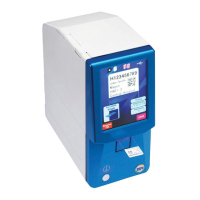
What to do if my ESPO PATH SLIDE Printer says 'Cover Open'?
- ZzfischerAug 5, 2025
If the ESPO Printer indicates a 'Cover Open' error, ensure that both the upper and front covers are completely closed. This should resolve the issue.
What to do if my ESPO PATH SLIDE Printer says 'Cover Open'?
If the ESPO Printer indicates a 'Cover Open' error, ensure that both the upper and front covers are completely closed. This should resolve the issue.
What to do if my ESPO Printer has a 'Jam Error'?
If your ESPO Printer displays a 'Jam Error', the solution is to carefully remove any obstructions, such as slide glass, that are causing the clog.
What to do if my ESPO PATH SLIDE Printer says 'Glass empty'?
If the ESPO Printer indicates that the glass is empty, replace the empty magazine with a full magazine in which slide glasses are set.
Explains the meaning of safety icons used in the manual for hazard identification.
Covers warnings about installation stability, wet hands, disassembly, defects, and grounding.
Addresses environmental, operational, wireless, and interference cautions for safe device operation.
Lists all included accessories for verification after opening the package.
Instructions for removing fixing brackets from the head unit and magazine holder.
Details on securing the fall-prevention stay to prevent device tipping during use.
Replacing caution stickers and changing the LCD language display from English to Japanese.
Identifies and describes the functions of external and internal unit components.
Explains standby screen elements and their functions on the touch panel.
Details preview, discharge modes, reprint, and print position correction functions.
Steps for opening cover, removing cassette, setting ribbon, and loading slide glass.
Instructions for connecting power/interface cables and attaching mode-specific trays.
The final step in preparation: turning on the power supply to the printer.
Steps to navigate menus to change the language to Japanese.
Setting interface, USB, LAN, and wireless LAN parameters for connectivity.
Configuring print density, power saving, and thermal head resistance.
Adjusting buzzer, firmware updates, and implementing test prints.
Details USB ID, network ports, and MAC address verification.
Scanner setup, interface, and digit restrictions for reading barcodes.
Lists common errors like ribbon end, glass empty, head break, and their solutions.
Detailed steps to remove clogged slide glass from the printer mechanism.
Illustrates removing magazine 2 for clearing clogs.
Instructions for cleaning thermal head, rollers, and dust tray using ethanol.
Warns about print quality degradation and barcode magnification problems.