FIRST STEPS
Essence|VT Easy Start
10
If Your Display Screen Goes Dim or Dark
If your display screen goes dim or dark and looks like it is off:
Your device has been pre-set to turn off (sleep mode) if you haven't made
any key activations for two minutes. The backlight on your display will
become dim. You can touch the screen or activate a switch to turn the device
back on (wake it up). If you do not wake up the device, eventually the
backlight will go out and the display will be dark. Again, just touch the
screen or activate your switch to wake up your device. It may take a minute
or two to wake up.
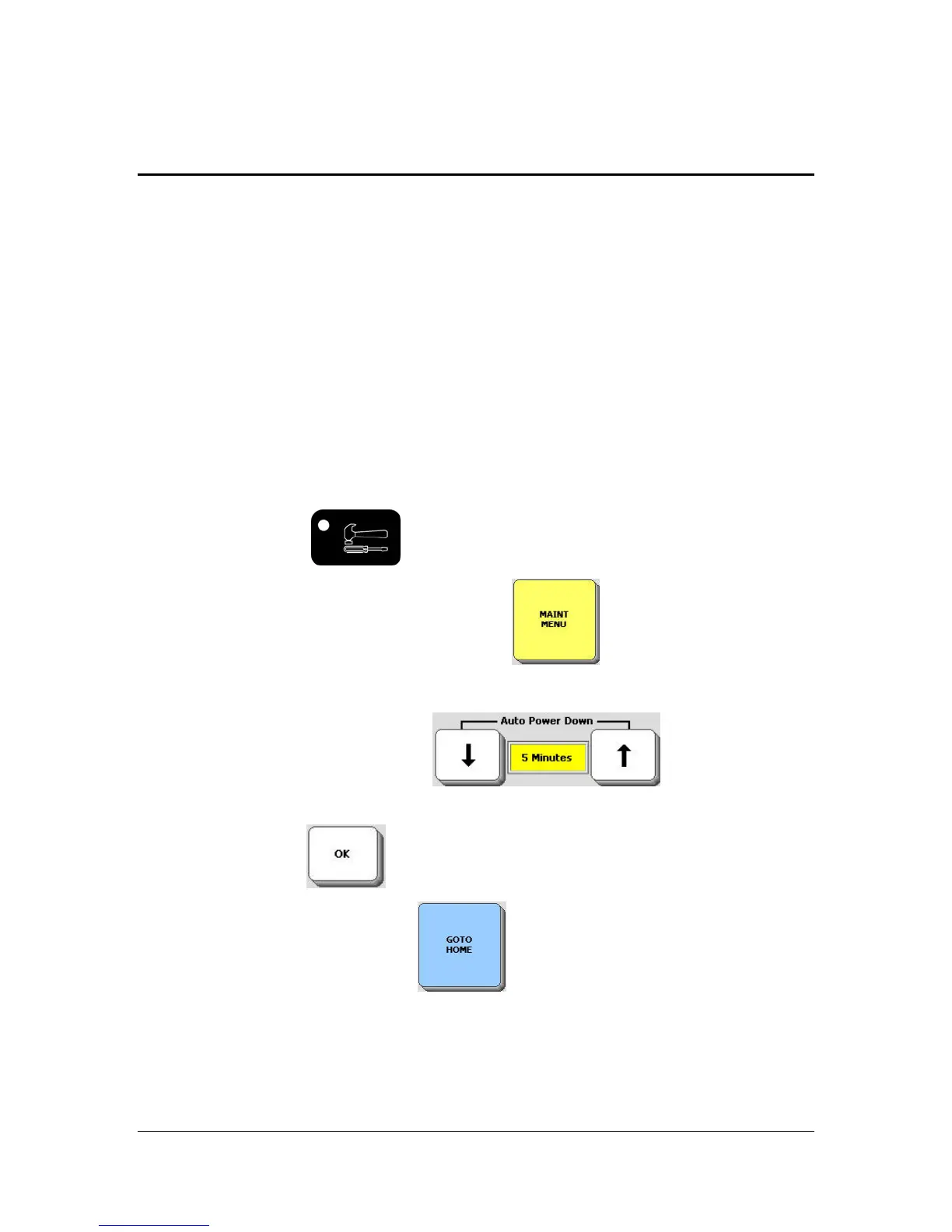
If you need more time to elapse before the screen goes to sleep, you can
change from two minutes to five or ten minutes by doing the following:.
Select the TOOLS
key on the front the case.
Select the MAINTENANCE MENU key
on your screen.
In the Auto Power Down option
use the arrow
keys to select the time you want.
Select the OK key
in the bottom right corner of the menu.
Select the GO TO HOME key
in the upper right corner.
You are back at the DIRECTORY page and ready to continue.


 To Next Page