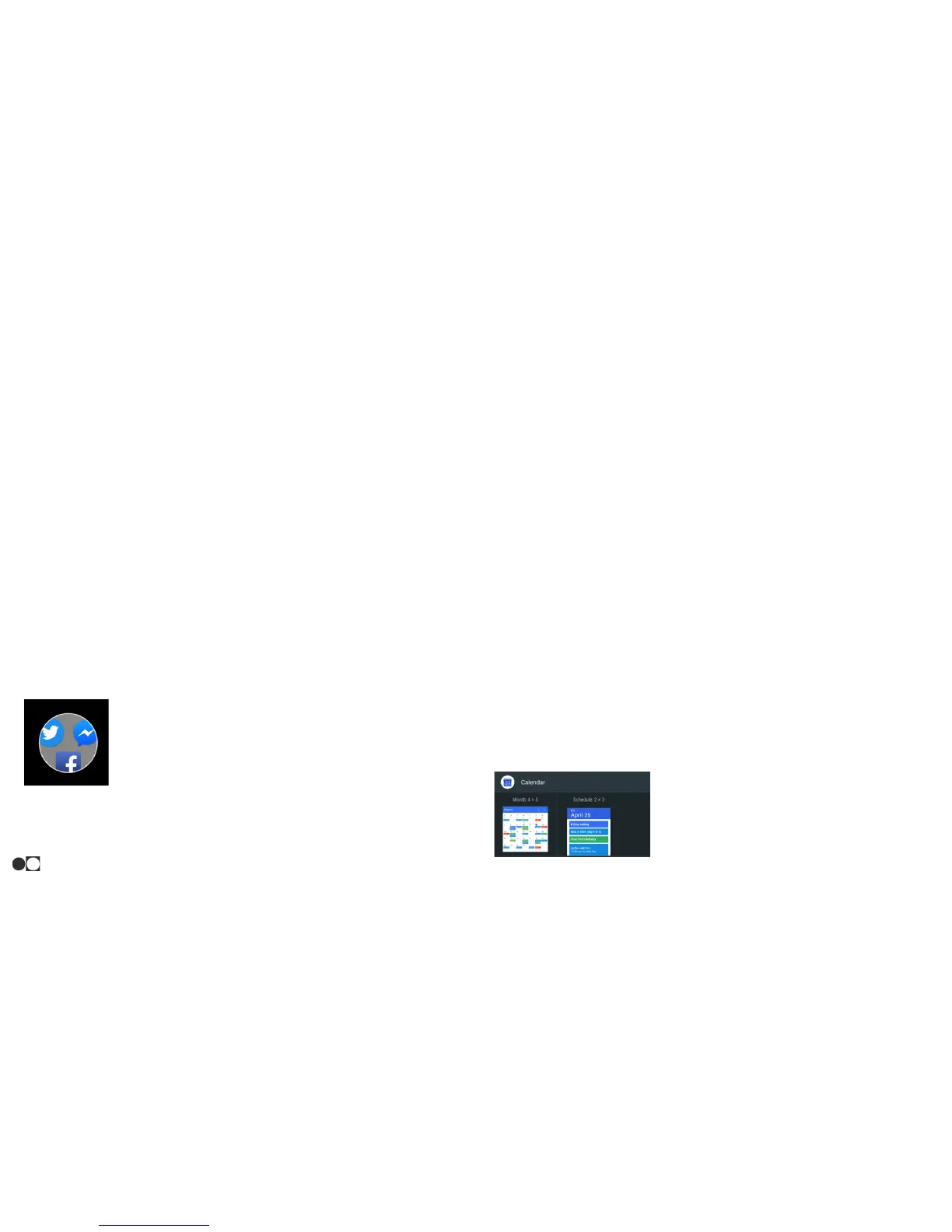
Widgets
Widgets are simple application extensions that run on a Home Screen.
There are many kinds of widgets, including links to specific contacts,
internet bookmarks, Gmail and other email accounts, and many
others.
To add a widget to a Home Screen:
1. From a Home Screen, pinch the screen or touch and hold in an
empty space.
2. Tap “Widgets.”
3. Touch and hold a widget, drag it to a Home Screen, and
release it.
To remove a widget:
1. From a Home Screen, touch and hold a widget.
2. Drag the widget to the “X Remove” option that appears at the
top of the screen and release it.
Folders
Place folders on the Home Screen to organize items.
Create a Folder
You can create an app folder on a Home Screen:
1. From a Home Screen, touch and hold an app shortcut until it is
able to be moved.
2. Drag and drop it on top of another app shortcut.
3. To give the folder a name, touch the folder to open it, select
“Unnamed Folder,” and type the desired name.
Remove a folder from the Home Screen
You can remove a folder that you add to a Home Screen the same way
you remove an app shortcut.
Get to Know Your Phone
12


 To Next Page