Camera and Video
Camera Shortcut
Open the Camera by using one of the following steps:
1. Quickly press the Power button twice.
2. While the phone is locked, swipe up from the camera icon on the bottom right corner
of the screen.
Take Pictures
Take pictures with your phone’s front or rear camera:
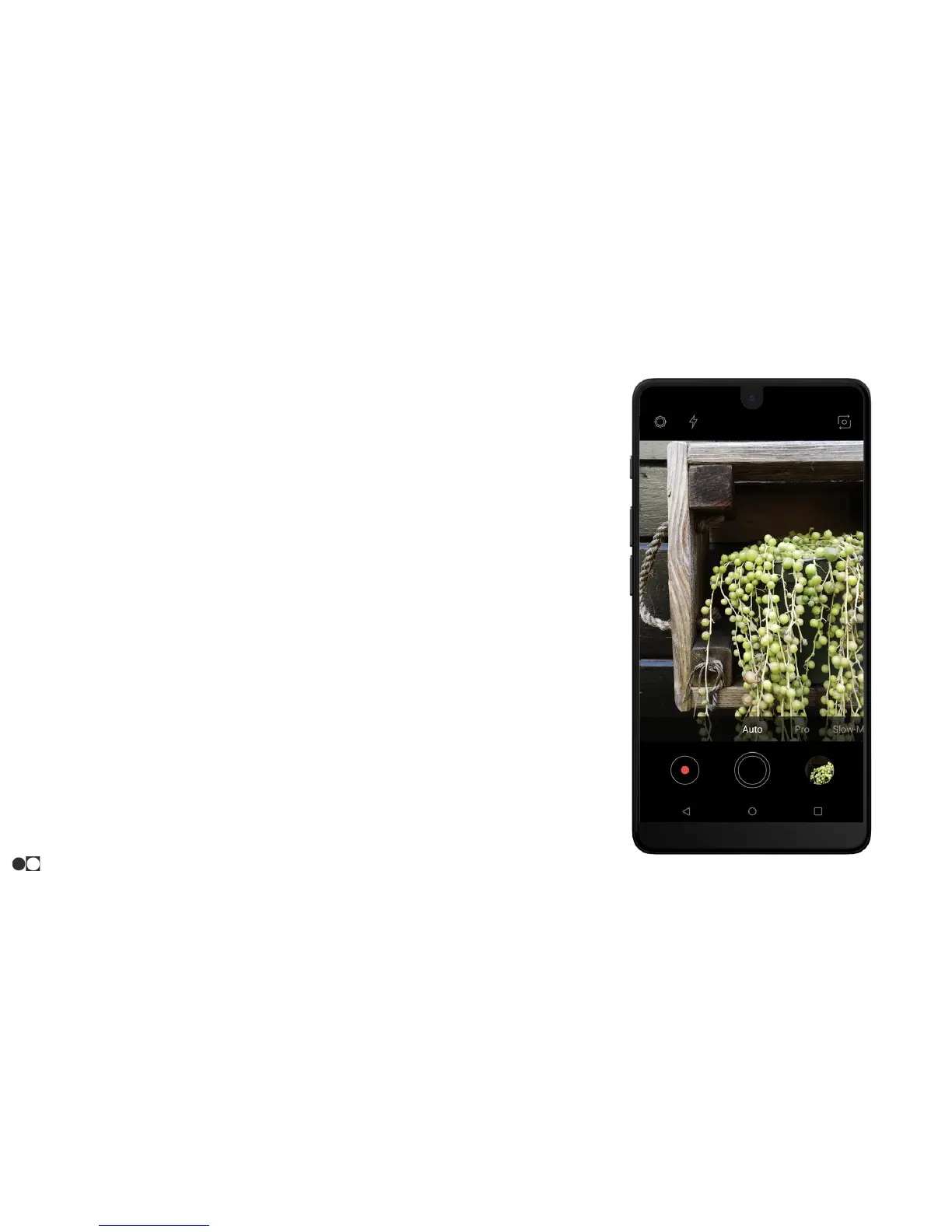
Open the Camera app and use the display screen as a viewfinder by aiming the camera at
the subject. While composing your picture, use the available options or these gestures:
● To focus the shot, tap the screen in the area where focus is desired.
● To add a shooting mode, select the desired mode from the options at the bottom of the
viewfinder.
● To switch between the front and rear facing cameras, tap Orientation button (circle with
arrows surrounding it) in the upper right corner of the screen.
● Flash can be turned on or off or set to auto by tapping the Lightning icon at the top of the
screen.
● HDR can be added or removed by tapping the HDR icon at the top of the screen.
Apps
27


 To Next Page