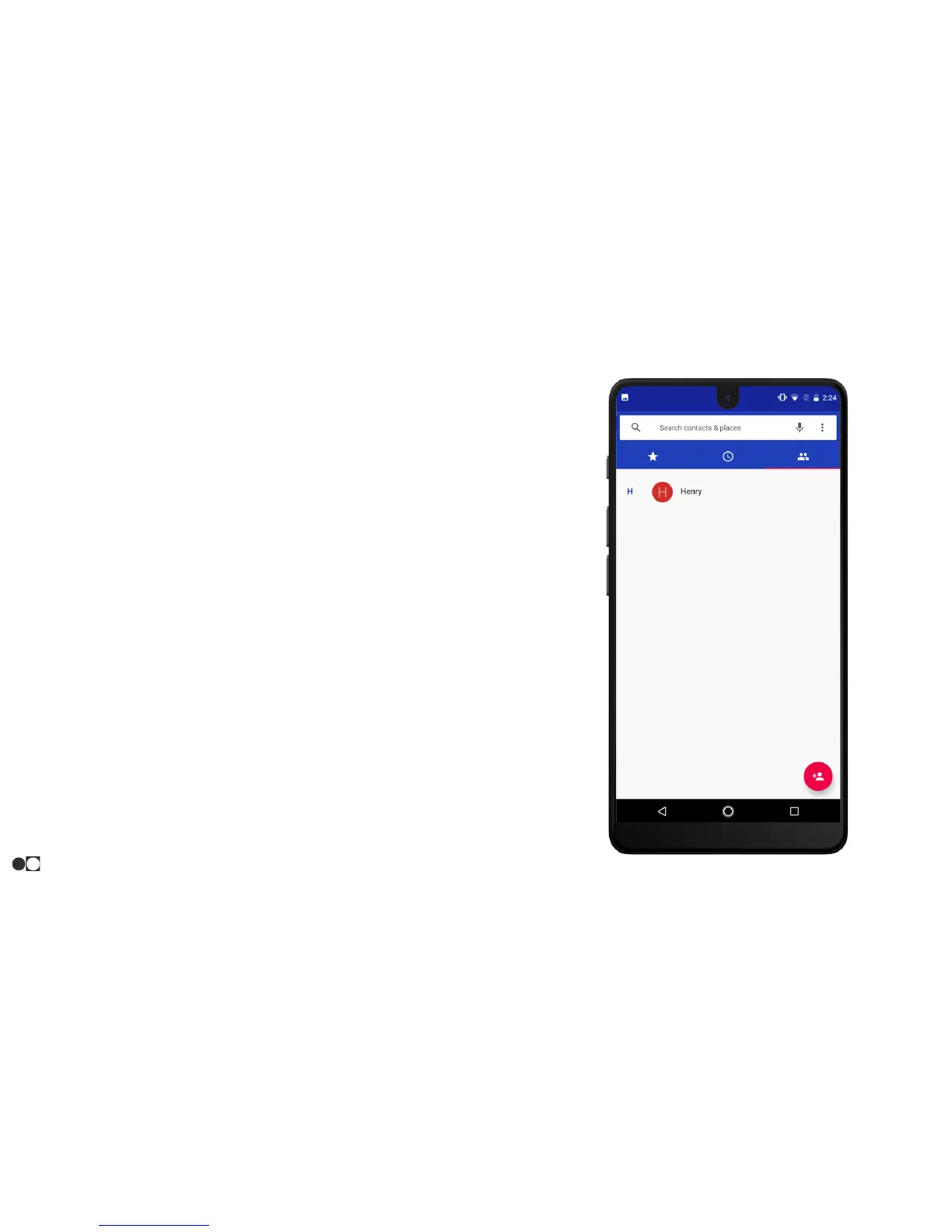
Contacts
Store and manage contacts with the Contacts app, which can be synchronized with a
variety of your existing personal accounts.
Note: The Contacts app is different from the “Contacts” tab in the Phone app. Although
both list the contacts in your phone and accounts, the available options and functions
are different.
Add a Contact
Use the following procedure to add a new contact.
1. Open the Contacts app and tap the “+” icon in the bottom right corner of the
screen.
2. Enter a name and other contact information.
○ First name, Last name, Phone and type, and Email and type.
3. Select “More fields” to reveal additional sections.
○ Phonetic last name, Phonetic middle name, Phonetic first name,
Nickname, Company, Title, Address and type, IM and type, Website,
Important date and type, Relationship, Notes, and Label.
4. Tap “SAVE” in the upper right corner of the screen to save the contact. Tap the
“X” in the upper left corner of the screen to cancel.
Apps
35


 To Next Page